 Adchestra
Cowork is for the jobs that end in a file
I asked Claude a question about my Google Ads and got an answer in the chat. Then I asked for the same thing as a task, and two minutes later I had a spreadsheet I could download. That is the whole idea of Cowork.
Claude Cowork is the part of Claude that takes a longer job, works through it in steps and hands you a finished result: a document, a spreadsheet, a slide deck. Anthropic describes it as Claude Code's way of working, for people who do not use a terminal. A normal chat answers one message at a time. In Cowork you describe the outcome, Claude shows a plan, and you can steer while it runs.
This guide shows the exact clicks to start a task with your Google Ads connected, three jobs that I ran for real, and what scheduled tasks can and cannot do. It takes about 15 minutes if you already have the connector, and I show where to find it if you do not.
What you need
- A paid Claude plan. Anthropic says Cowork is on Pro, Max, Ultra, Team and Enterprise. The free plan does not have it. I used Max.
- A place to run it. It runs in the Claude desktop app, on the web at claude.ai, and on mobile. On Pro, Max and Ultra, new tasks run in Anthropic's cloud, so your laptop can be closed. Reaching files and apps on your own computer still needs the desktop app to be open. Anthropic explains the difference in its guide to Cowork on web, desktop and mobile.
- A connector to your Google Ads. Set it up once with How to connect Claude to Google Ads and do not repeat it here. A connector you add in Claude works in chat and in Cowork. Anthropic says custom connectors work in Claude, Cowork and Claude Desktop. The one exception: a server that runs on your own computer only works in a Cowork session that runs locally, not in the cloud.
I did not add the connector again. Adchestra was already there from chat, and it was already switched on in my new task.
Start a task with the connector switched on
Anthropic's guide says to select Cowork in the message box on the Home tab. My account has the newer layout, and Anthropic says that in it there is no Cowork option: you describe your task in any conversation. That is what I saw. No button, no mode, just a normal message box on claude.ai. If your screen has a Cowork button, click it first and then follow the same steps.
- Open claude.ai and click New in the left menu.
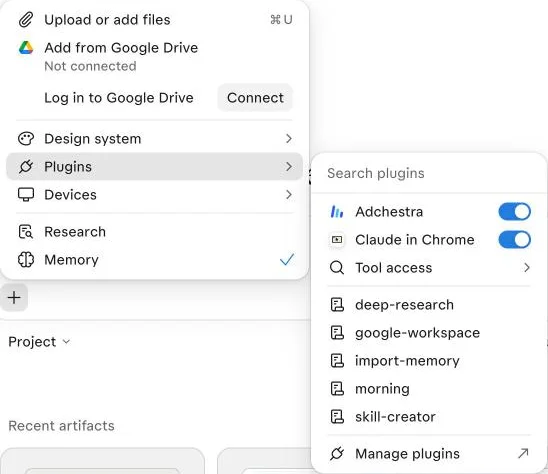
- Click the plus button in the message box, then Plugins. Your connectors are listed there with a switch each.
- Make sure the switch next to Adchestra is on. On the account I used, it was on already. If your menu says Connectors instead of Plugins, it is the same list.
- At the bottom right of the message box, click the permission setting. It shows Auto or Manual. Manual means Claude asks before it uses new tools. Auto means Claude runs on its own and stops only if something looks unsafe. I used Manual.
- Paste your prompt in one piece and press Enter.
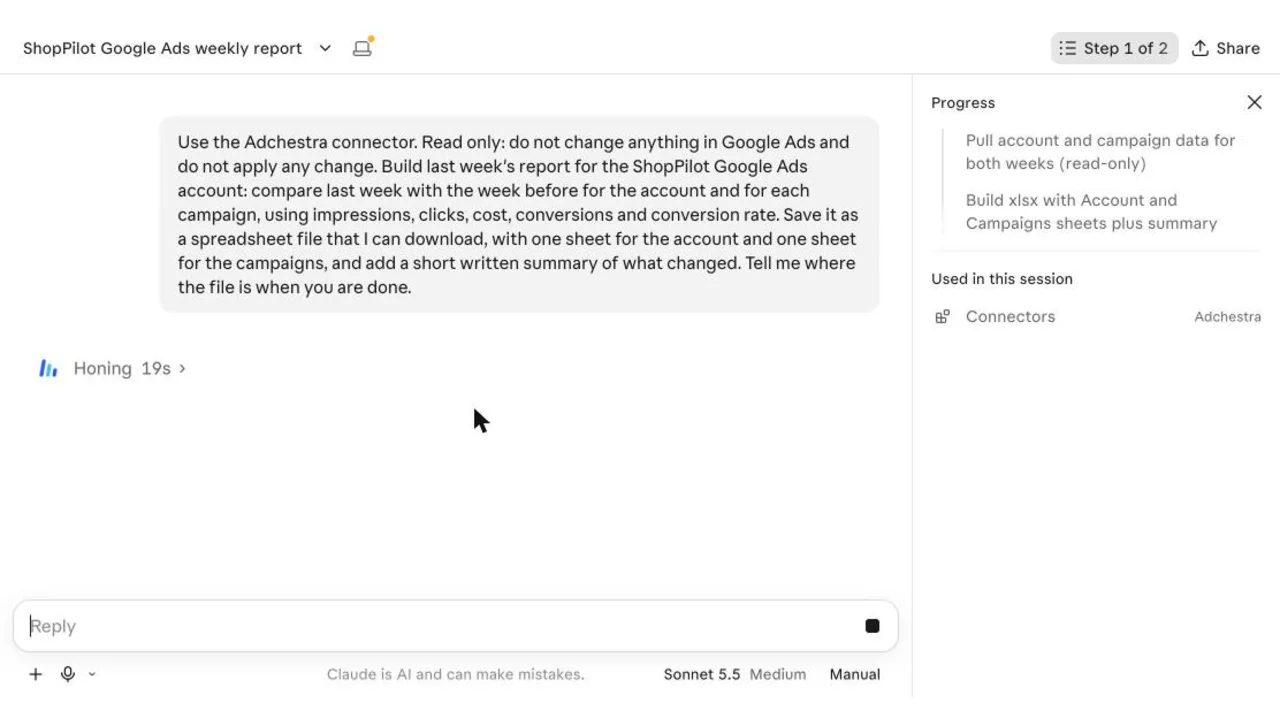
On the right, a Progress panel appears with the steps Claude plans, for example "Pull account and campaign data" and "Build the file". At the bottom of that panel, Used in this session lists the connectors Claude touched, and Outputs lists the files it made. When the job finishes, the file appears there and in the chat.
What it asks you to approve
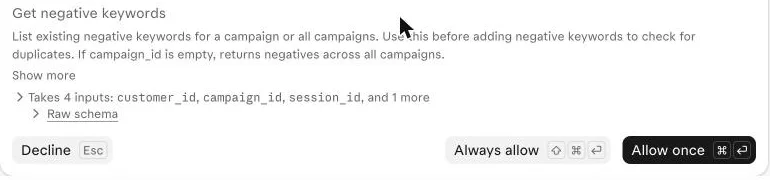
My three tasks behaved differently, and I do not know why. In the first two, Claude read my account without asking anything. In the third, it stopped before every Adchestra read and showed a card with three buttons: Decline, Always allow and Allow once. I clicked Allow once five times. I did not click Always allow, because that changes a setting you then have to find again.
Every prompt below starts with "Read only". Adchestra also shows a preview of every change and applies it only after you approve, so even a careless prompt cannot change a campaign by surprise. Do not rely on one safeguard alone, though.
Job 1: audit the account and write it into a document
A chat answer to "audit my account" scrolls away. A document stays. This is the audit from How to audit a Google Ads account with Claude, asked for as a task. I ran it as written, with my account name. Replace it with yours.
Use the Adchestra connector. Read only: do not change anything in Google Ads and do not apply any change. Audit the settings of the campaigns in the [ACCOUNT NAME] Google Ads account: for each campaign list type, status, bidding strategy, daily budget, locations, languages, networks and conversion goals. Then write the findings into a document that I can download, with a table of all campaigns and a short list of anything that looks like a mistake, each with the reason. Tell me where the document is when you are done.What happened:
- It took about a minute and a half.
- Claude listed my accounts, found two with the same name (a manager account and the account that holds the campaigns) and picked the right one by itself. It said so in one line.
- It ran two more read-only lookups, for the currency and the keyword match types, then created a document in Claude Docs. The document opened beside the chat, with a summary, a campaign table and a list of points to confirm.
- It says in the document what it did not check: ads, schedules, audiences, tracking. I like that. An honest audit lists its own gaps.
Read the document before you trust it. It is Claude's reading of your settings, and it does not know your business plan.
Job 2: build the weekly report and save it as a file
This is where Cowork beats chat most clearly. Chat gives you a table to copy. Cowork gives you a file. The method for deciding what goes in the report is in How to build a Google Ads report with AI. Here is the task version.
Use the Adchestra connector. Read only: do not change anything in Google Ads and do not apply any change. Build last week's report for the [ACCOUNT NAME] Google Ads account: compare last week with the week before for the account and for each campaign, using impressions, clicks, cost, conversions and conversion rate. Save it as a spreadsheet file that I can download, with one sheet for the account and one sheet for the campaigns, and add a short written summary of what changed. Tell me where the file is when you are done.What happened:
- It took about two and a half minutes. For part of that, the activity line said "Running a command". Claude was writing the spreadsheet with code.
- The result was an .xlsx file attached to the chat, with an Account sheet, a Campaigns sheet and the summary under the account table. It appeared in Outputs and I could open a preview in the side panel and download it.
- Claude stated the weeks it used (Monday to Sunday, with the dates) and flagged a week with no data instead of inventing a comparison. Check the dates in every report. "Last week" means different things to different people.
Job 3: review search terms and list proposed negatives
A negative keyword is a word that stops your ad from showing for searches containing it. Finding them is a long read of search terms, which suits a task. The full method is in How to find negative keywords with Claude. In this task I told Claude to propose and not to add.
Use the Adchestra connector. Read only: do not add any negative keyword and do not apply any change. Review the search terms of the [ACCOUNT NAME] Google Ads account for the last 30 days. Find the search terms that are clearly not people looking to buy what [YOUR PRODUCT] sells, and propose them as negative keywords. Write the proposal into a document that I can download, with one row per proposed negative: the keyword, the match type, the campaign it came from and the reason. Tell me where the document is when you are done.What happened:
- This was the slowest one, about five and a half minutes, because I approved each read.
- Claude first checked my existing negative keywords and the shared negative list, so it would not propose a duplicate. I did not ask for that. It is what I would do by hand.
- It built a Claude Sheets spreadsheet with 30 rows. The columns were Keyword, Match type, Campaign and Reason, plus a Notes tab with caveats. It also told me which terms it left out because they could be real buyers.
The next step is yours. Go through the rows, delete the ones you disagree with, then ask Claude in the same task to add the rest. Adchestra shows a preview and waits for your approval. Approve one change at a time.
Scheduled tasks: what the form offers
A scheduled task is a task that runs by itself on a timetable. A weekly report that appears every Monday is the obvious use. I opened the form and read it. I did not save a schedule.
- Click Scheduled in the left menu.
- Click New task. You get two choices: Create with Claude, where Claude asks questions and writes the task, or Set up manually.
- In the manual form, fill in Name and the instructions.
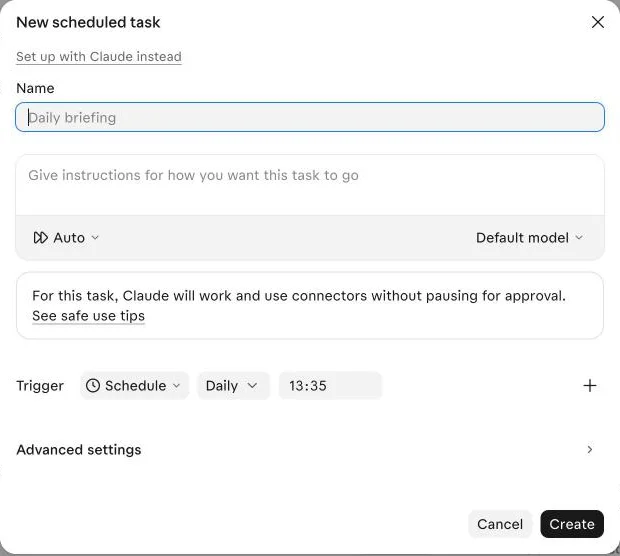
The form has these fields:
| Field | Options I saw |
|---|---|
| Permission | Manual (Claude asks before using new tools or opening new sites), Auto (runs without asking) and Skip all approvals (Claude never pauses, even for unsafe actions). A note under the field says that in Auto, Claude will use connectors without pausing for approval. |
| Model | Default model, with a menu. |
| Trigger | Schedule (run on a schedule), GitHub event (run when a GitHub webhook event fires) or API (run when your own code calls it). |
| Schedule | Hourly, Daily, Weekdays, Weekly or Monthly, plus a time. |
| Advanced settings | Three tabs: General (a repository and a project), Connectors and Notifications. |
Under Connectors the form lists Adchestra and says that Claude uses these connectors without asking, as set under Permissions. So the connector is offered to a scheduled task.
What works and what does not
I will separate what I saw from what Anthropic writes, because scheduled tasks losing their connectors is a complaint I see in several AI products.
- What I saw: the form, the fields above, and Adchestra listed under Connectors. I did not run a schedule, so I cannot tell you how a Monday run goes.
- What Anthropic documents: scheduled tasks run on Anthropic's servers, so your computer can be off, and they have the same capabilities as normal Cowork tasks, including connectors. Each run is its own session.
- The catch Anthropic documents: a connector tool set to Always ask can make a scheduled run wait for your answer or finish without that tool. If a run happens while you sleep and nobody answers, you get a task that did not do its job. Anthropic's fix is to change the task's approval mode and allow the tool.
- If you pick a folder: the task only runs while your computer is awake and the desktop app is open, according to the same page.
My advice: schedule only read-only jobs, like the weekly report. Never schedule anything that changes an account. A task that runs unattended with permission to change campaigns is the opposite of how I want my ad spend handled.
Limits and safety
- Start read only. Every prompt above says so. Say it again in every new task.
- Approve changes one at a time. Keep the permission on Manual when you let Claude propose changes. One click per change is cheap, and a wrong budget is not.
- Check the numbers. Claude pulled them from my account and wrote them into the file. It also made choices, like which week counts as last week. I check dates and one number against Google Ads before I send a report to anyone.
- Your computer. Anthropic says that Claude reaches only the folders you have connected through the desktop app, and only while it is open. It also needs your explicit permission before permanently deleting any files. For a Google Ads job you do not need to connect any folder. Do not.
- Usage. Anthropic warns that multi-step tasks use more of your allowance than quick questions. Group related jobs in one task and keep unrelated ones apart.
Frequently asked questions
Does Google Ads work in Claude Cowork?
Yes, through a connector. I ran three read-only tasks against a real Google Ads account with Adchestra and got a document, a spreadsheet and a proposal sheet. Anthropic confirms that custom connectors work in Cowork.
Do I need to add my connector again for Cowork?
No. A connector you added in Claude was already listed and switched on in my new task. Use the plus button, then Plugins (or Connectors), to check the switch.
Can I use Claude Cowork on the free plan?
No. Anthropic lists Cowork on Pro, Max, Ultra, Team and Enterprise. A free account can still use one custom connector in normal chat.
Do I need the desktop app?
Not for this. I ran my tasks at claude.ai in the browser. Anthropic says the desktop app is needed for local files, local connectors and computer use, none of which a Google Ads job needs.
Can a scheduled Cowork task send me a Google Ads report every week?
The form offers Hourly, Daily, Weekdays, Weekly and Monthly, and lists your connectors. Anthropic documents that scheduled tasks run in the cloud with the same connectors, and warns about tools set to Always ask. Test the task once by hand before you rely on it.