Choose your AI agent and follow the steps below. 💻 You will be billed directly through your AI.
Choose the AI agent you use
OpenAI
Claude
Gemini
Grok
Other agents
Try Adchestra with no commitment
Start free. No card required.
10 free MCP callsNo card and no commitment.
14 days of unlimited useAdd a card only if you want to continue. Cancel anytime.
Adchestra MCP URL
https://mcp.adchestra.com/mcp
Browser · about 3 minutes
ChatGPT web
1
Turn on Developer mode
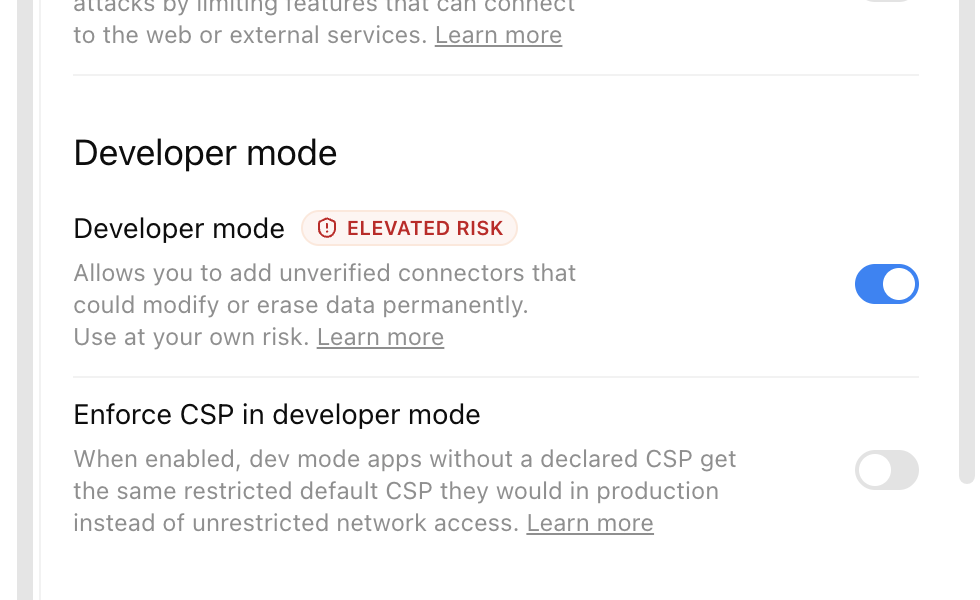
Open your profile menu, choose Settings → Security and login, scroll to Developer mode and turn it on. If the switch is missing or locked, ask your workspace administrator to allow it.
2
Open the plugin library
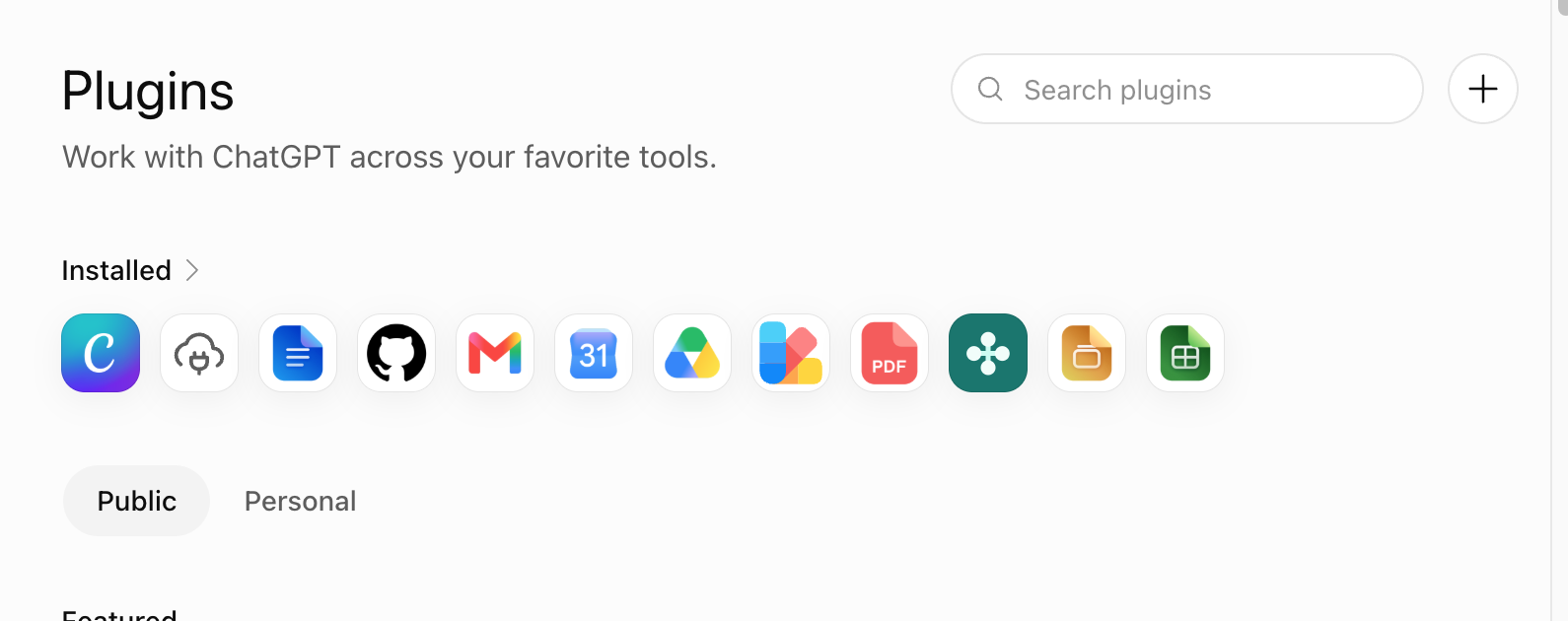
Select Plugins in the ChatGPT sidebar. On the Plugins page, select the plus button beside the search box.
3
Enter the Adchestra details
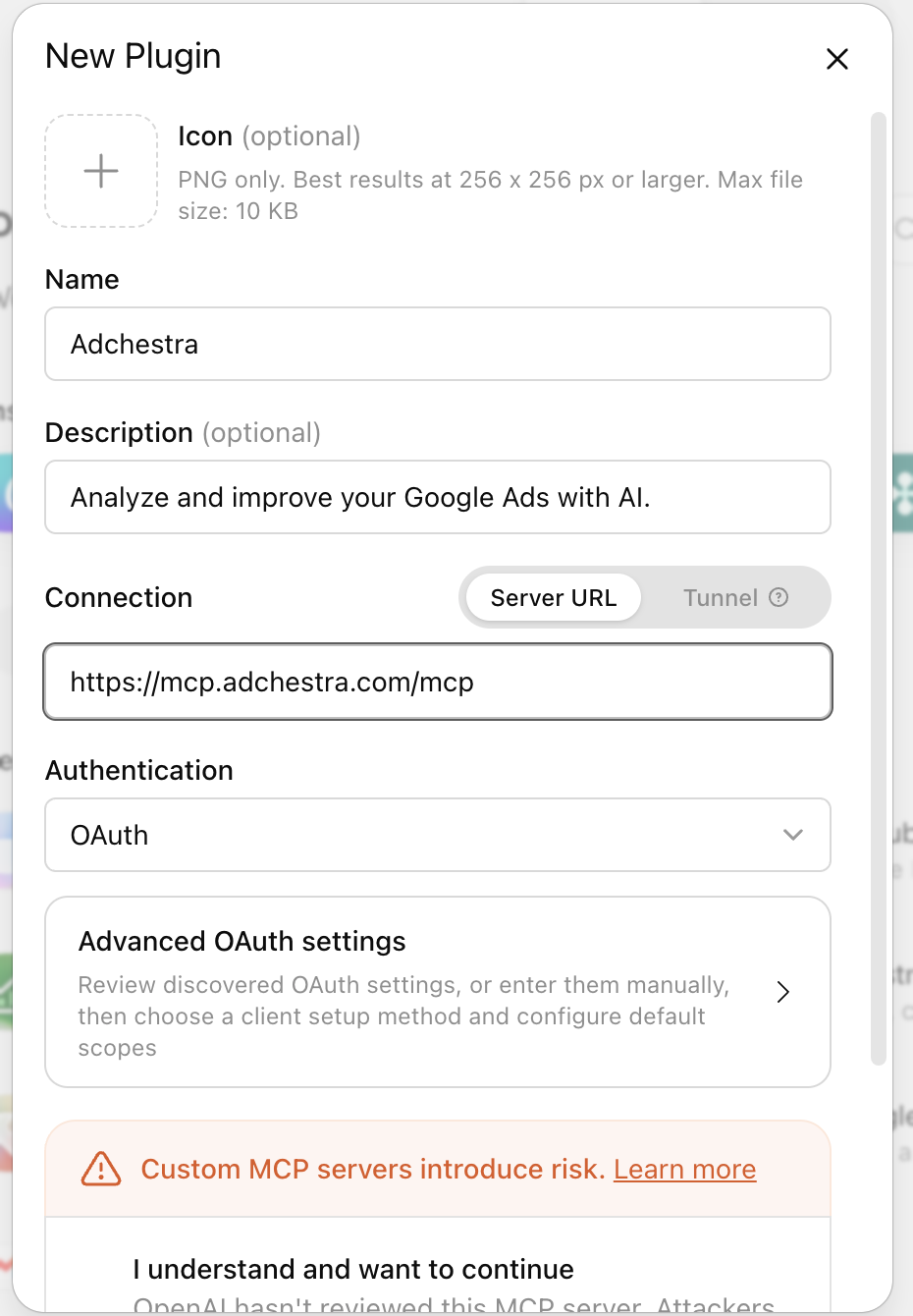
Set the name to Adchestra. Choose Server URL, paste the MCP URL shown above and keep OAuth selected. The description and icon are optional.
4
Create and sign in
Read and accept ChatGPT’s custom-server warning, then select Create. On the next screen select Sign in with Adchestra.
5
Approve Google access
Choose the Google account that can access your marketing accounts. Review the permissions and continue. When Google returns you to ChatGPT, Adchestra should say Connected.
6
Add Adchestra to a chat
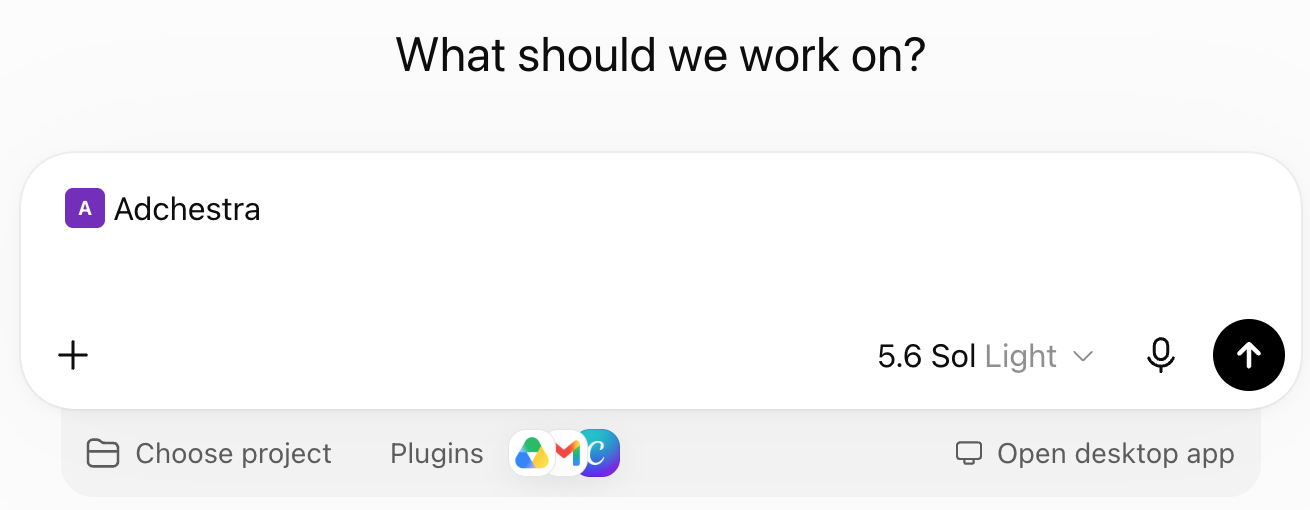
Start a new chat and select the plus button in the message box. Type Adchestra, select it, then ask your first question.
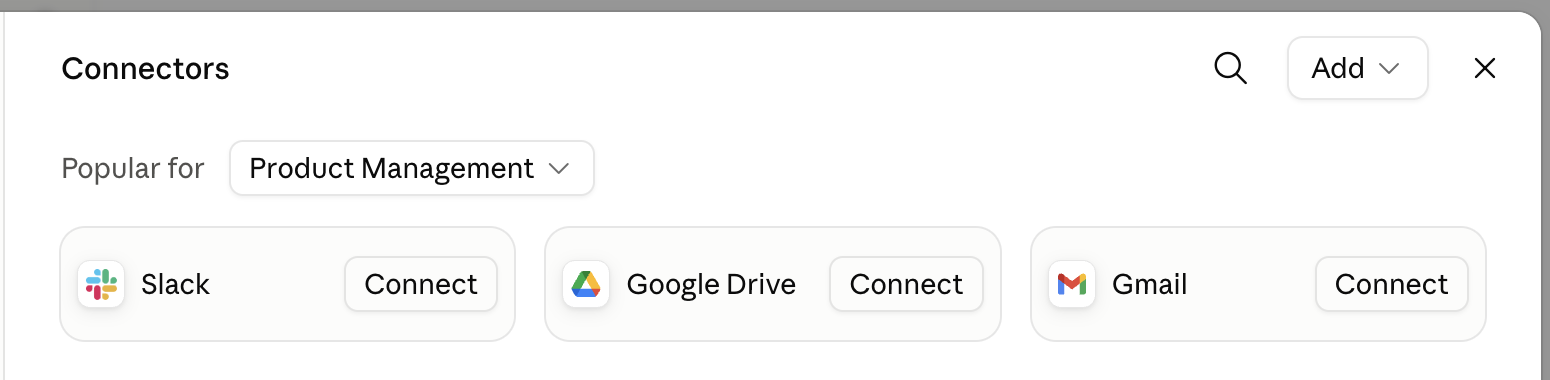
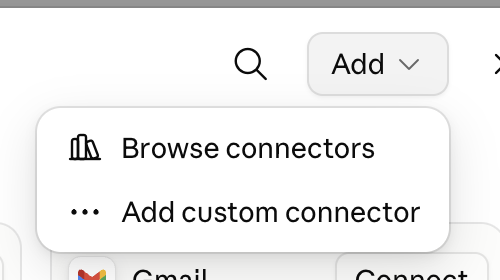
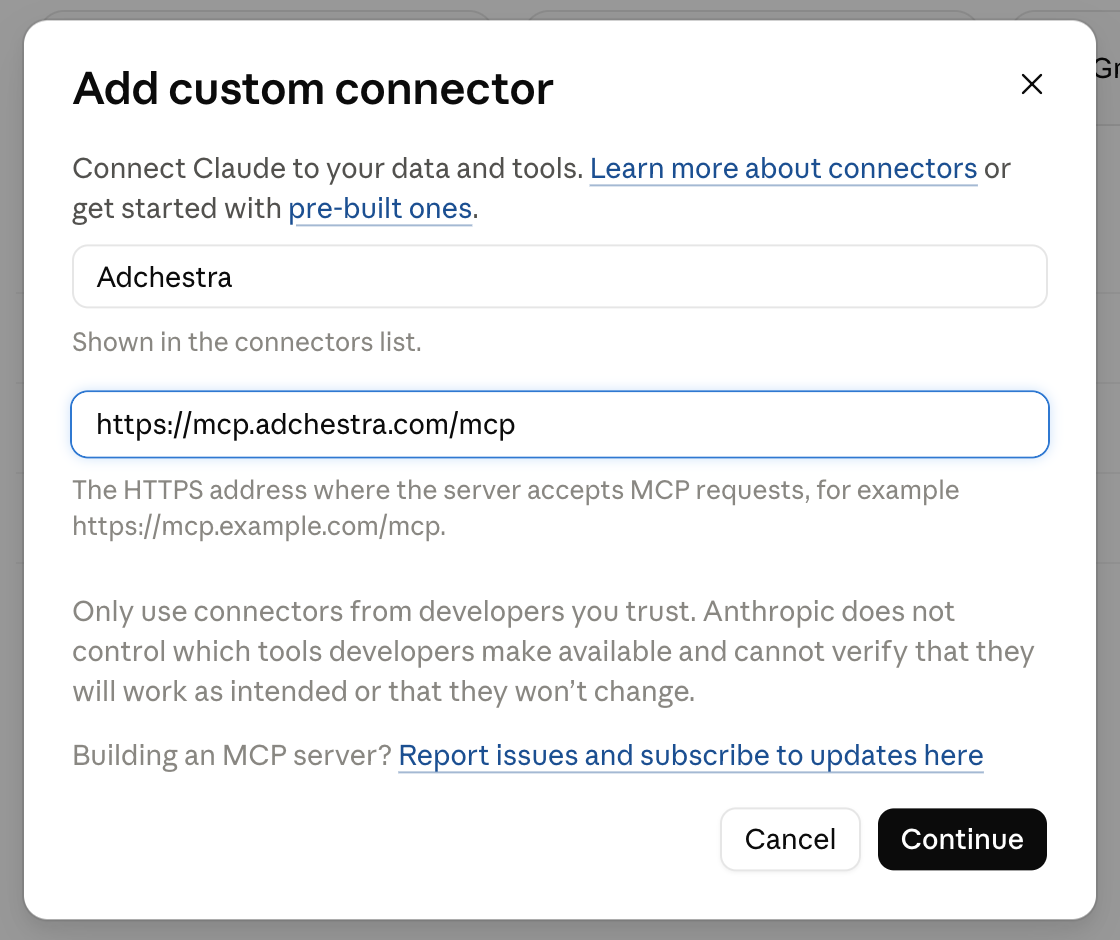
Set the name to Adchestra, paste the MCP URL shown above, then select Continue.
3
Keep the OAuth settings
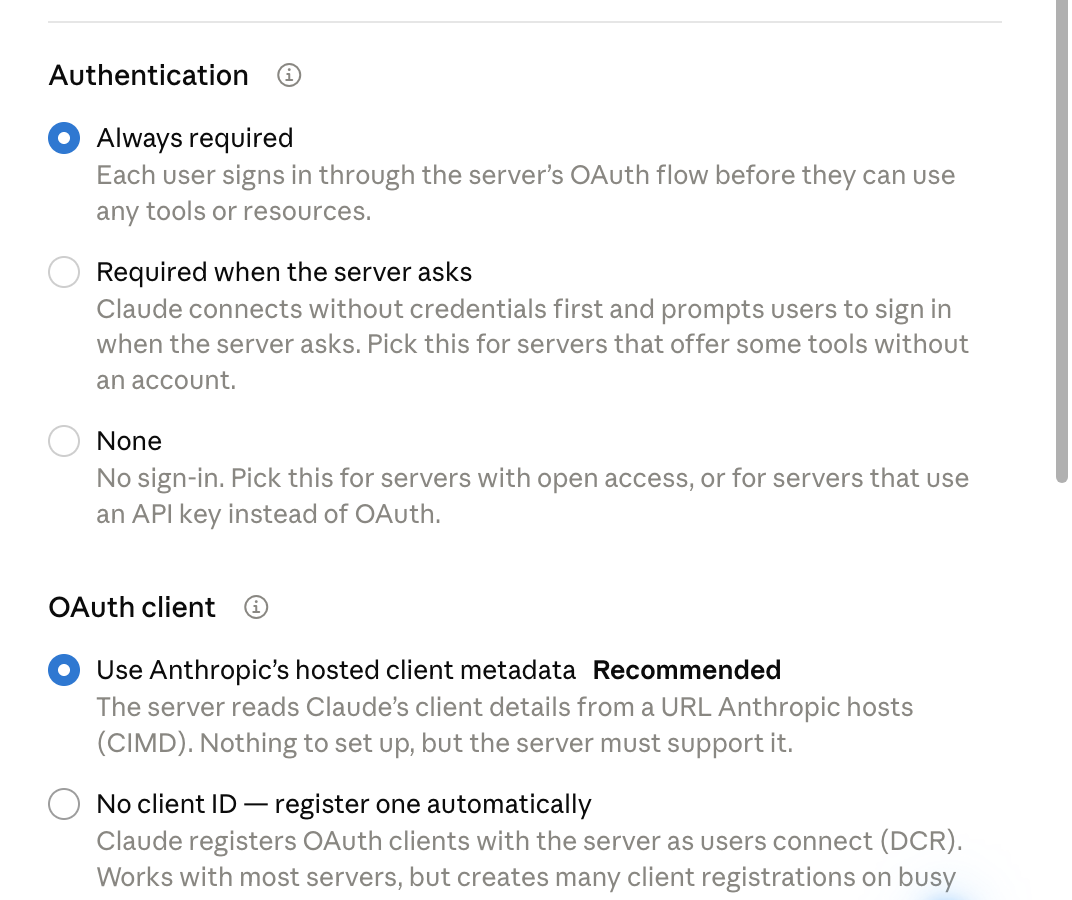
Claude checks the server. Keep Always required selected for Authentication. Under OAuth client, keep Use Anthropic’s hosted client metadata selected, then select Add.
4
Connect your Google account
On the Adchestra connector page, select Connect. Choose the Google account that can access your marketing accounts, review the permissions and continue.
5
Start using Adchestra
Close Settings and start a new conversation. Ask Claude to use Adchestra. If it does not select the connector automatically, open the plus menu, choose Connectors and select Adchestra.
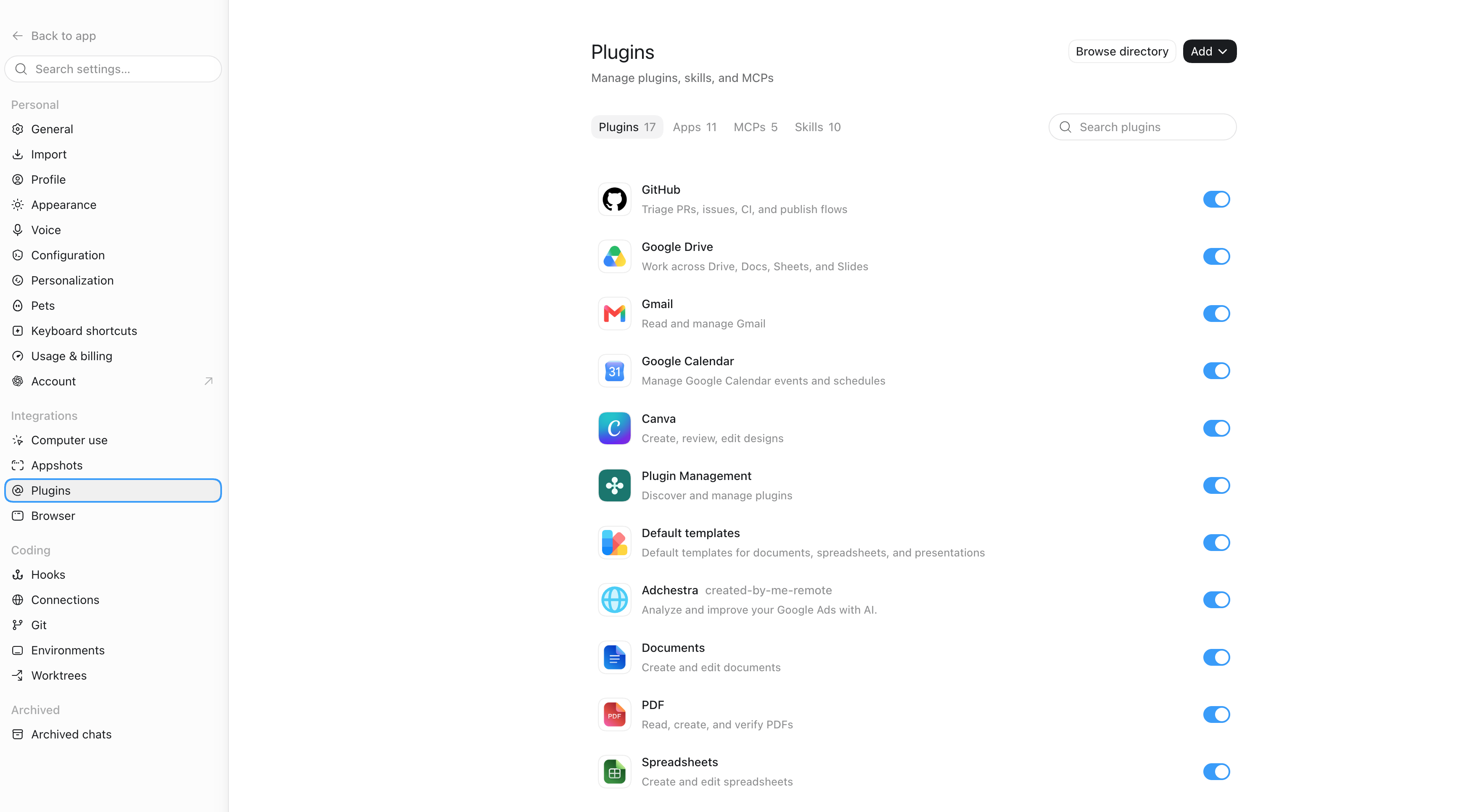
Open your profile menu, select Settings, then select Plugins under Integrations.
2
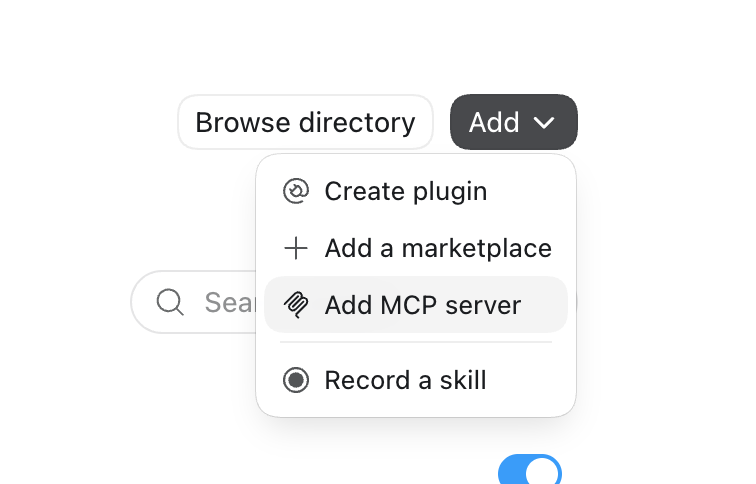
Choose Add MCP server
Select the MCPs tab. Open the Add menu and select Add MCP server.
3
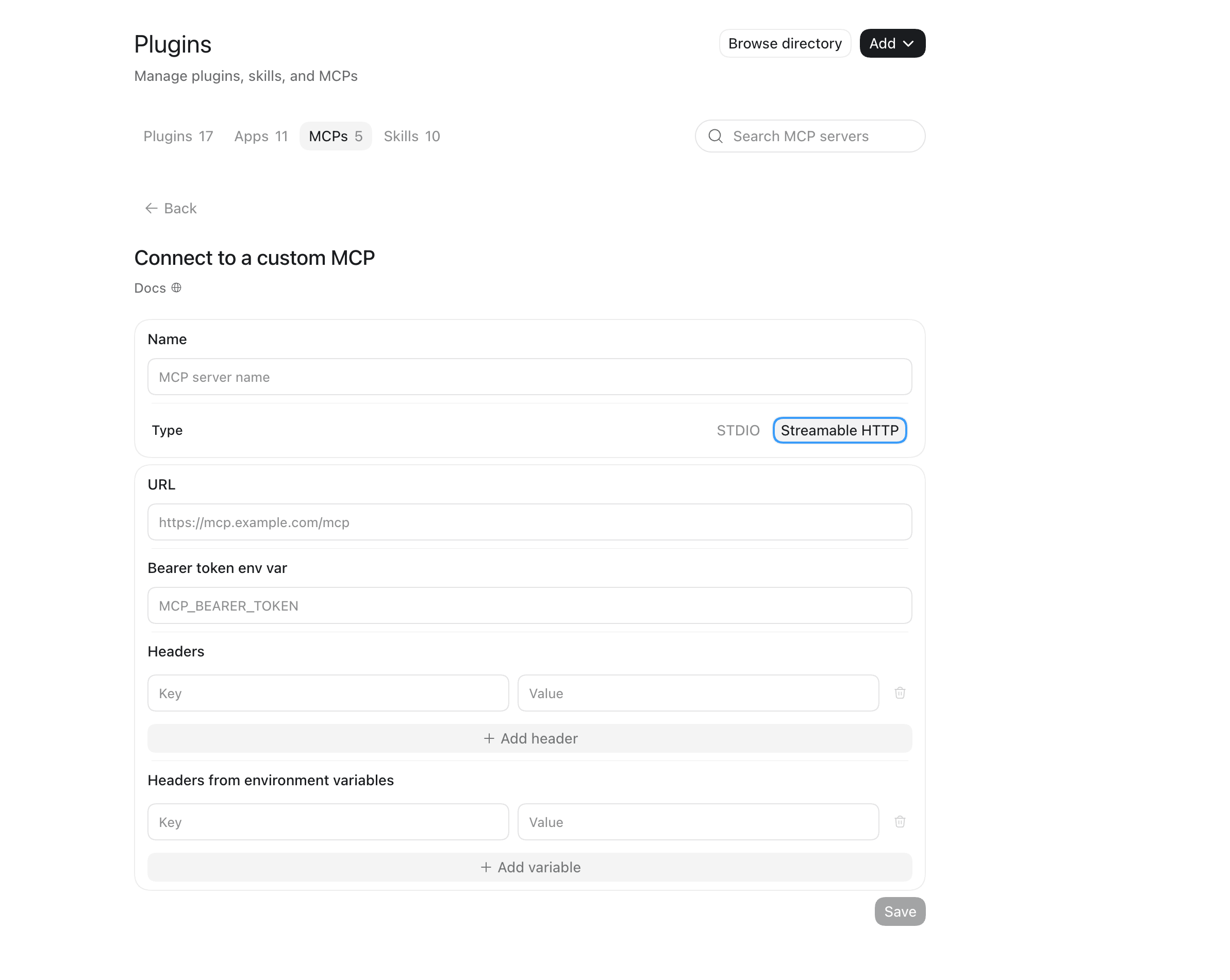
Enter the Adchestra details
Set Name to Adchestra, choose Streamable HTTP and paste the MCP URL shown above into URL. Leave the bearer-token and header fields empty, then select Save.
4
Complete authentication
If the browser sign-in opens automatically, choose the Google account that can access your marketing accounts, review the permissions and continue. If Adchestra instead shows that OAuth is required, open its MCP entry and select Authenticate.
5
Check the connection
Return to the MCPs tab and confirm Adchestra is enabled. Start a new task, then ask Codex to list the Google Ads accounts available through Adchestra.
claude mcp add --transport http adchestra --scope user https://mcp.adchestra.com/mcp
2
Open Claude Code
Run claude inside a project folder you trust. Approve the folder-trust prompt if Claude Code shows it.
3
Open the MCP panel
Enter /mcp. Find adchestra · needs authentication, use the arrow keys to highlight it and press Enter.
4
Authenticate in your browser
Follow the browser sign-in flow. Choose the Google account that can access your marketing accounts, review the permissions and continue. Claude Code stores and refreshes the OAuth connection for you.
5
Check and test
Return to /mcp and confirm Adchestra says connected. Then ask Claude to list the Google Ads accounts available through Adchestra.
Codex detects Adchestra’s OAuth support and starts authentication immediately. Follow the browser window it opens, choose the Google account that can access your marketing accounts, review the permissions and continue. If the browser does not open, copy the authorization URL printed in the terminal and open it yourself.
3
Check the connection
After the terminal says Successfully logged in, run codex mcp list. Adchestra should show enabled with OAuth authentication.
4
Test it
Start Codex and ask it to list the Google Ads accounts available through Adchestra.
Install Gemini CLI using Google’s current instructions, then run gemini. Complete Gemini’s own authentication first using a method available to your Google account: a supported Google sign-in, Gemini API key or Vertex AI.
2
Use a trusted folder
Open Gemini CLI from a folder you trust and approve its folder-trust prompt. Gemini suppresses user-level MCP servers in untrusted folders.
3
Add Adchestra for your user
Run this command:
gemini mcp add --transport http --scope user adchestra https://mcp.adchestra.com/mcp
4
Authenticate Adchestra
Start Gemini CLI and enter /mcp auth adchestra. Choose the Google account that can access your marketing accounts, review the requested permissions and continue.
5
Check the connection
Enter /mcp list. Adchestra should appear as connected with its available tools.
6
Ask your first question
Ask Gemini to use Adchestra for your Google marketing request.
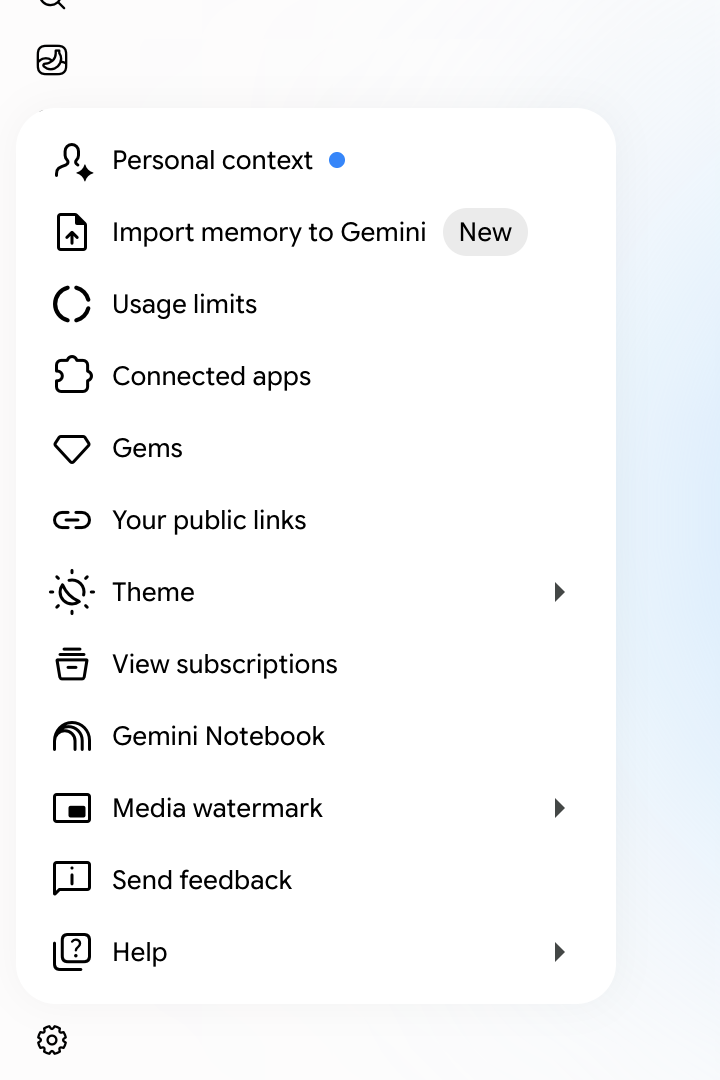
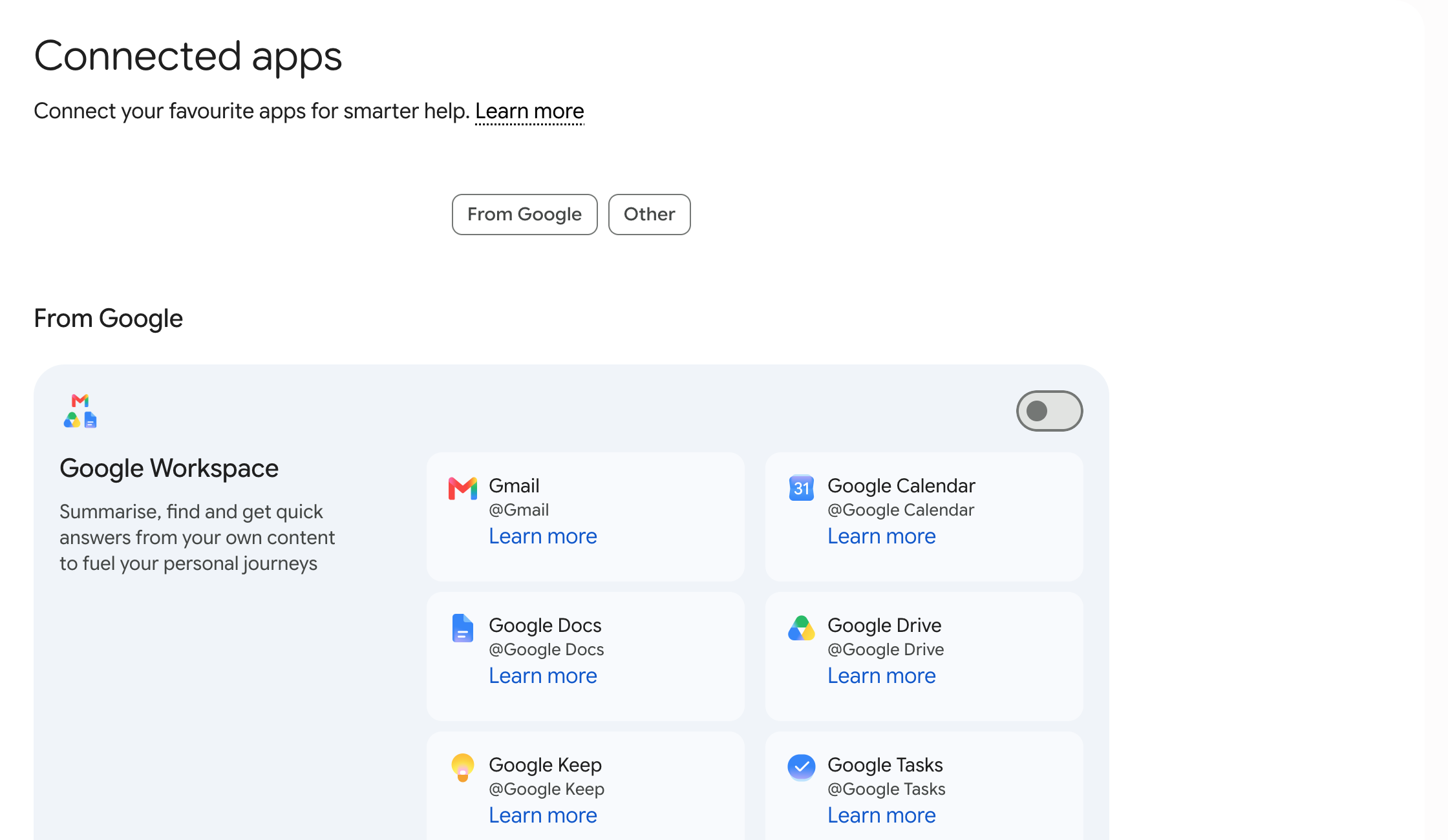
Select Settings at the bottom-left of Gemini, then select Connected apps.
3
Find “Add a custom app”
The Connected apps page opens. Scroll to Custom apps for Spark and select Add a custom app. Spark is not another website: it is Google’s name for the task and workflow mode inside Gemini where custom MCP apps currently work.
4
Paste the Adchestra MCP URL
Paste the MCP URL shown above into Add a custom app, then select Next. Leave Advanced features empty because Adchestra uses browser-based OAuth.
5
Approve the connection
Follow Gemini’s on-screen instructions. Choose the Google account that can access your marketing accounts, review the requested permissions and continue. Return to Connected apps and confirm that Adchestra is switched on.
6
Ask Gemini to use Adchestra
Open or create a task in Gemini. Type @ in the prompt, select Adchestra, then enter your Google marketing question.
Enter the MCP URL shown above and continue. Adchestra uses browser-based OAuth, so do not add a bearer token or custom authorization header. Complete the sign-in flow, choose the Google account that can access your marketing accounts, review the permissions and approve them.
4
Ask your first question
Start a Grok conversation and ask it to list the Google Ads accounts available through Adchestra. Grok discovers the connector’s tools and can select them automatically when they are relevant.
Your tool must support remote MCP servers using Streamable HTTP and browser-based OAuth. If it supports only local STDIO servers, it cannot connect directly.
2
Add a remote MCP server
Open the tool’s MCP, integrations or connectors settings. Choose Remote or Streamable HTTP, name the server Adchestra and paste the MCP URL shown above.
3
Authenticate
Select Connect, Authenticate or the equivalent action. Complete the browser sign-in flow and approve the Google account you want Adchestra to use.
4
Verify and start
Confirm that the client lists Adchestra’s tools, then ask it to list the Google Ads accounts available to you.
Before you start
Have the Google account that can access your marketing accounts ready.
Use the Adchestra MCP URL below exactly as written.
Your AI tool will open Google sign-in. Review the requested permissions, then approve them.
Data notice: Adchestra accesses only the Google services you approve. When you ask a question, the requested Google data is returned through Adchestra to the AI agent you chose so it can answer you. The AI provider handles that result under its own terms. Adchestra does not sell Google user data or use it to train general-purpose AI models. See our Privacy Policy.
Adchestra authentication and billing stay inside the MCP app. This public guide never asks for your password or payment details.
If the connection does not work
Confirm the Adchestra MCP URL ends in /mcp.
Make sure you signed in with a Google account that can access the Ads account you need.