 Adchestra
They are two different tools, and they work best together
In 2017 someone posted a job on Upwork: a script that alerts them when a Google Ads budget runs out. They offered $200. Today you can get the same script from an AI assistant in about a minute.
That does not mean AI replaces scripts. A Google Ads script is a small JavaScript program that you enter in your account and Google runs for you, on a schedule, with nobody watching. An AI assistant connected to your account (Claude or ChatGPT with a connector) answers questions and does work when you ask. The script is a smoke alarm. The assistant is a smart colleague. You do not choose one over the other.
This guide tells you which job goes to which tool, gives you a budget alert script I tested, the prompt that produces such scripts, and three more ideas. It takes about 30 minutes, and most of that is pasting.
Which tool for which job
| Job | Use | Why |
|---|---|---|
| Email me when a campaign has spent most of its daily budget | Script | The check is identical every time and it must run when I am asleep. A script runs on Google's side with nothing open on my computer. |
| Find ads with broken final URLs, every day | Script | Same check, every day, no opinion needed. The answer is a list of URLs. |
| Copy yesterday's stats into a Google Sheet, every morning | Script | It is a copy job. It should happen whether or not I remember to ask. |
| Why did my cost go up this week? | AI assistant | The question changes every time. The answer needs comparing periods, checking changes and explaining it in words. |
| Which search terms are junk for my business? | AI assistant | This is judgement about intent. A script cannot tell "free birth chart" from "birth chart reading". See how to find negative keywords with Claude. |
| Write the monthly report in plain words | AI assistant | The numbers are easy. Turning them into a story is the job. |
| Draft new ads, keywords or a campaign | AI assistant | It needs creative work, and I want to read and approve every change before it happens. |
| Something that must happen at 3 a.m. | Script | An assistant does nothing until you ask. A script has a schedule. |
| A script I do not know how to write | Both | Ask the AI to write the script. Let Google run it. |
The last row is my honest advice. AI is good at writing the boring code. Scripts are good at running it every day without complaint. Use each for what it is good at.
Where each one fails
Scripts
- You must write and maintain code. I know this one well. For the Novilunar campaign I run my account through the API with 19 Python scripts, about 2,400 lines, with six credential values to keep safe. I wrote a README just to remember what each one does. Google Ads scripts are much lighter than that, because they run inside your account and need no credentials, but the code is still yours. When Google changes something, it breaks on your watch.
- Time limit. A script that runs longer than 30 minutes is stopped. Changes made before that moment stay. Big accounts hit this.
- Other limits. By default an iterator returns at most 50,000 results, and Google says these limits can change without notice. Sending email also has a daily quota, described in Google's MailApp reference.
- Authorization trips people up. A user on Google's help forum reports an authorization error when running a script that exports data.
- It does exactly what you wrote, forever. A script that changes your account, left alone, makes the same mistake every hour. Start with scripts that only report.
AI assistants
- They do nothing until you ask. No question, no check. A budget can run out overnight and the assistant will not notice.
- Scheduled runs are still unreliable. People report that ChatGPT scheduled tasks are blocked from sending email and writing to Sheets, and that Claude cloud scheduled tasks cannot reach Google APIs. This may be fixed by the time you read it. I would not trust my budget alarm to it.
- It can be wrong. You will see an example of that in step 5.
Ask an AI to write the script
Open any AI assistant. No connection to your account is needed, because the AI only writes code. It never touches your ads. This is the prompt.
Change the email address and the 80 percent. Keep the rules. The last two rules matter most: AI assistants like to invent methods that do not exist, and a script that fails silently is worse than no script.
Write a Google Ads script (JavaScript, using the AdsApp API) that emails me when any enabled campaign has spent more than 80% of its daily budget today.

Rules:
1. One main() function. No external libraries.
2. Put my email address and the 80% threshold in variables at the top.
3. It must only read. It must never change anything in the account.
4. Use MailApp.sendEmail. If the script runs as a preview, do not send; log what the email would say.
5. Always log one line with how many enabled campaigns it checked, so I can tell "all fine" from "found nothing to check".
6. Use only methods you are sure exist in the Google Ads scripts reference. If you are not sure about one, say so instead of guessing.
7. After the code, tell me exactly where to paste it and how to preview it safely.The script, tested
Here is the whole script. I did not paste it in blind. First I ran it on my own computer against four fake campaigns: one at 93 percent of budget, one at 20, one with a budget of zero, and one at exactly 80. It reported only the first, ignored the zero budget instead of dividing by it, and treated exactly 80 as not over. It also logged "Checked 0 enabled campaigns" when I gave it none.
// Daily budget alert.
// Emails you when an enabled campaign has spent more than ALERT_SHARE
// of its daily budget today. Run it on a schedule.

var EMAIL = 'you@example.com';
var ALERT_SHARE = 0.8; // 0.8 means 80% of the daily budget

function main() {
  var currency = AdsApp.currentAccount().getCurrencyCode();
  var campaigns = AdsApp.campaigns()
      .withCondition('campaign.status = ENABLED')
      .get();

  var checked = 0;
  var lines = [];

  while (campaigns.hasNext()) {
    var campaign = campaigns.next();
    var budget = campaign.getBudget().getAmount();
    var spent = campaign.getStatsFor('TODAY').getCost();
    checked++;
    if (budget <= 0) {
      continue;
    }
    var share = spent / budget;
    if (share > ALERT_SHARE) {
      lines.push(campaign.getName() + ': ' + Math.round(share * 100) +
          '% of the daily budget (' + spent.toFixed(2) + ' of ' +
          budget.toFixed(2) + ' ' + currency + ')');
    }
  }

  Logger.log('Checked ' + checked + ' enabled campaigns. ' +
      lines.length + ' over ' + Math.round(ALERT_SHARE * 100) + '%.');

  if (lines.length === 0) {
    return;
  }

  var subject = 'Google Ads budget alert: ' + lines.length +
      ' campaign(s) over ' + Math.round(ALERT_SHARE * 100) + '%';
  var body = lines.join('\n') +
      '\n\nAccount: ' + AdsApp.currentAccount().getName();

  if (AdsApp.getExecutionInfo().isPreview()) {
    Logger.log('Preview: no email sent. It would say:\n' + subject + '\n' + body);
    return;
  }
  MailApp.sendEmail(EMAIL, subject, body);
  Logger.log('Email sent to ' + EMAIL);
}
Two details are worth knowing. getStatsFor('TODAY') reads today's spend, and Google notes on its own overview page that reporting is not carried out in real time, so the alert can run a little behind. And the share is spent divided by budget, so a campaign that shares a budget with others will show the shared amount.
Paste it into Google Ads and preview it
I did this in my ShopPilot account. My menus say "Authorise" because my account is set to British English. Yours may say "Authorize".
- In Google Ads, click Tools in the left menu, scroll down, open Bulk actions and click Scripts.
- Click the blue plus button, then New script. The other choice, Start from a template, is where Google keeps ready-made scripts.
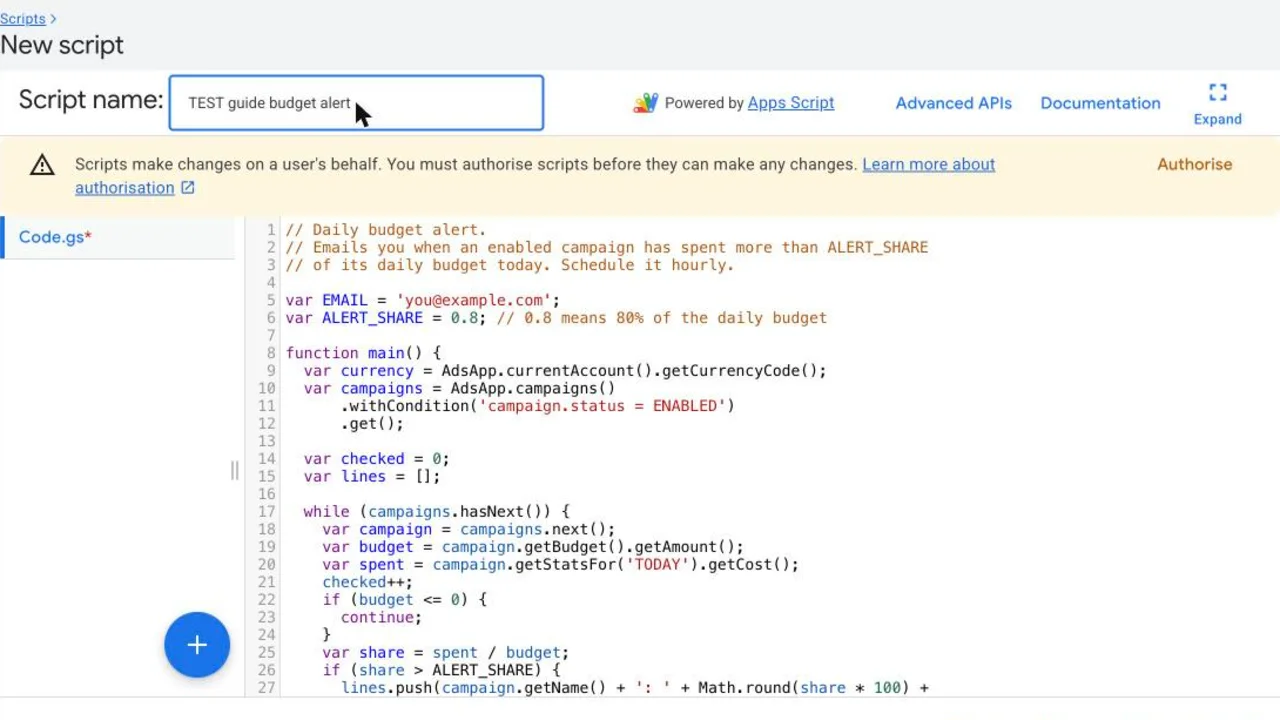
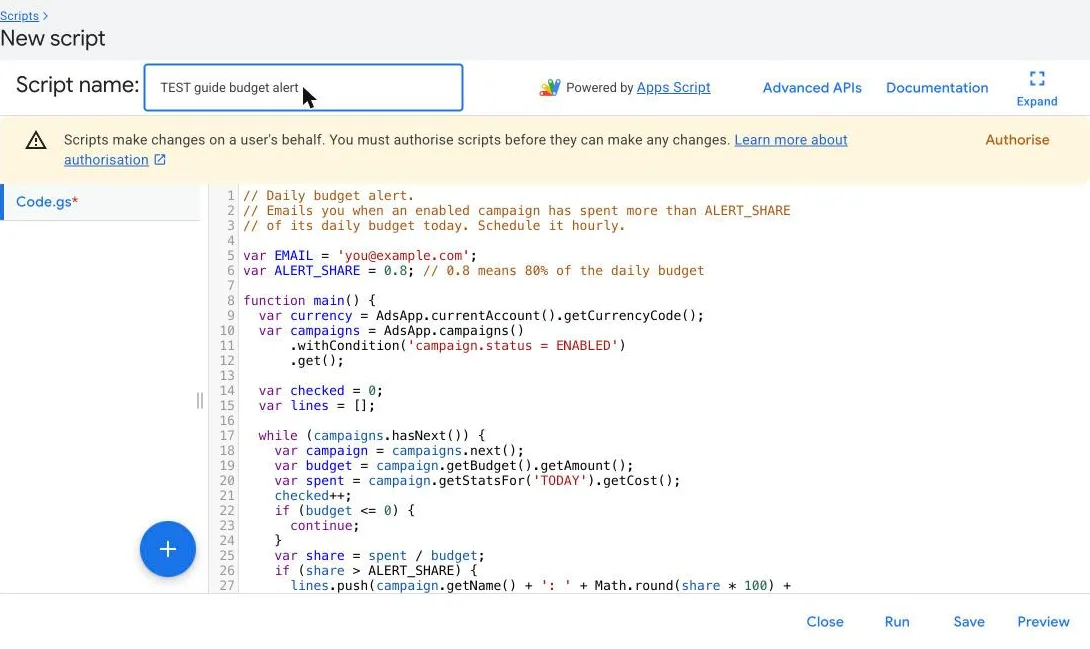
- Replace Unnamed script in the Script name field with a name you will recognise, such as
Budget alert. - Click inside the editor, select everything in Code.gs (it holds an empty
main()) and paste the script. Changeyou@example.comto your address. - Click Authorise in the yellow bar. Google says you must authorise a script before previewing or running it, and then asks you to click Authorize now and Grant access. A Google window opens. Approve it there, and the yellow bar disappears.
- Click Preview, not Run. A preview shows the results before you run the script. Open the Logs tab at the bottom.
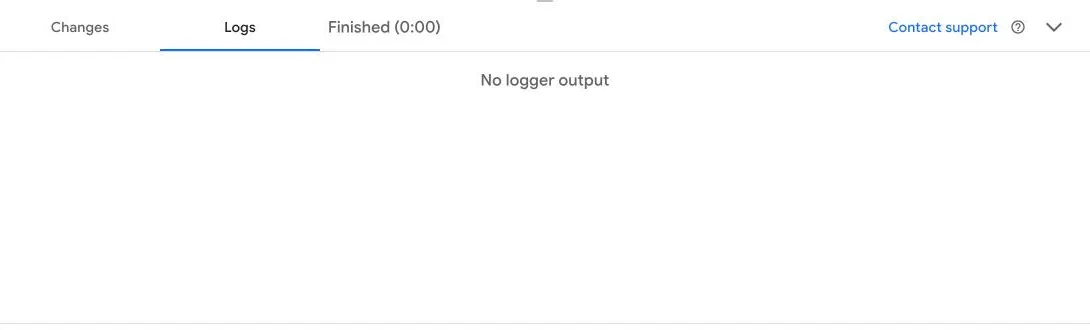
The Logs tab should show a line like Checked 6 enabled campaigns. 0 over 80%., with your own number of campaigns. Mine took five seconds. If a campaign is over your threshold, the log also shows Preview: no email sent. It would say: followed by the email, one line per campaign, such as My campaign: 93% of the daily budget (13.95 of 15.00 USD).
One trap I walked into. When I clicked Preview before authorising, it finished in two seconds and the Logs tab said No logger output. If you see that, authorise first and preview again.
Do not click Run to test. Run is the real thing, and it will send the email if a campaign is over your threshold.
Choose how often it runs
When you are happy with the preview, click Save and then Close. You land on the Scripts list. It shows Script, Created by, Frequency, Last edit date/time, Last run / preview, Results and Status. Click the small pencil next to the dash in the Frequency column to set a schedule.
Google's help article says you can run a script once, daily, weekly or monthly at a certain hour. Pick the shortest option your account offers. A budget alert that arrives the next morning is a report.
In the same list, the Options menu in the Actions column offers Run, Edit, Duplicate and Disable. There is no delete. Disable hides a script, and the three-dot menu above the table has Show disabled to bring it back.
Now do the same check by asking
This is the other tool. I connected Claude to my account with Adchestra (how to connect Claude to Google Ads shows the ways). Then I asked, in plain words:
Which of my enabled campaigns have spent more than 80% of today's daily budget? Show each campaign's name, its daily budget and what it has spent so far today. Read only. Do not change anything.Claude ran a read-only query for enabled campaigns with today's cost, and Adchestra answered (no results). That is the trap I mentioned. "No results" does not mean "everything is fine". Here it meant that the campaigns I was asking about were paused that day. A less careful assistant could answer "no campaign is over budget" and sound reassuring.
So I asked once more, for every campaign that is not removed, with its status and daily budget. Claude listed them with the status next to each one, and the picture was clear in one table. When an answer comes back empty, widen the question before you trust it.
Compare the two. The script printed one honest line because I made it count what it checks. The assistant needed a second question to say the same thing. But the assistant could also tell me why, and I could have asked "should I raise the budgets?" in the next breath. A script cannot do that. And the assistant checked only because I asked.
Three more scripts worth asking for
Use the same rules as in step 1 (one main(), settings on top, read only, log how many things it checked, no invented methods). Only the first line of the prompt changes.
Write a Google Ads script that checks the final URL of every enabled ad and emails me a list of any URL that does not return a normal page.Write a Google Ads script that writes yesterday's impressions, clicks and cost for every enabled campaign into a new row in a Google Sheet that I will give the URL of.Write a Google Ads script that emails me when an enabled campaign has zero impressions today by a time I set in a variable.Keep all three read only for the first month. When one has worked quietly for weeks, and you want a script that changes things, ask the AI for it separately and preview it twice.
Frequently asked questions
Are Google Ads scripts free?
Yes. Scripts are a feature of your Google Ads account, and Google runs them for you. The cost is your time to write and maintain them, or an AI's to write them.
Do I need to know JavaScript to use a Google Ads script?
You need to paste code and change a few settings. Scripts are written in JavaScript, but an AI can write it for you. You should still read it and use Preview before you ever click Run.
How long can a Google Ads script run?
Google stops a script after 30 minutes, with a longer limit for certain scripts in manager accounts. The limits page lists the rest.
Can Claude or ChatGPT run a check every day on its own?
Both offer scheduled tasks, but people report they still fail with connected apps, as linked above. For something you cannot miss, let a script do the schedule and let the AI do the thinking.
Can I let AI change my account through a script?
You can, but I would not start there. A script repeats its change on every run, with nobody checking. With an assistant, you read each change first.