 Adchestra
Claude cannot see your Google Ads account
Ask Claude why your cost per click went up and you get a polite essay about cost per click. It is a good essay. It is also useless, because Claude has never seen my account, and it has never seen yours.
To get real answers, Claude needs your real data. There are four ways to give it that. One takes two minutes and needs no setup at all. The others use MCP (Model Context Protocol), which is the standard way to plug a tool into an AI assistant. A program that speaks MCP is called a server, and in Claude it shows up as a connector.
This guide covers all four ways, tells you which one fits you, and gives the exact clicks. Pick your row in the table and skip to that step.
Which way is right for you
| Way | Cost | Setup time | What Claude can do | Pick it if |
|---|---|---|---|---|
| Upload a report | Free | 2 minutes | Read the one report you uploaded | You want one question answered today |
| Adchestra (hosted) | 10 requests free, then $2.95 a month | 3 minutes | Read live data and change campaigns, after you approve each change | You want it working now and you are not a developer |
| Adchestra Local (self-hosted) | Free | About an hour | Read live data and change campaigns, after you approve each change | You are fine with a terminal and want to pay nothing |
| Google's official server (self-hosted) | Free | About an hour | Read live data, create assets and labels. It cannot create campaigns, keywords or budgets | You want Google's own software and mostly need reporting |
My honest advice: start with the upload. If you catch yourself uploading a new file every week, it is time for a real connection.
One thing applies to both self-hosted ways. Google decides who may use the Google Ads API. You need a Google Cloud project with Explorer access, which is Google's permission to touch real accounts. More on that in step 3, because it is where most people get stuck.
Way 1: Upload a report to Claude
This needs no connection, no permission and no payment. You download a report from Google Ads and hand the file to Claude.
The most useful report to start with is search terms: the words people actually typed before they clicked your ad.
- In Google Ads, open Campaigns in the left menu.
- Open Insights and reports, then Search terms.
- Set the date range at the top right. I use the last 30 days.
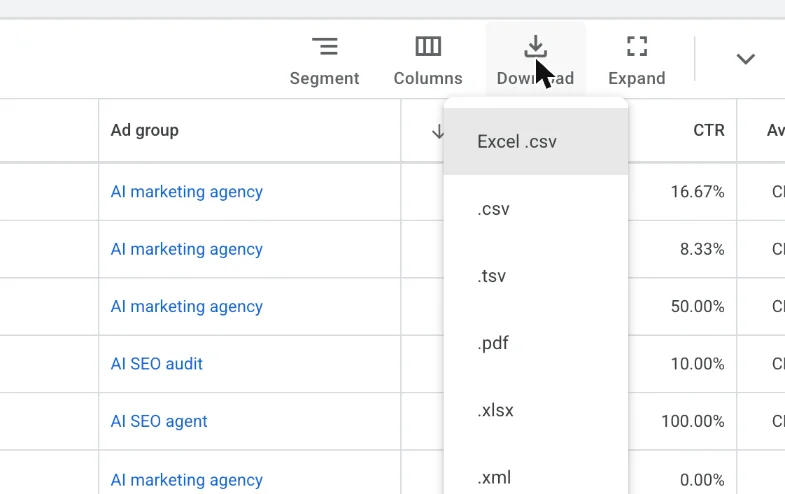
- Click Download above the table and choose .csv.
- In Claude, click the plus button in the message box, attach the file and send your question.
This is my Google Ads search terms report for the last 30 days. I sell [PRODUCT] to [CUSTOMER] in [COUNTRY].

1. Which search terms are clearly not people looking to buy what I sell? List them with their cost.
2. Which search terms look like buyers but have few impressions?
3. What should I ask you next?

Use only the numbers in the file. If something is missing, say so. Do not guess.
The limit is obvious: Claude sees a snapshot. It cannot look at your keywords, your bids or your conversion setup unless you download those too. And it cannot change anything. For a first look, that is a feature.
Way 2: Connect with Adchestra
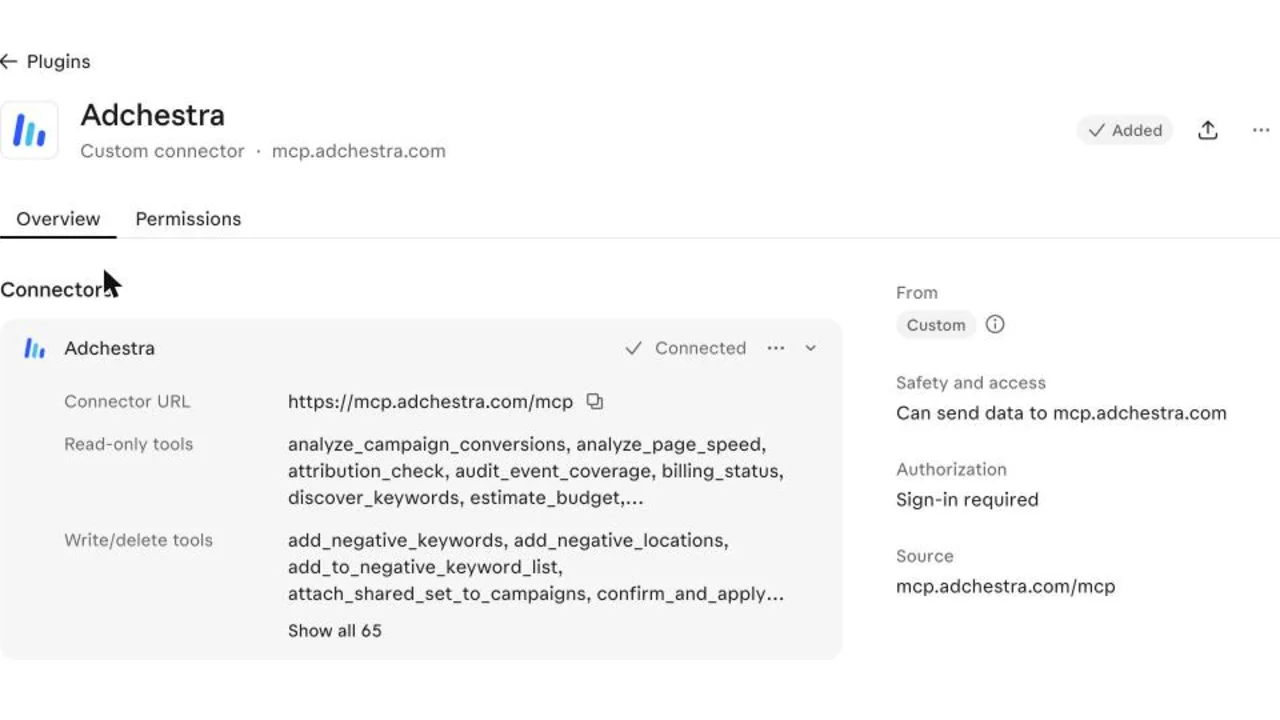
Adchestra is the hosted connector I built with my co-founder. It runs on Adchestra's servers, so you install nothing and you need no Google Cloud project. You paste one address into Claude and sign in with Google.
It works in Claude on the web, Claude Desktop and Cowork. Custom connectors are available on every Claude plan, and the free plan is limited to one custom connector.
- In Claude, click Plugins in the left menu. On older menus, open Customize, then Connectors.
- Click Add, then Add custom connector.
- In Name, type
Adchestra. - In MCP server URL, paste the address below. Click Continue.
- Keep Sign in now and Use Claude’s published identity selected, then click Add.
- Google sign-in opens. If it does not, click Connect on the Adchestra connector page. Choose the Google account that can open your Google Ads account, read the permissions and continue.
https://mcp.adchestra.com/mcp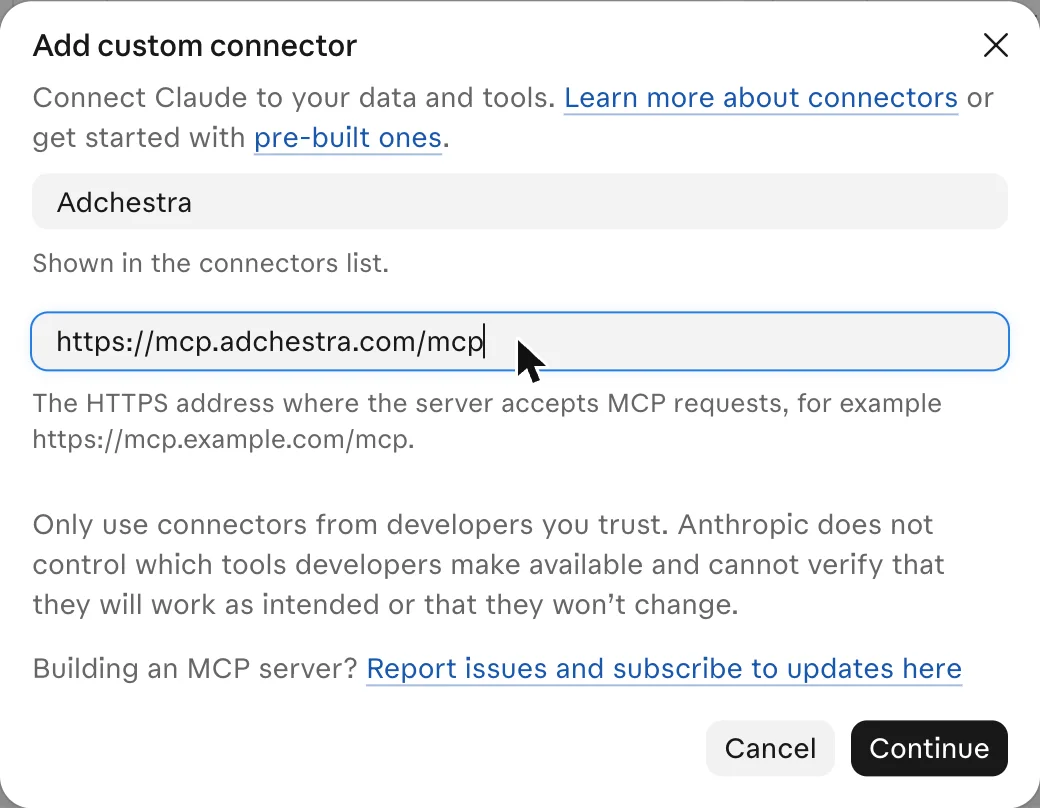
On a Team or Enterprise plan, an owner has to add the connector for the organization first. After that each person connects their own Google account.
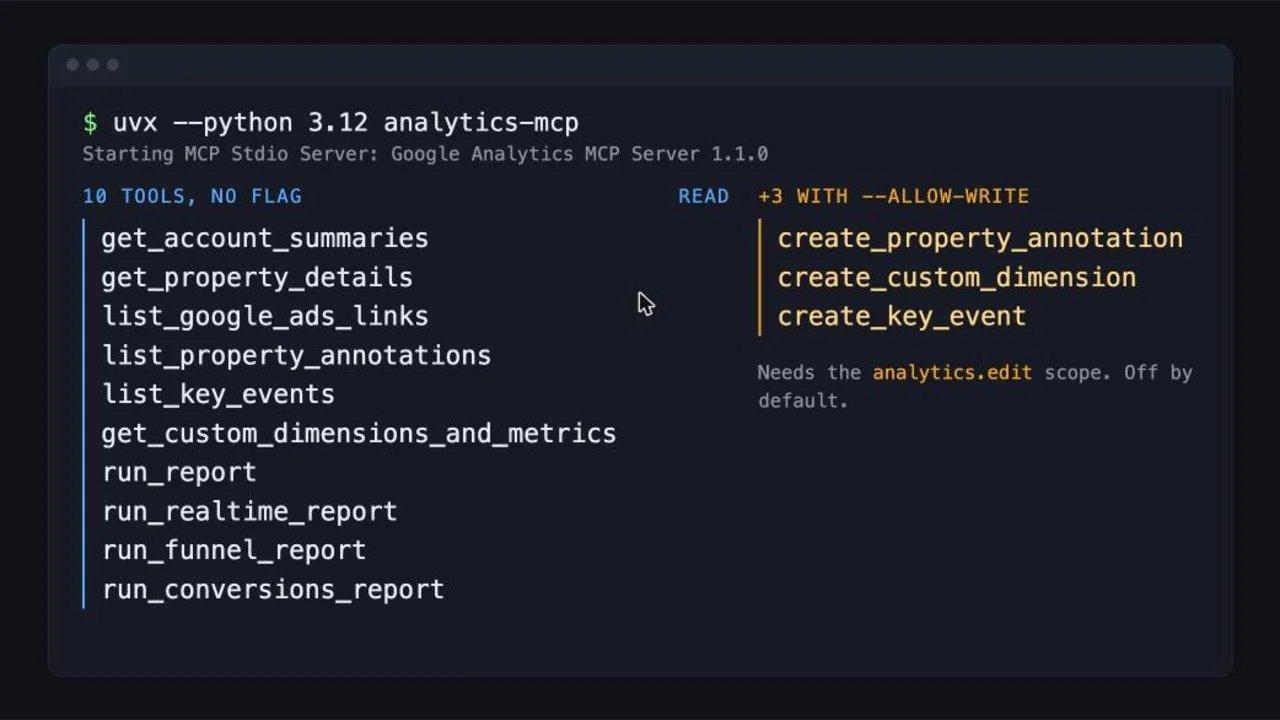
Adchestra reads and changes Google Ads and Google Analytics, and reads Tag Manager and Search Console. Every change is shown to you as a preview first and is applied only after you approve it. New campaigns are created paused.
Way 3: Run Adchestra Local on your own computer
Adchestra Local is the free version. It runs on your computer and talks to Google with your own credentials, so nothing passes through anyone else's servers. The price is setup time, because you have to do what Google asks of every developer.
What you need:
- Claude Desktop. A server on your computer works in the desktop app. It does not work in Claude on the web.
- A Google Cloud project with the Google Ads API switched on. It is free.
- Explorer access for that project. You apply on the Google Ads API page in the Google Cloud console.
- A sign-in client of the type "Desktop app", created in the same project.
The full walkthrough, with every command for Mac and Windows, is in Connect Google Ads to Claude for free. Here are the three things that guide will save you from.
You do not need a developer token any more
Most tutorials still tell you to create a manager account and request a developer token. That is out of date. Google retired developer tokens on September 9, 2026, and access is now given to your Google Cloud project. A new project starts at Test access, which only works on test accounts. You apply for Explorer to reach real accounts.
Explorer access is sometimes refused
Google says Explorer is approved automatically in most cases. Most is not all. Since October, a number of people report that every application from their new project is refused within a minute, with no reason given. If that happens to you, no connector can fix it, because the refusal sits on Google's side. Your options are to try a different Google Cloud project, or to use a hosted connector, which brings its own approved access.
Two limits you will meet later
- No keyword research. Explorer access does not include Keyword Planner. Claude can manage campaigns and read reports, and you download keyword ideas by hand.
- You reconnect every seven days. While your sign-in client is in "Testing", Google expires the sign-in after seven days. One command fixes it each time. It is still annoying.
Way 4: Use Google's official server
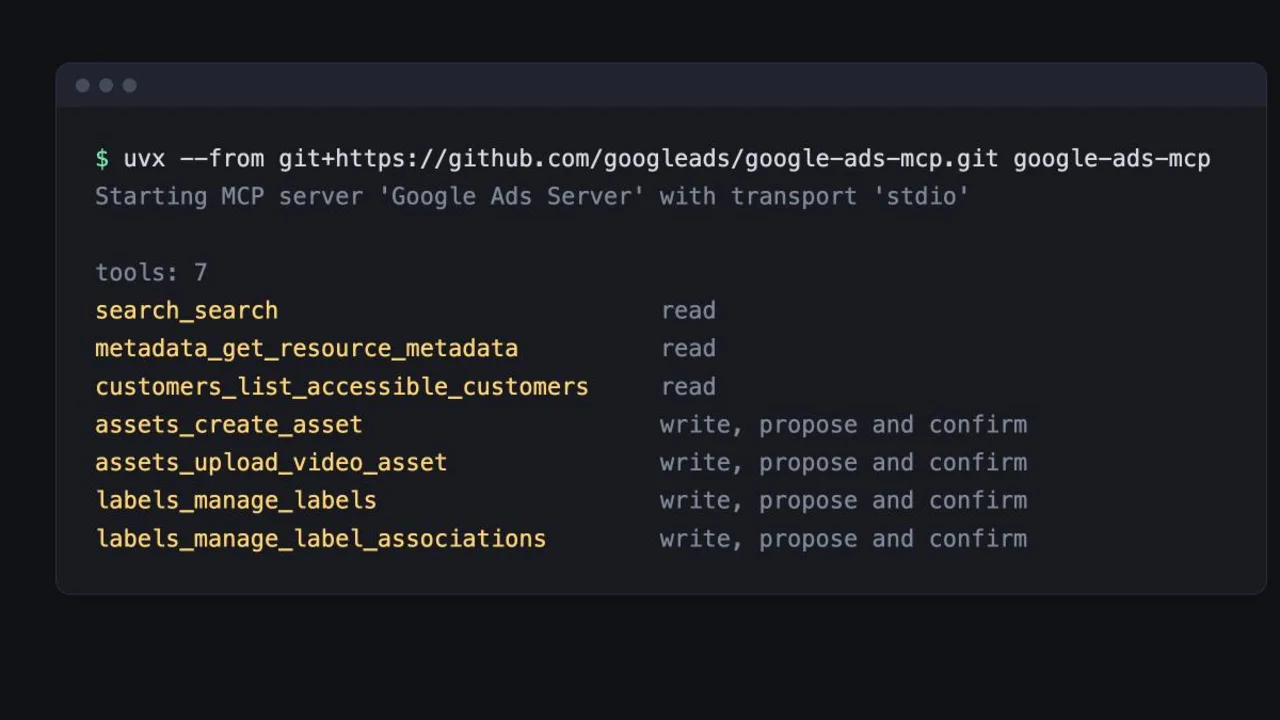
Google publishes its own Google Ads MCP server. It is free and it is the reference everyone else is measured against.
It is strongest at reading. Claude can run any report through it. Its write tools are narrow: it can create assets such as sitelinks and callouts, and manage labels. It cannot create a campaign, add a keyword or change a budget. If you came here to have Claude build and manage campaigns, this is the wrong way.
The setup is the most technical of the four. You need the same Google Cloud project and Explorer access as in way 3, plus Python 3.11, a tool called pipx and Google's gcloud command line. Google's setup guide lists the steps. In short:
- Sign in from your terminal with the command below, using the client file you downloaded from your Google Cloud project. Note the credentials path it prints.
- In Claude Desktop, open Settings, then Developer, then Edit Config.
- Add the server block below with your credentials path and project ID. Save, then fully quit and reopen Claude.
gcloud auth application-default login \
  --scopes=https://www.googleapis.com/auth/adwords,https://www.googleapis.com/auth/cloud-platform \
--client-id-file=YOUR_CLIENT_JSON_FILE{
"mcpServers": {
"google-ads-mcp": {
"command": "pipx",
"args": ["run", "--spec", "git+https://github.com/googleads/google-ads-mcp.git", "google-ads-mcp"],
"env": {
"GOOGLE_APPLICATION_CREDENTIALS": "PATH_TO_CREDENTIALS_JSON",
"GOOGLE_CLOUD_PROJECT": "YOUR_PROJECT_ID"
}
}
}
}If you reach your account through a manager account, add "GOOGLE_ADS_LOGIN_CUSTOMER_ID": "YOUR_MANAGER_ID" to the env block. Without it you get a permission error that tells you nothing useful.
Check that Claude can really see your account
Whichever connection you chose, test it with a question that cannot be answered from memory. Start a new chat and send this:
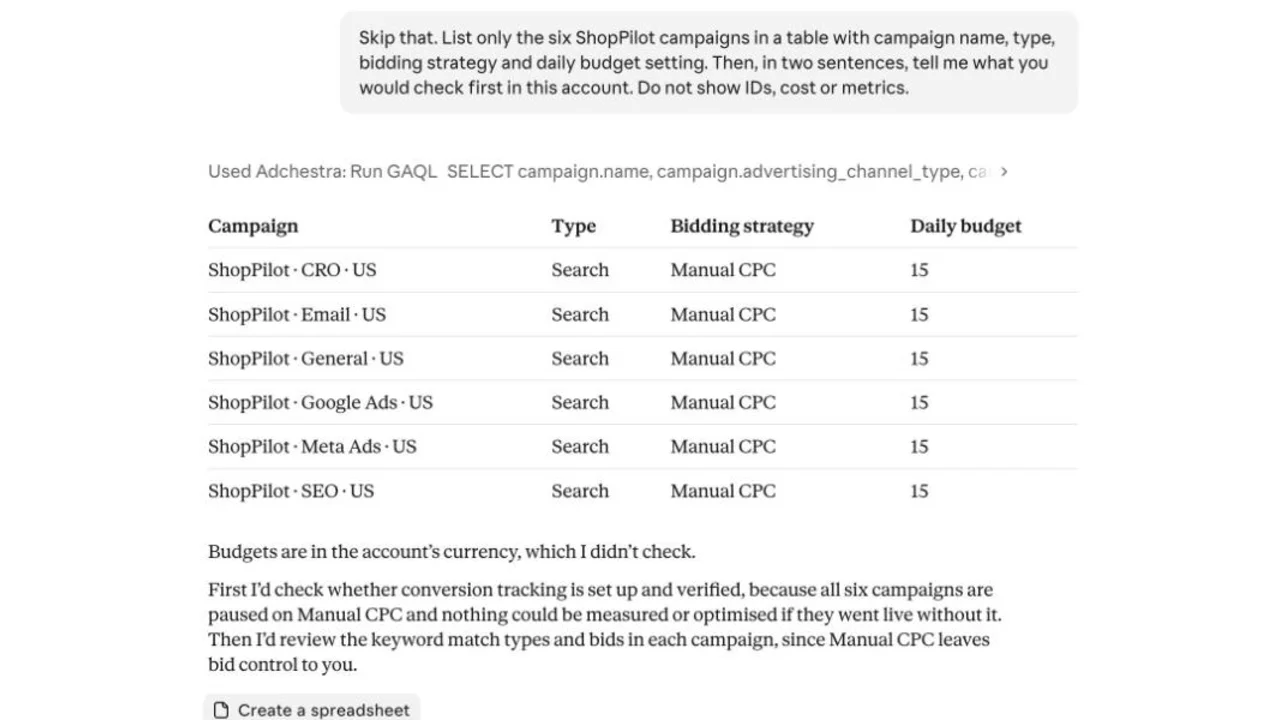
List the campaigns in my Google Ads account in a table with campaign name, type, bidding strategy and daily budget. Read only. Do not change anything.If Claude answers with your real campaign names, you are connected. If it answers with advice about campaign structure, it is not, and it is being polite about it.
If Claude says the connector is turned off
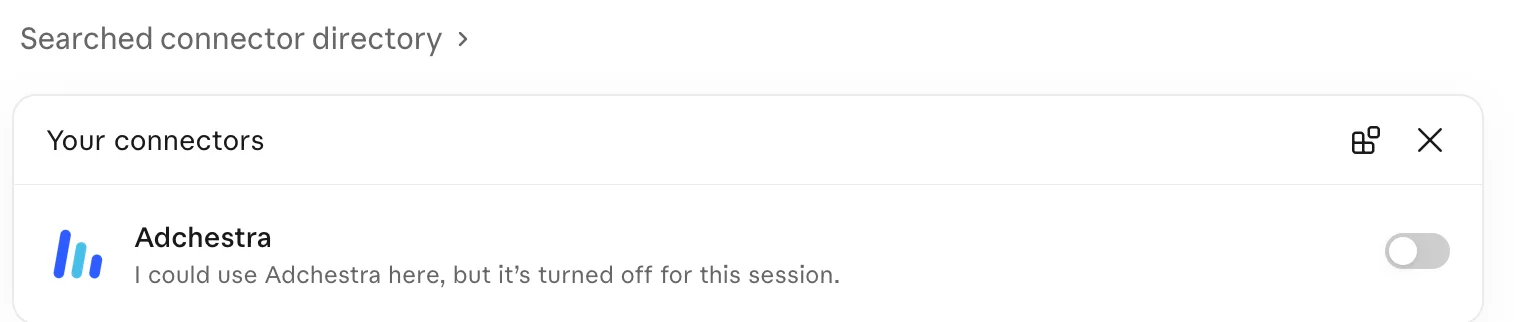
This got me the first time. The connector was added and signed in, and Claude still said it could not use it. A connector can be switched off for a single chat. Claude shows a small panel named Your connectors with a switch next to the connector. Turn the switch on and ask again. You can also click the plus button in the message box, open Connectors and switch it on there.
Keep changes on "Allow once"
Claude asks before it runs a tool. For reading, Always allow is fine and saves clicks. For anything that changes the account, I keep it on Allow once. It costs me one click per change, and I see every change before it happens. A wrong budget is cheaper to stop than to fix.
Three questions worth asking next
Look at my search terms for the last 30 days. Which ones are clearly not people looking to buy what I sell? Show them with their cost and the campaign they came from. Do not change anything.Check the settings of my enabled campaigns: locations, languages, networks and bidding strategy. Tell me anything that looks like a mistake and why. Do not change anything.Read my conversion actions. Which ones are primary, and could any two of them be counting the same purchase or lead? Do not change anything.Using Claude Cowork?
Cowork is the part of Claude that takes a longer job, works through it in steps and hands you a finished file, such as a document or a spreadsheet. A connector you added once works there too. You do not add it again.
On my account there is no Cowork button any more. I describe the longer task in a normal chat and Claude runs it as a task, with a progress panel on the right. Anthropic says accounts with the older layout have a Cowork button below the message box.
Before you start, check that the connector is on for that task: click the plus button in the message box, open Plugins (or Connectors) and look at the switch. One limit: a server that runs on your own computer, such as Adchestra Local or Google's official server, works only in a Cowork session that runs on your computer, not in one that runs in the cloud.
For jobs that suit Cowork, with the prompts I ran on my Google Ads account, see How to use Claude Cowork for Google Ads.
Frequently asked questions
Does Google have an official Google Ads MCP server?
Yes. Google publishes one for free on GitHub. It reads all your account data, and its write tools are limited to assets and labels. You run it yourself with your own Google Cloud project.
Do I still need a Google Ads developer token?
No. Google retired developer tokens on September 9, 2026. Access is now given to a Google Cloud project, and you apply for Explorer access to work on real accounts. If you use a hosted connector, you do not deal with any of this.
Can Claude change my campaigns, or only read them?
It depends on the way you connect. With an uploaded report, Claude can only read that file. With Google's official server it can read everything and create assets and labels. With Adchestra or Adchestra Local it can also create and change campaigns, keywords, ads and budgets, and it shows you each change before applying it.
Does this work on the free Claude plan?
Yes. Uploading a report works on every plan. Custom connectors also work on the free plan, limited to one connector. A server that runs on your own computer needs the Claude Desktop app.
Is it safe to give Claude access to my Google Ads account?
Claude can reach what your Google sign-in can reach, so connect with an account that has the access you intend. Keep tools that change things on "Allow once", and read each preview before you approve it. You can remove the connector in Claude and revoke access in your Google account at any time.
Does this work in Claude Cowork?
Yes. A connector you add in Claude is also available in Cowork, so your Google Ads connection needs no second setup. Check that its switch is on for the task. A server on your own computer only works in a Cowork session that runs on that computer.