 Adchestra
Yes, Google has an official Google Analytics MCP server
Every month people search Google for a Google Analytics MCP server, a GA4 MCP server and a Google Analytics MCP connector. The first thing they want to know is whether one exists and whether it is real. Yes. Google publishes it, it is free, and the code is on GitHub. Google also has its own setup page.
An MCP server (Model Context Protocol) is a small program that gives an AI assistant a set of tools. Claude, ChatGPT and Codex are the clients: they ask the server to run a tool, and the server does it.
The catch is that Google gives you the program, not a service. Nobody hosts it for you. You install it, run it on your own computer and sign in with your own Google Cloud project. This guide lists every tool, says what it cannot do, and gives the exact steps for Claude Desktop, Claude Code and Codex. Plan on 45 minutes.
For every way to connect Claude to Google Analytics, including a free export that needs no setup, read How to connect Claude to Google Analytics. This guide is the long one about Google's server.
Google's server and Adchestra
| Route | Cost | Who runs it | Setup time | Reads | Writes | Other Google products |
|---|---|---|---|---|---|---|
| Google's official server | Free | You, on your own computer, with your own Google Cloud project | About 45 minutes | Any GA4 report, plus property settings, key events and custom dimensions | Off by default. With a flag it can create annotations, custom dimensions and key events. Nothing else | None. Google Analytics only |
| Adchestra | 10 requests free with no card, then a 14-day trial, then $2.95 a month | Adchestra, hosted. You install nothing | 3 minutes | GA4, Google Ads, Tag Manager and Search Console | Google Ads and GA4, each change previewed and applied only after you approve it. Tag Manager is read only | Google Ads, Tag Manager and Search Console |
My advice: if you only want reports and you are fine in a terminal, Google's server is a good free choice. If you want to paste one address into Claude or ChatGPT and be done, it is the wrong tool, because it has no address. Everything below is about Google's server.
Every tool the server has
I started version 1.1.0 on my Mac with no credentials and asked it for its tool list over MCP. Without any flag it has ten tools, and all ten only read. Start it with --allow-write and three more appear, 13 in total. This matches the tool list in the README.
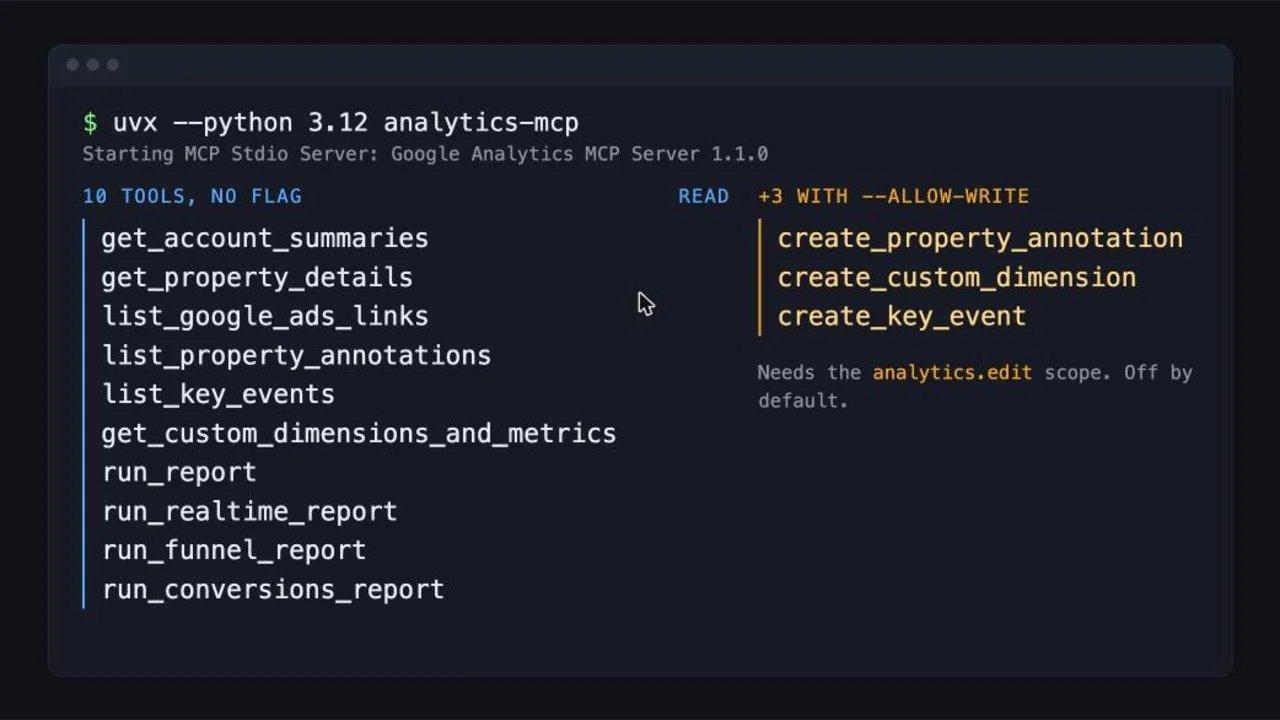
| Tool | What it does | Needs --allow-write |
|---|---|---|
get_account_summaries | Lists the accounts and properties your sign-in can open. Claude starts here to find your property ID | No |
get_property_details | Returns the settings of one property: name, time zone, currency, industry | No |
list_google_ads_links | Lists the Google Ads accounts linked to a property | No |
list_property_annotations | Lists the notes ("annotations") someone left on the property, like "launched new checkout" | No |
list_key_events | Lists the key events (GA4's new word for conversions) defined on a property | No |
get_custom_dimensions_and_metrics | Lists the custom dimensions and metrics. These are the extra fields you defined yourself | No |
run_report | Runs a normal report from the Data API: any dimensions and metrics, any dates, filters and sorting | No |
run_realtime_report | Runs a realtime report. It covers the last 30 minutes | No |
run_funnel_report | Runs a funnel report: how many people get through each step | No |
run_conversions_report | Runs a conversions report: ad costs, conversions, return on ad spend and attribution models | No |
create_property_annotation | Adds an annotation to a property | Yes |
create_custom_dimension | Creates a custom dimension. Needs the Editor role on the property | Yes |
create_key_event | Marks an event as a key event. Needs the Marketer or Editor role on the property | Yes |
What it cannot do
That is the whole list. It cannot change data streams, filters, audiences, user access or data retention. It cannot delete anything. It cannot touch Google Ads, Tag Manager or Search Console. The README says the write tools also need a second permission, the analytics.edit scope, which you add when you sign in (step 5).
One thing may confuse you. Google's setup page still calls the server read only and lists nine tools. The README and the server itself show the write tools. I trust the server, because I ran it.
Is there a server URL, and does it work with ChatGPT
Where is the server URL
There is none, because Google does not host the server. In the normal setup there is no URL at all: Claude starts the program on your computer and talks to it directly. This is called stdio.
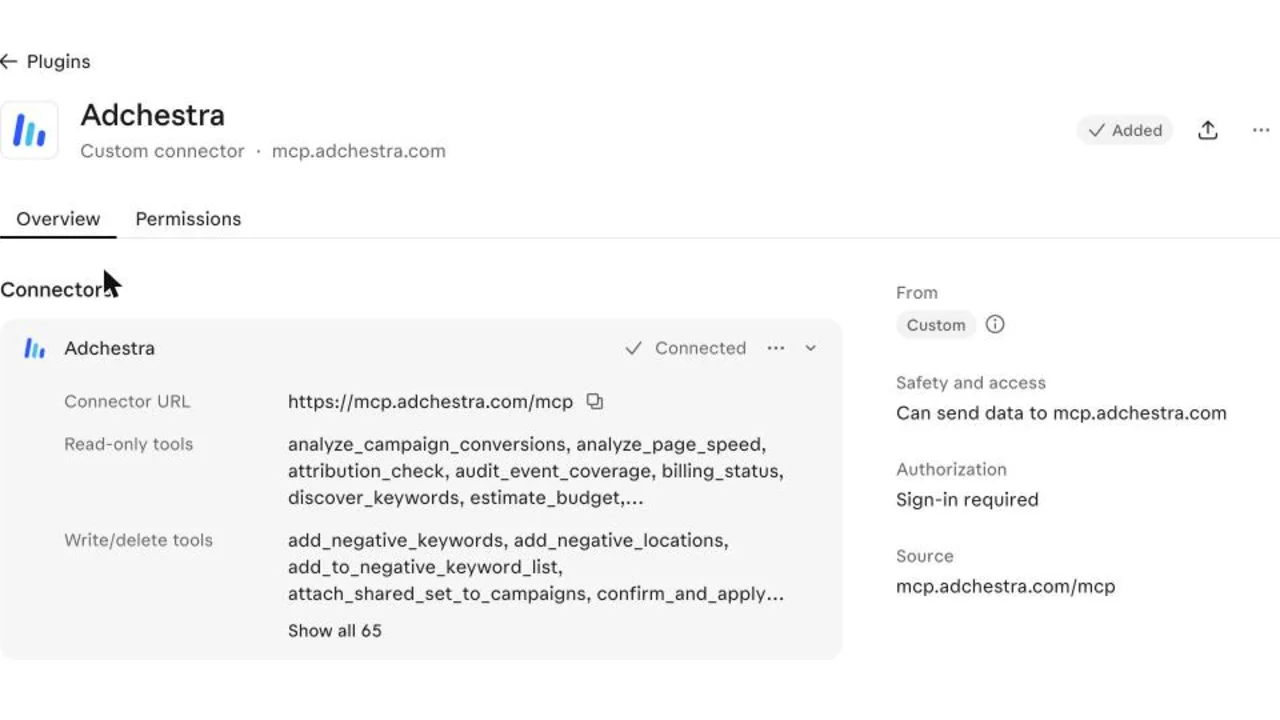
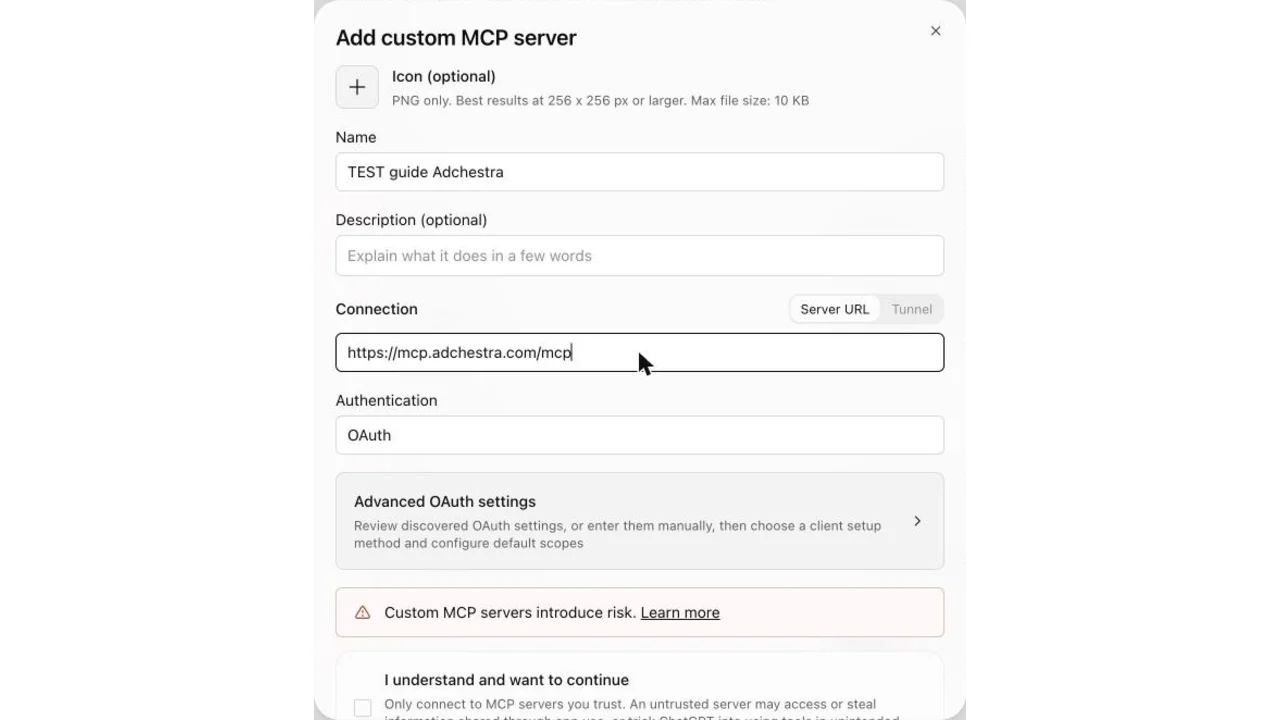
The README does describe a web mode. Start the server with --transport http and it listens on a port, and with --oauth it adds its own Google sign-in. You can run that on your own machine or deploy it to Google Cloud Run. Then you get an address, but it is yours: you run it, secure it and pay for it. The README is written for developers building agents, and I would not use it for a first setup. If you want a ready address to paste, that is what a hosted connector such as Adchestra's https://mcp.adchestra.com/mcp is for.
Can I use it with ChatGPT
Not in the normal setup. ChatGPT only talks to servers that have a web address, and this one runs on your computer. You would need the web mode on a public address. For ChatGPT, read How to add an MCP server to ChatGPT. The same is true for Claude on the web and on your phone: they need a remote server. Claude Desktop, Claude Code and Codex can all start a local one.
Is it free
Yes. The server costs nothing, and the Analytics Data and Admin APIs are free to use within their quotas. Google lists the limits in the Data API quotas page. A person asking a few questions a day will not reach them.
What you need before you start
- A Google Cloud project with two APIs switched on: the Google Analytics Admin API and the Google Analytics Data API. The project is free to create.
- At least the Viewer role on the GA4 property, for the Google user you sign in with. Google's page says so.
- Python 3.10 or newer. The server needs it, and a Mac ships with 3.9, which is too old. I used 3.12.
- pipx or uvx. Both are small tools that download and run a Python program in its own box. Google's page uses pipx. I ran the server with
uvxfrom uv, which fetches the right Python by itself. - The gcloud command line, Google's tool for signing in from a terminal.
Create the project and switch on both APIs
- Open the Google Cloud console. Click the project picker at the top, then New project. Name it
analytics-mcpand click Create. - With that project selected, open the Google Analytics Admin API page and click Enable.
- Do the same on the Google Analytics Data API page.
Both, not one. Forgetting the second is the most common failure in this guide (see "When it breaks"). Unlike Google Ads, there is no approval to wait for.
Create a sign-in client and sign in with gcloud
The server needs a credentials file that proves it may read Analytics for you. You get it by signing in once from your terminal.
- In the Cloud console, open Google Auth Platform and set it up if it is empty. Choose External. Add your own Google email under Audience, Test users. Google explains this in Manage OAuth clients.
- Open Clients, click Create client, choose Desktop app and click Create. Click Download JSON and save the file somewhere safe. This is your client file.
- Install the gcloud command line, then run the command below in your terminal, with the path to your client file.
- A browser opens. Sign in with the Google user that can open your GA4 property and allow the permission.
- When it finishes, the terminal prints
Credentials saved to file:and a path. Copy that path. You need it in the next step.
gcloud auth application-default login \
  --scopes https://www.googleapis.com/auth/analytics.readonly,https://www.googleapis.com/auth/cloud-platform \
  --client-id-file=YOUR_CLIENT_JSON_FILE
This command is straight from the README. Google asks for a passkey on some new sign-ins, so have your phone ready.
While your consent screen is in Testing, Google expires the sign-in after seven days. The server then fails with an authentication error. Run the same command again.
The README also shows a second way: service account impersonation. A service account is a robot Google user with its own email address. It suits a shared setup, because the robot, not a person, is the one with access. The steps for giving it access are in How to give a service account access to GA4 and Search Console.
Add it to Claude Desktop
Claude Desktop starts the server for you.
- In Claude Desktop, open Settings, then Developer, then click Edit Config. A file named
claude_desktop_config.jsonopens. - Add the block below. If the file already has an
mcpServerssection, add only theanalytics-mcppart inside it. - Replace the two values with your credentials path and your project ID, which is on the project picker in the Cloud console.
- Save, then fully quit Claude Desktop and open it again.
{
  "mcpServers": {
    "analytics-mcp": {
      "command": "pipx",
      "args": ["run", "analytics-mcp"],
      "env": {
        "GOOGLE_APPLICATION_CREDENTIALS": "PATH_TO_CREDENTIALS_JSON",
        "GOOGLE_CLOUD_PROJECT": "YOUR_PROJECT_ID"
      }
    }
  }
}
Use the full path in GOOGLE_APPLICATION_CREDENTIALS, with no ~. The project ID matters: with user sign-in, Google's page says you need a quota project that has the Analytics APIs enabled, and GOOGLE_CLOUD_PROJECT sets it.
If you use uv instead of pipx, set "command" to the full path that which uvx prints and "args" to ["--python", "3.12", "analytics-mcp"]. Claude Desktop does not read your terminal's settings, so a bare pipx or uvx often fails with spawn pipx ENOENT. Google's page gives the same fix: use the absolute path.
Add it to Claude Code or Codex
Both have a command that does the same job as the config file. Run one of them in your terminal. The Claude Code command is from the README.
claude mcp add analytics-mcp \
  --scope user \
  -e "GOOGLE_APPLICATION_CREDENTIALS=PATH_TO_CREDENTIALS_JSON" \
  -e "GOOGLE_CLOUD_PROJECT=YOUR_PROJECT_ID" \
  -- pipx run analytics-mcp
The README has no Codex section, so this one uses Codex's own add command with the same program and the same two values.
codex mcp add analytics_mcp \
  --env GOOGLE_APPLICATION_CREDENTIALS=PATH_TO_CREDENTIALS_JSON \
  --env GOOGLE_CLOUD_PROJECT=YOUR_PROJECT_ID \
  -- pipx run analytics-mcp
Start a new session after adding the server. In Claude Code, type /mcp to see whether it is connected.
The README starts with Gemini CLI. Google's page now says Gemini CLI is deprecated and lists Antigravity, Claude Desktop, Claude Code and Cursor. For Gemini, do not run /mcp auth analytics-mcp. People who did got "Cannot perform dynamic registration without issuer". The server signs in through your gcloud credentials, not through that command.
Turn the write tools on, or leave them off
By default the server cannot change anything, and I would leave it that way until you have a reason. Reports are the point.
If you want the three write tools, do two things. First, sign in again with the edit scope added, as the README says:
gcloud auth application-default login \
  --scopes https://www.googleapis.com/auth/analytics.readonly,https://www.googleapis.com/auth/analytics.edit,https://www.googleapis.com/auth/cloud-platform \
  --client-id-file=YOUR_CLIENT_JSON_FILE
Second, add "--allow-write" to the arguments. In the Claude Desktop config it looks like this:
"args": ["run", "analytics-mcp", "--allow-write"]In Claude Code and Codex, put --allow-write after analytics-mcp at the end of the command. Keep Claude on "allow once" for these tools. A wrong key event quietly spoils every report that comes after it.
Check that Claude can see your property
Start a new chat in Claude Desktop, or a new session in Claude Code or Codex. The README suggests asking what the server can do. I would go straight to your own data.
Which Google Analytics accounts and properties can you see? List them in a table with the property ID. Read only. Do not change anything.If you get your real property names back, you are done. Then try a question that needs a report:
For the property with 'example' in the name, show sessions and engaged sessions by session source / medium for the last 28 days, as a table sorted by sessions. Read only.If you get advice about how GA4 is organised instead of your own names, the server is not connected. Read the next section.
When it breaks
These are the failures people report, with the fix that worked for them. I saw the first one myself, by starting the server with no credentials.
"Your default credentials were not found"
This is the exact text the server printed when I asked it for get_account_summaries with no credentials: Your default credentials were not found. To set up Application Default Credentials, see https://cloud.google.com/docs/authentication/external/set-up-adc for more information. The sign-in did not run, or Claude cannot find the file. Run the gcloud command again and put the full path in GOOGLE_APPLICATION_CREDENTIALS. Google's page lists the same cause as 401 UNAUTHENTICATED: file not found or expired.
An API is not enabled
The error mentions SERVICE_DISABLED, or says an API has not been used in project and is disabled. Google's page files this under 403 PERMISSION_DENIED. One of the two APIs is off in the project your sign-in uses. Enable both the Admin API and the Data API, in the same project you named in GOOGLE_CLOUD_PROJECT. If you see 403 ACCESS_NOT_CONFIGURED, the quota project is missing: set GOOGLE_CLOUD_PROJECT.
"User does not have sufficient permissions for this property"
The Google user you signed in with cannot open that property. In Google Analytics, open Admin, then Property access management, and give that user the Viewer role. Or sign in again with the right Google account. If the robot is a service account, add its email to the property, because a service account has no access to anything until you do.
"Request had insufficient authentication scopes"
You signed in without the Analytics scope, or you turned on --allow-write without the edit scope. Run the sign-in command again with the scopes in step 2 or step 5.
The property ID is wrong
The tools want the property ID, a number like 123456789. It is not the measurement ID that starts with G-, and it is not the account ID. Find it in Google Analytics under Admin, Property settings, as Google explains. Easier: ask Claude to run get_account_summaries first and use the ID it returns.
Every call hangs, or times out after 120 seconds
A user running Codex reported "timed out awaiting tools/call after 120s" on every tool, with the tools listed correctly. A maintainer said a newer release fixed it, and one Windows user on Python 3.14 said it still failed sometimes. Update to the newest version, and use Python 3.12 if you can choose. People using Gemini CLI also report endless loading, and another asked for a simpler sign-in. The maintainer answered that Google is looking at options.
"Failed to resolve analyticsadmin.googleapis.com" on a Mac
A DNS problem in the networking library, often with a VPN. Google's troubleshooting guide says to add "GRPC_DNS_RESOLVER": "native" to the env section, or -e "GRPC_DNS_RESOLVER=native" to the Claude Code command. Leave it off unless you see this error.
Frequently asked questions
Does Google Analytics have an official MCP server?
Yes. Google publishes it for free at github.com/googleanalytics/google-analytics-mcp. You run it yourself with your own Google Cloud project. Google does not host it.
Can the Google Analytics MCP server make changes?
Only if you start it with --allow-write and sign in with the edit scope. Then it can create annotations, custom dimensions and key events, and nothing else. By default it has ten tools and all of them only read.
What is the Google Analytics MCP server URL?
There is none in the normal setup, because the program runs on your computer. Google does not run a public one. If you host the web mode yourself, the address is your own. To paste an address into Claude or ChatGPT, use a hosted connector.
How do I use Google Analytics MCP with ChatGPT?
The official server runs on your computer, and ChatGPT cannot reach it. ChatGPT needs a server with a web address, so you would have to host the web mode yourself or use a hosted connector. Claude Desktop, Claude Code and Codex can run it locally.
Is it the same as the Google Analytics Data API?
No. The server uses the Data API and the Admin API to do its work, and gives Claude a set of tools on top of them. You still need both APIs switched on in your project.