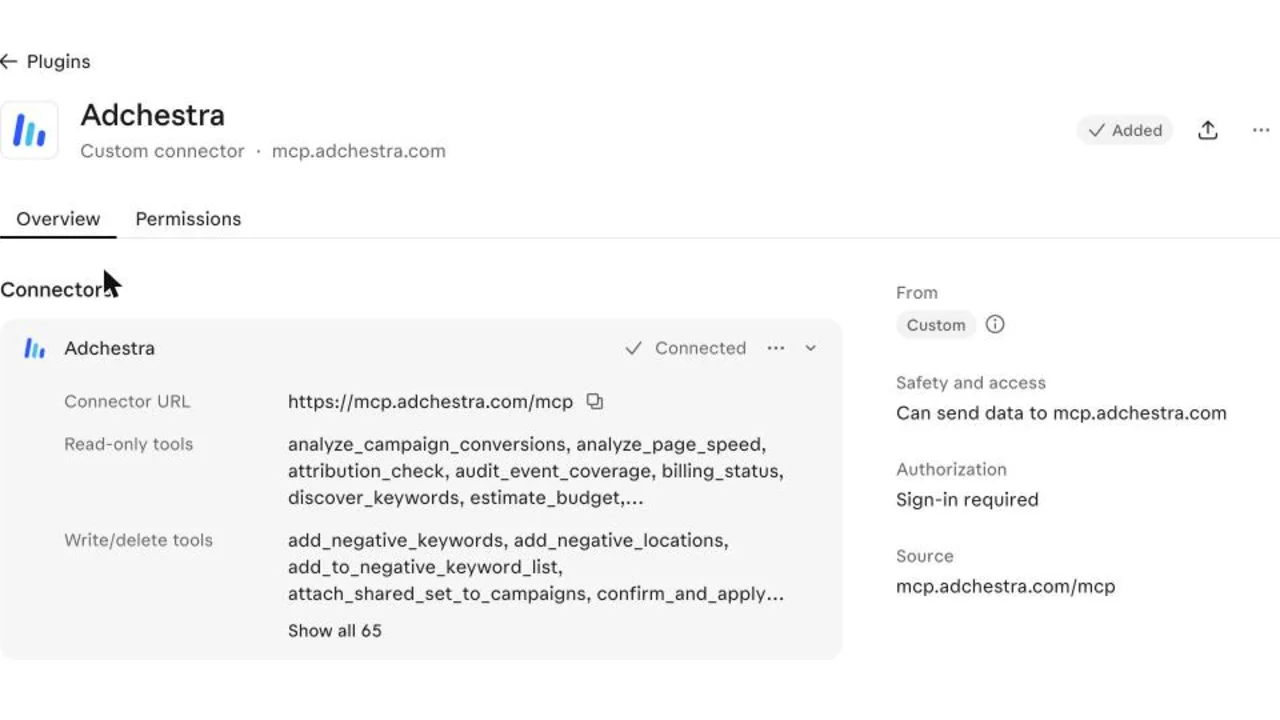
 Adchestra
Forget Developer mode, it is gone
Every guide I found says the same thing: first turn on Developer mode in ChatGPT's settings. So I opened Settings, searched for "developer" and got "No results found". The switch is not hidden. It no longer exists. OpenAI removed it at the start of October, and half the internet has not noticed.
That is the first thing that trips people up. The second is worse: the server shows as connected, and ChatGPT still says the tool is not available. This guide covers both.
A few words first. MCP (Model Context Protocol) is the standard way to plug a tool into an AI assistant. A program that speaks MCP is an MCP server, and it has an address that looks like https://something.com/mcp. ChatGPT used to call a connected server a "connector", then an "app". Today the screen calls it a plugin. Same thing, third name.
Below are the clicks as they look today, what goes in each field, how to use the server in a chat, and a fix for each error people keep posting about. Setup takes five minutes. I use Adchestra's server as the example. The same steps work for any server address.
What you need before you start
- ChatGPT on the web. You add custom servers at chatgpt.com in a browser. OpenAI's help center says plainly that you cannot connect custom MCP servers on mobile.
- A remote server address. ChatGPT connects to servers on the internet over HTTPS. A server that runs only on your own computer needs OpenAI's Secure MCP Tunnel first.
- The right plan or role. This is where it gets murky, so here is what OpenAI says and what I saw.
| Your account | Can you add a custom MCP server? |
|---|---|
| Personal Plus | My Plus account shows Add custom MCP server on the Plugins page, and ChatGPT called the server's tools from a chat. If you do not see the option, check the rest of this table and the troubleshooting section. |
| Personal Pro | Yes. OpenAI's help center says Pro users can connect custom MCP servers with read and fetch permissions, and that full MCP support, including tools that change things, is for Business and Enterprise. |
| Business workspace | Only workspace owners and admins can add a custom MCP server. Members use it after an admin publishes it, and each member signs in to it themselves. |
| Enterprise or Edu workspace | Owners and admins can add one. Admins can also give selected members the permission named Create plugins with MCPs. Only owners and admins can publish it for everyone. |
You do not need Developer mode. The help center now says you don't need to turn on Developer Mode first. ChatGPT shows a risk warning for each server instead. If an older guide sends you to Settings, then Apps, then Advanced settings, you are reading history.
Open the Add custom MCP server form
- Go to chatgpt.com/plugins. The page is titled Plugins, and the left column, Customize, lists what you have installed.
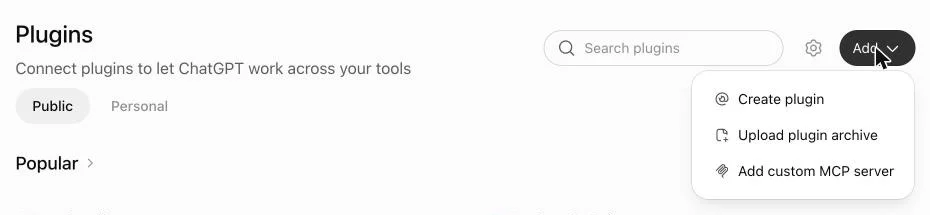
- Click the black Add button at the top right.
- Choose Add custom MCP server. The other two options, Create plugin and Upload plugin archive, are for people building plugin packages. Ignore them.
Fill in the form
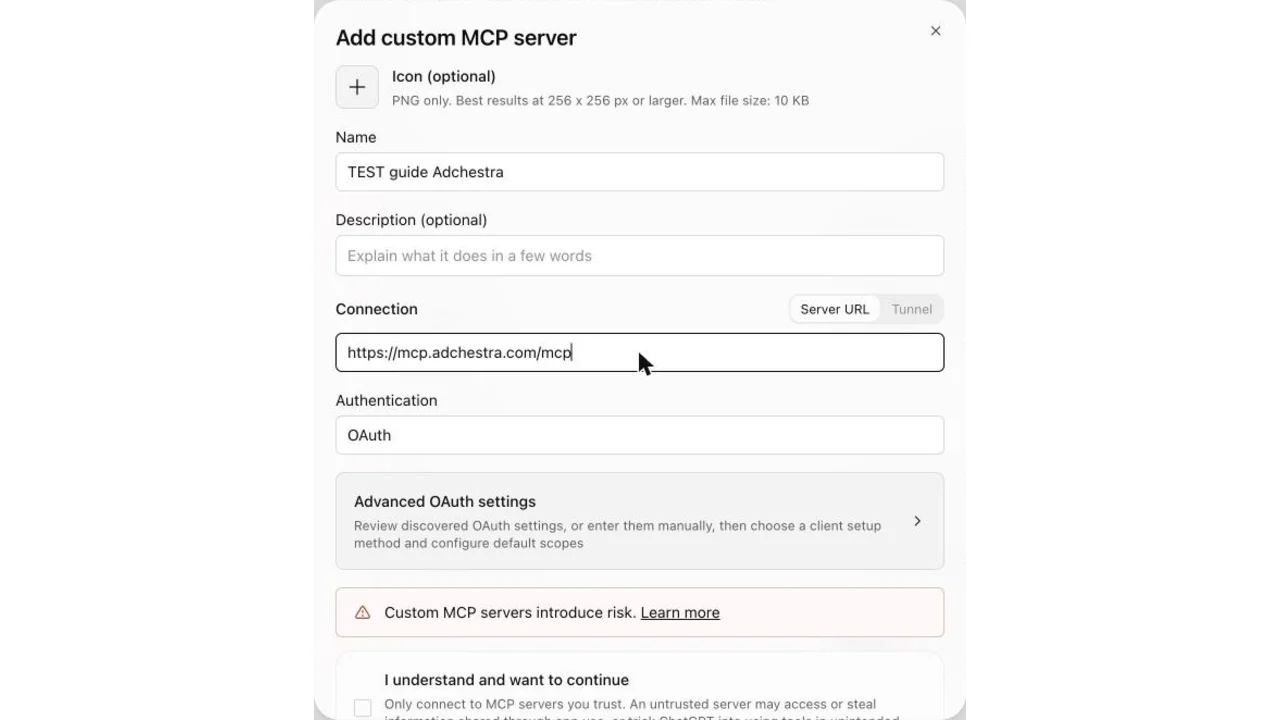
The form has more fields than you need. Here is each one, top to bottom.
- Icon (optional). PNG only, 10 KB at most. Skip it.
- Name. This is what you will type after
@in a chat, so keep it short and obvious. I usedAdchestra. - Description (optional). Skip it.
- Connection. Leave the switch on Server URL and paste the server's address. Use Tunnel only if you set up a Secure MCP Tunnel for a server on your own machine.
- Authentication. Pick what the server expects. OAuth means you sign in through the server's own login page, which is what most hosted servers use. No authentication is for open servers. OAuth or no authentication is for servers where some tools are public and some need a login. If you are not sure, leave OAuth.
- Advanced OAuth settings. Leave it closed. ChatGPT reads the server's sign-in settings by itself. When I opened it for the Adchestra address, it had already picked the right registration method on its own. You only touch this if the server's documentation gives you a client ID and secret.
- Read the red box, Custom MCP servers introduce risk, and tick I understand and want to continue.
- Click Create as a plugin.
https://mcp.adchestra.com/mcp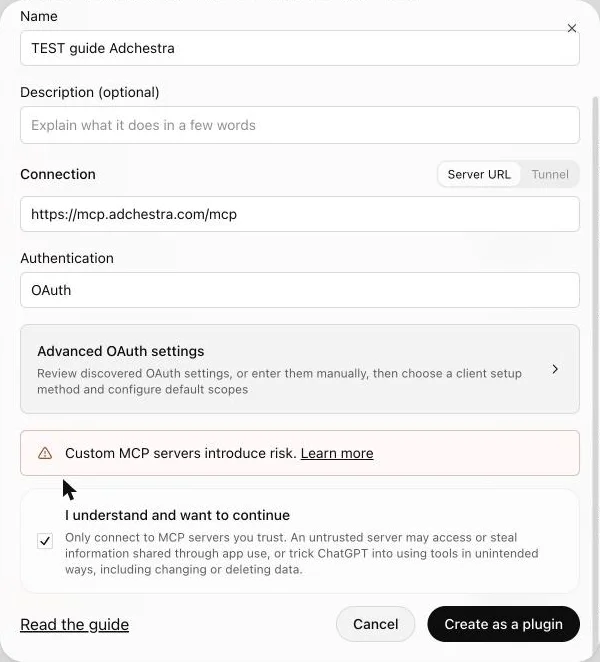
Take the warning seriously: an untrusted server can steal what you share or trick ChatGPT into changing or deleting data. Only add servers from people you would trust with a password.
One surprise: ChatGPT does not test the address when you click Create as a plugin. I typed /mcpp instead of /mcp on purpose, and ChatGPT created the plugin without a word. The error only came at sign-in, and the address cannot be edited afterwards. The fix is in the troubleshooting section.
Sign in to the server
Right after you create it, ChatGPT shows a small window with the server's name and a button, Continue to followed by the name you typed. Click it.
- The server's sign-in page opens. For Adchestra, that is Google's Choose an account screen, which says "to continue to Adchestra". Pick the Google account that can open your ad accounts.
- Read the permissions the server asks for and continue.
- You land back in ChatGPT.
If you closed the window or the sign-in failed, click the server's name under Installed on the Plugins page. It is listed under Apps with a Connect button. Click it to sign in again. That button is also your check: if it is still there, you are not signed in.
Use the server in a chat
- Start a new chat. A new one, not that long chat from last week. I explain why in the troubleshooting section.
- Type
@and the first letters of the name. Pick the server from the list under Plugins. - Type your question after the blue name and send it.
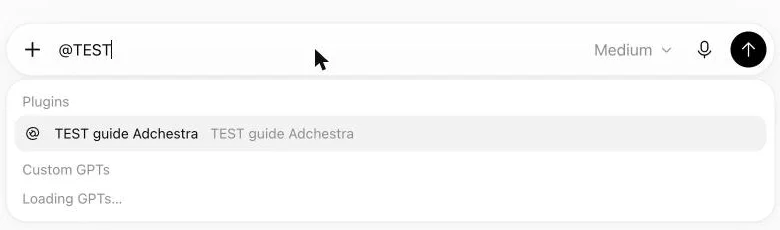

Start with a question that cannot be answered from memory. For a Google Ads server, I use this:
List my Google Ads campaigns by name. Read only.While it works, ChatGPT shows a grey line describing what it is doing, and afterwards a Worked for line you can click open. If you see your real campaign names, the connection works. If you get a polite essay about campaign structure, ChatGPT never called the server.
Three rules that save a lot of confusion:
- The @ only counts for one message. OpenAI's help center says app selection applies to the message where you use it. ChatGPT can still talk about results already in the chat, but for new data, type @ and the name again.
- Be bossy about which tool. OpenAI's developer docs suggest that you name the app and the tool, and tell the model not to use alternatives. If ChatGPT keeps reaching for web search instead, say "Use only the Adchestra server. Do not search the web."
- Read before you approve. ChatGPT treats every tool not marked read-only as a write and asks you to confirm writes by default. You can open a tool call and read its exact input and output. It can remember your approval for the rest of a chat. I never allow that for anything that spends money.
The default lives in your profile menu under Settings, then Plugins, as Default permission. Mine is Allow low-risk tools, and I leave it there.
When it does not work
These are the problems people post about most, in the order you would hit them, with the fixes that people confirmed or that OpenAI documents.
There is no Developer mode switch
Correct, and you do not need it. The person who runs OpenAI's plugins platform announced on the developer forum on October 1 that the explicit Developer mode was removed and that all eligible users add servers from the Plugins page. For workspace admins, the old "Developer mode" permission was renamed; the help center calls it Create plugins with MCPs.
Add custom MCP server is missing from the Add menu
Check three things. First, are you in a workspace? On Business, only owners and admins can add custom servers. Ask an admin to add and publish it. Second, on Enterprise or Edu, an admin can give you the Create plugins with MCPs permission. Third, are you on the phone app? Adding is web only. Switch to chatgpt.com in a browser.
"We couldn't confirm the connection. Check the app in Settings before trying again."
I got this one on purpose with the misspelled address. It appears in red at the top of the Plugins page right after you click Continue.

The fix:
- Open your profile menu, then Settings, then Plugins, and click your server.
- Look at the URL row under About. Compare it letter by letter with the address the server's documentation gives you. The usual mistakes are a missing
/mcpat the end, an extra letter, or/ssewhere the server expects/mcp. - The address cannot be edited. Scroll down and click Delete app, confirm, and add the server again with the right address.

Error 424: "unhandled errors in a TaskGroup (1 sub-exception)"
This is ChatGPT saying "something went wrong" in its most confusing voice. In the forum thread about it, people found different causes behind the same message. One Plus user found "Must use workspace account for this operation" hidden in the browser's network traffic, so the account type was the problem. One fixed the server's answer to ChatGPT's first handshake. One added a resource, because ChatGPT asks for the server's resources and it had none. One simply retried.
If you only use the server: retry once, check your plan in the table above, then send the error and the time to whoever runs the server. If you built it, go through OpenAI's troubleshooting page.
"Connector is not safe" or "This MCP Server violates our guidelines"
OpenAI runs a safety check on custom servers and does not publish what it checks, and people report this error for harmless servers too. The forum thread has no documented fix; a moderator passed it to engineering. Old answers say you must add tools named search and fetch, but the help center says they are no longer required. With someone else's server, tell its owner. With your own, contact OpenAI support with the time and the address.
Connected, but the tools are greyed out, missing or "not available in this chat"
This is the big one. The server says connected, you can even see the tool names, and ChatGPT replies that it cannot call them. Work through this list in order. It is short.
- Start a new chat. In long or old chats, ChatGPT can drop a server's tools. The model can still name them but cannot call them, and no request reaches the server. The person who reported it found that a brand new chat restores the tools instantly, and OpenAI support replied that they are tracking it. This fixes most cases on its own.
- Type @ and the name again. The selection only applies to one message. Without it, ChatGPT may not offer the tools at all.
- Check that the tools are switched on. Each server has a details page where you can turn individual tools on or off. A tool switched off there looks exactly like a broken one.
- Refresh after the server changes. When the server adds or renames tools, ChatGPT keeps the old list until you refresh the app from its settings. In a workspace, ChatGPT keeps a "frozen" snapshot of the tools that an admin approved, and calls can fail until an admin refreshes it.
- Leave the project. OpenAI says apps work in projects on every plan, but several people report custom servers that work outside a project and fail inside one. Test in a normal chat first. If it works there, the project is the problem.
- Fewer tools. One developer with more than 70 tools switched off about half and it worked significantly better. If your server lets you choose which tools to expose, expose fewer.
"Resource not found" after a few calls
The first calls work, then one fails with "Resource not found" and never reaches the server. Several developers confirmed this, and OpenAI's team is investigating. There is no fix on your side. Ask for less in one message, and send a new message when it breaks.
Sign-in fails or you have to reconnect every hour
Reconnect first: the server's page, then Connect. If access keeps expiring, the help center explains that without refresh tokens, ChatGPT may lose access when the first sign-in expires. That is fixed on the server's side, so tell whoever runs it. If it is yours, OpenAI's troubleshooting page also says a 401 response needs a WWW-Authenticate header so ChatGPT restarts the sign-in.
It works for me but not for my colleague
In a Business or Enterprise workspace, an admin has to publish the server for the workspace. After that, members find it under Settings, then Plugins, and each person signs in with their own account. A bug where only the person who added the server could use it was reported as fixed by the person who opened the thread.
Frequently asked questions
Do I still need Developer mode to add an MCP server to ChatGPT?
No. OpenAI removed the separate Developer mode switch at the start of October 2026. You add a server from the Plugins page with Add, then Add custom MCP server, and ChatGPT shows a risk warning instead.
Can I add an MCP server on ChatGPT Plus?
On my Plus account the option is there and ChatGPT called the server's tools. OpenAI's help center calls full MCP support, including tools that change things, a Business and Enterprise feature, so expect this to keep moving.
What is the difference between connectors, apps and plugins in ChatGPT?
Mostly the name and the year. OpenAI called a connected server a connector, then an app, and the current screen calls it a plugin. A plugin can bundle one or more apps, and a custom MCP server you add becomes a plugin with one app inside.
How do I remove an MCP server from ChatGPT?
On the Plugins page, click the server under Installed, click the three dots next to Settings, then Delete plugin, and confirm. ChatGPT warns that this deletes the plugin and its connections for good. To also cut the server's access to your accounts, revoke it on the side you signed in with, for Google in your Google account's security settings.