 Adchestra
One command, one browser sign-in
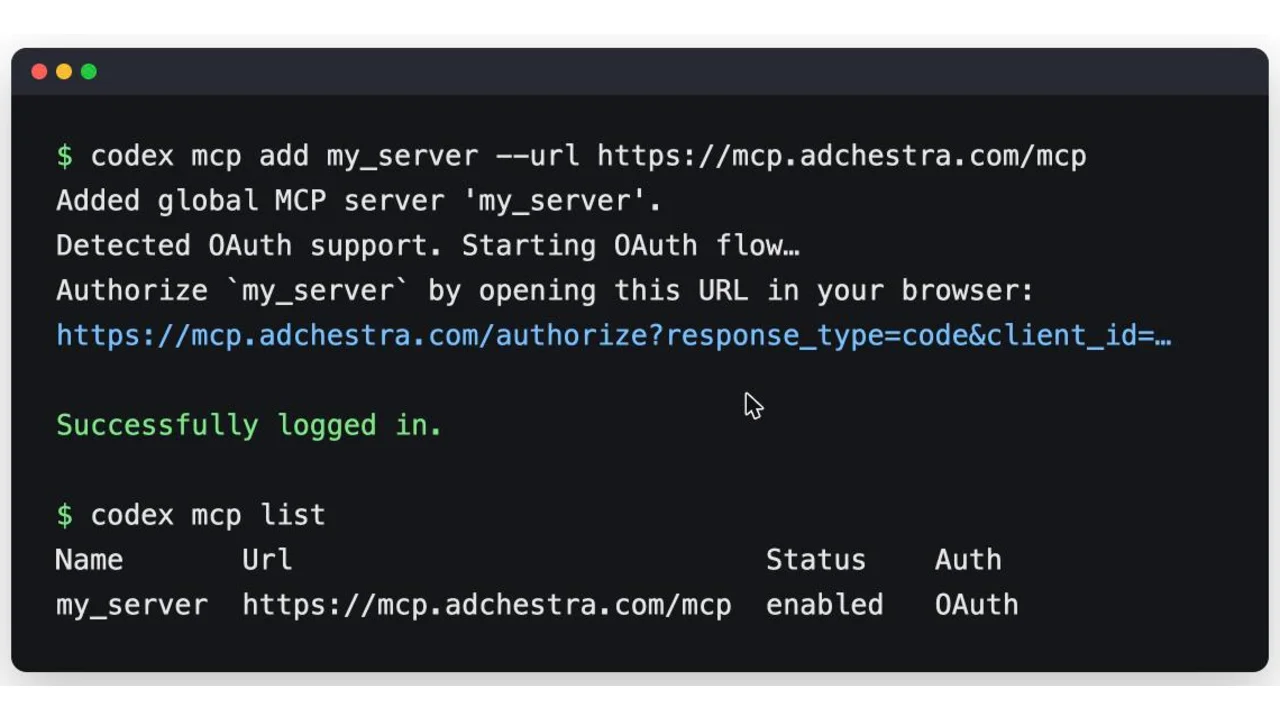
I added a remote server to Codex with a single line and watched the terminal do the rest: it saved the server, noticed the server wants a sign-in, printed a link, and a few seconds later said Successfully logged in. Then I removed it with one more line. The whole round trip took under a minute.
It does not always go that smoothly, and the failures are confusing. A login that works but the tools never show up. A login that works yesterday and says "not logged in" today. This guide covers the clean path first and then the problems people keep posting about.
A few words first. MCP (Model Context Protocol) is the standard way to plug a tool into an AI assistant. A program that speaks MCP is an MCP server, and a remote one has an address like https://something.com/mcp. Codex is OpenAI's coding agent. It comes as a command-line tool, an extension for editors like VS Code, and a part of the ChatGPT desktop app. OpenAI says the desktop app, the command line and the IDE extension share one MCP configuration, so you set a server up once.
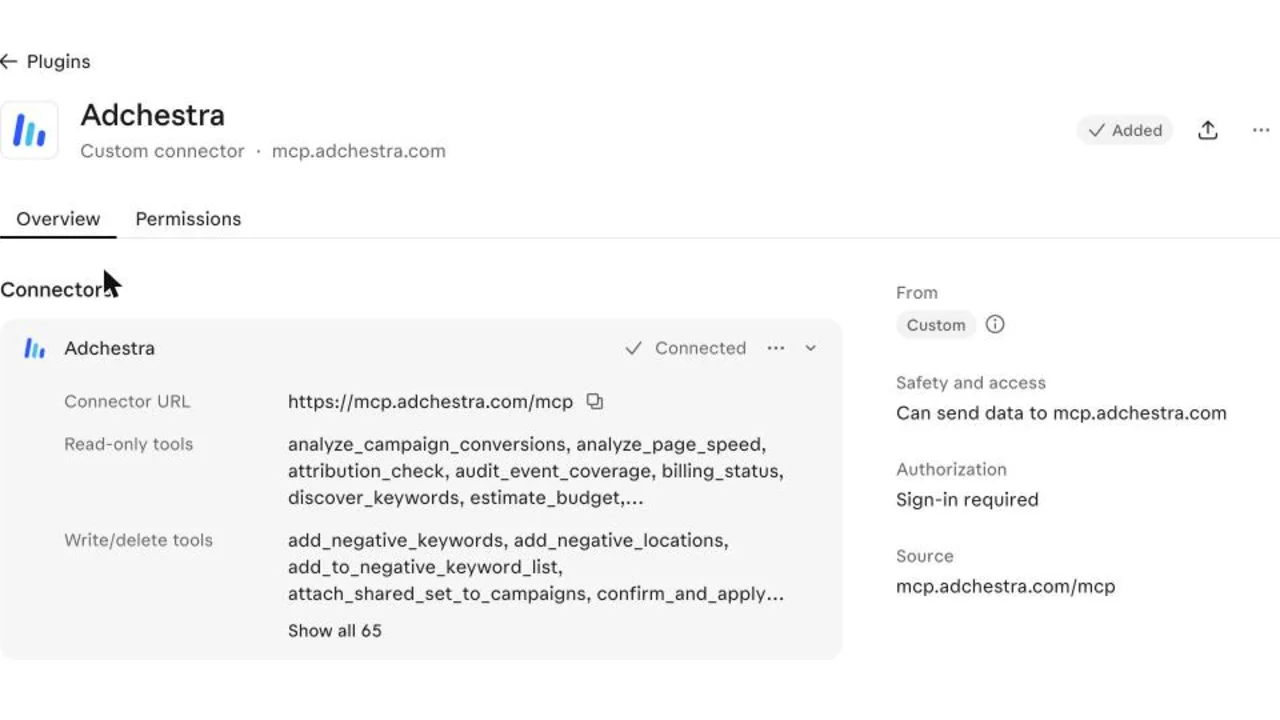
I use Adchestra's server as the example. The same steps work for any server address. Setup takes about five minutes.
What you need before you start
- Codex installed. For the command line, run
codex --version. I used version 0.149.0. If the command is missing or old, runcodex update. Several fixes below only exist in newer versions. - The server's address. For a remote server it starts with
https://. Servers that run as a program on your own computer (a STDIO server) are added differently, and I show that in one place below. - An account on the server's side. Most hosted servers sign you in with their own login page, or with Google. Have that account ready.
| Route | Pick it if |
|---|---|
| Command line | You are comfortable in a terminal. It is the fastest, it prints exactly what happened, and it is the easiest to fix when something breaks. |
| ChatGPT desktop app | You use Codex from the app and do not want a terminal. It writes the same configuration file. |
| Editing the config file | You want to set options the commands do not cover, like a fixed callback port or a tool allow list. |
Add the server from the command line
Pick a short name with no spaces. Codex uses it in the config file and in commands. Then run:
codex mcp add adchestra --url https://mcp.adchestra.com/mcpReplace adchestra with your own name and the address with the server you want. This is what my terminal printed, with the long link cut short:
Added global MCP server 'test_guide_adchestra'.
Detected OAuth support. Starting OAuth flow…
Authorize `test_guide_adchestra` by opening this URL in your browser:
https://mcp.adchestra.com/authorize?response_type=code&client_id=…

Successfully logged in.
Three things happen in those lines.
- Added global means the server is saved for your user, not for one project. It works in every folder.
- Detected OAuth support means the server asked for a sign-in. OAuth is the standard way to sign in to a service without handing your password to Codex. Codex starts the sign-in on its own, so there is no second command to run.
- Codex opens your browser at the printed link. If no browser opens, copy the link from the terminal and open it yourself. Sign in, read the permissions and approve. The browser sends you back to a short-lived address on your own computer (
127.0.0.1), and the terminal printsSuccessfully logged in.
Never type a password into the terminal. If a page in the browser asks for one, that is the server's own sign-in page and the right place for it. Google may also ask for a passkey or a code on a new sign-in. That is Google checking it is you, and it is normal.
Servers that need a key instead of a sign-in
Some servers use an access key (a bearer token) instead of OAuth. Do not paste the key into the command. Put it in an environment variable and give Codex the variable's name:
export MY_SERVER_TOKEN="paste-the-key-here"
codex mcp add my_server --url https://example.com/mcp --bearer-token-env-var MY_SERVER_TOKEN
OpenAI documents bearer_token_env_var as the setting that tells Codex which variable to read. The variable has to exist in the shell that starts Codex.
Servers that run on your own computer
A local server is a command, not an address. Everything after -- is the command that starts it. OpenAI's example is:
codex mcp add context7 -- npx -y @upstash/context7-mcpSee what Codex wrote to the config file
Codex keeps its settings in ~/.codex/config.toml. OpenAI's documentation says a project can also have its own .codex/config.toml, but only for projects you have marked as trusted. After my command, the file had two new lines and nothing else changed:
[mcp_servers.test_guide_adchestra]
url = "https://mcp.adchestra.com/mcp"
That is all. The sign-in itself is not in this file. Codex stores the login separately, so you can share or back up your config without leaking a token. Run codex mcp get with the name to see the settings Codex will use:
codex mcp get adchestratest_guide_adchestra
enabled: true
transport: streamable_http
url: https://mcp.adchestra.com/mcp
bearer_token_env_var: -
http_headers: -
env_http_headers: -
http_headers_helper: -
remove: codex mcp remove test_guide_adchestraStreamable HTTP is the name of the connection type remote servers use. The last line is Codex telling you how to undo what you just did, which I appreciated.
To switch a server off without deleting it, add enabled = false under its block. OpenAI documents this in the config.toml section.
Or add it in the ChatGPT desktop app
The ChatGPT desktop app has a Codex part, and it reads the same config.toml. OpenAI's desktop guide gives this path:
- Open Settings, then MCP servers, then Add server.
- Type a Name.
- Set Type to Streamable HTTP and paste the address into URL. Choose STDIO only for a local program.
- Leave Bearer token env var and Headers empty unless the server's documentation tells you to fill them.
- Click Save, then Restart when the app asks.
- If the server needs a sign-in, its row shows an Authenticate button. Click it and finish the sign-in in your browser.
Menu names move between app versions. In an older version I used Plugins, then the MCPs tab, then Add. If you cannot find the menu, look for "MCP" in the settings. The form fields stay the same.
The IDE extension works the same way: per OpenAI, open the gear menu, then MCP servers, then Add server, and choose Restart extension after saving.
Check that it works
Do this in two steps. The first proves the login, the second proves Codex can really use the server.
Step one: the list.
codex mcp listThe output has two tables, one for servers that start as a program and one for servers with an address. Look at the one with Url at the top. My row looked like this:
Name                  Url                            Bearer Token Env Var  Status   Auth
test_guide_adchestra  https://mcp.adchestra.com/mcp  -                     enabled  OAuth
enabled and OAuth mean the server is on and Codex holds a login for it. If the Auth column says Not logged in, the sign-in did not finish. Run codex mcp login adchestra with your name. When I signed out on purpose with codex mcp logout, that is exactly what the column said, and codex mcp login brought it back to OAuth. Note that Unsupported in that column is normal for servers that do not use OAuth.
Step two: ask for something only the server knows. Start Codex in your terminal, type /mcp to see which servers are connected, then ask a question that cannot be answered from memory. For a Google Ads server, I use this:
Use the adchestra MCP server to list my Google Ads accounts. Read only. Do not search the web.If Codex shows a tool call and your real account names, it works. If you get a polite essay, Codex never called the server. Start a new session and ask again, and then see the next section.
Read what Codex asks before you approve a tool that changes something. Codex asks before it runs tools, and a server can offer tools that write. I only approve a change after I have read the preview the server shows me.
When it does not work
These are the problems people report most, with fixes that someone confirmed in the thread or that OpenAI documents. Some are open bugs with no fix, and I say so.
"No authorization support detected"
codex mcp login stops at once with this message, even though the server is fine. A developer on GitHub hit it on a Mac against a server that works on Linux. The cause was how Codex talked to the server while looking up its sign-in settings. Maintainers merged changes after that report, so first run codex update and try again. The same developer got through by using the bridge program npx -y mcp-remote instead, which does the sign-in outside Codex. Also check the address, because a missing /mcp at the end produces the same kind of silence.
"Dynamic client registration not supported"
Some servers, Slack's among them, do not let Codex register itself. They want an app you created in advance. A user in the Slack thread confirmed the fix: use Codex 0.142.0 or newer and give Codex the app's client ID. In the command line that is the --oauth-client-id flag on codex mcp add:
codex mcp add example --url https://mcp.example.com --oauth-client-id YOUR_CLIENT_IDThat flag is in OpenAI's configuration section. Your app's redirect address must match the one Codex uses. OpenAI documents mcp_oauth_callback_port and mcp_oauth_callback_url for fixing it. The same thread reports that Codex can add its own ending to a custom callback address and break strict matching. That one is still open.
Newer versions can also pick the registration style for one login. OpenAI documents two, CIMD (the server reads a small public file that describes Codex) and DCR (Codex registers itself on the fly):
codex mcp login adchestra --oauth-client-registration cimd
codex mcp login adchestra --oauth-client-registration dcr
The default is auto, which worked for me. The sign-in link Codex printed used a web address as the client ID, which is how CIMD looks.
Google says the client secret is missing
With Google's own Workspace server, the browser sign-in succeeds and then the last step fails with client_secret is missing. The report says Codex has a setting for the client ID but no supported way to send the secret. The thread has no confirmed fix. OpenAI's documentation now describes an --oauth-client-secret option that reads the secret from an environment variable, so update Codex and look for it in codex mcp add --help. My version, 0.149.0, does not list it.
The browser sign-in works but "not logged in" comes back
You log in, restart Codex, and it says The asana MCP server is not logged in. The GitHub thread is still open. One user fixed it by changing the server address from /v2/mcp to /mcp, which is a single report and only applies to that provider. Another got access back by removing and re-adding the server. Check the address in the provider's documentation first.
The login worked for a while, then calls fail with invalid_grant
Codex stores a refresh token but does not always renew the access token. This GitHub thread, with dozens of people in it, confirms these temporary fixes: run codex mcp login again, start a new chat, or toggle the server off and on. It is not fixed in a released version at the time of writing. If a scheduled job depends on the server, expect to sign in again now and then.
I logged in again, but the running session still fails
A session that is already open can keep the old token in memory. Several users confirmed that quitting Codex fully and reopening it, or starting a new task, fixes it. One user also had to delete a stale credential from the system keychain.
Connected, but the tools never show up in a thread
The server is added and signed in, and the model cannot see any of its tools. This is reported for the desktop app in one thread and another, and for Google Drive's connector in a third. Neither thread has a confirmed fix. What people saw working:
- Start a new thread after signing in. One reporter saw tools appear in a fresh thread but not in an old one.
- Quit the app fully and reopen it, then Restart the server in the MCP settings.
- Check the server with
codex mcp listin a terminal. If it works there, the problem is in the app. - If the server accepts a bearer token, a static key avoids the sign-in step entirely. One reporter kept that for the desktop app and called it worse than OAuth, but it works.
It works in the terminal but not in the VS Code extension
A long GitHub thread, "Codex CLI works with MCP but the VS Code extension does not", is still open with no fix. Use the gear menu, MCP servers, to add and check the server inside the extension, then choose Restart extension. If it still shows nothing, use the terminal for tasks that need the server.
I want a different account
People report that Codex keeps reusing old credentials after a reconnect. Sign out and in again with codex mcp logout then codex mcp login. Logout printed Removed OAuth credentials for 'name'. and the list showed Not logged in until I signed in again. If the wrong account still comes back, sign in with the right account in the browser first, because the sign-in page reuses the account your browser is already using.
Remove a server you no longer want
codex mcp logout adchestra
codex mcp remove adchestra
logout deletes Codex's saved login. remove deletes the server's block from config.toml. After I ran remove on my test entry, codex mcp list no longer showed it and the file had no trace of it. Removing does not cancel anything on the server's side, so to cut its access to your accounts, revoke it where you signed in. For Google that is your Google account's security settings, under third-party access.
Frequently asked questions
Where does Codex store MCP servers?
In ~/.codex/config.toml, under a [mcp_servers.name] table for each one. OpenAI says the desktop app, the command line and the IDE extension all share this configuration, so a server you add in one shows up in the others on the same computer.
Do I need a second command to sign in?
Usually not. When a server supports OAuth, codex mcp add starts the sign-in itself. Run codex mcp login with the server's name only if you cancelled, if it failed, or if you need to sign in again later.
What if I am on a machine with no browser?
OpenAI documents codex mcp login with the --no-browser flag: you open the printed link on another device and paste the final address back into the terminal. My version, 0.149.0, did not list that flag, so run codex update first.
Is it safe to add any server I find?
No. A server's tools run with whatever access you give it, and a bad one can read what you share with it. Only add servers from companies you would trust with that data, and read each change before you approve it.
Can I use ChatGPT on the web with the same server?
Not through this file. OpenAI says ChatGPT on the web does not read your local Codex config and uses plugins instead. I wrote a separate guide on adding an MCP server to ChatGPT.