 Adchestra
One robot, three places to invite it
A service account is a Google user that is not a person. It is a robot with its own email address, and you give that address access to your data the same way you would invite a colleague. Your script, dashboard or self-hosted AI connector then signs in as the robot, so nobody has to click through a Google sign-in screen.
The annoying part: you create the robot in Google Cloud, then you invite it in Google Analytics, and again in Search Console. Three separate places, and none of them mention each other. Skip one, and Google answers with an error that does not say which one you skipped.
This guide goes through it in order, then lists the errors you are likely to hit, with their text and fix. Allow 20 minutes. I did every click below in a throwaway Google Cloud project.
What you need for what
| What you want to read or do | API to enable in Google Cloud | Where to add the service account's email | Role that is enough |
|---|---|---|---|
| GA4 reports: sessions, users, events, realtime | Google Analytics Data API | Google Analytics: Admin, Property access management | Viewer |
| GA4 setup: list accounts, properties, data streams, key events | Google Analytics Admin API | Google Analytics: Admin, Property access management | Viewer to read. Editor to change settings. |
| Search results data: queries, pages, clicks, impressions | Google Search Console API | Search Console: Settings, Users and permissions, Add user | Restricted for reports. Full to submit sitemaps or inspect URLs. |
Google describes the roles on its pages for Analytics roles and Search Console permissions. Viewer in Analytics "can see settings and data". In Search Console, a Full user can submit sitemaps and use URL Inspection, and a Restricted user has view rights on most data. Use the smallest role that works. If a call fails with a permission error on Restricted, move up to Full.
When a service account is the right tool
Use one when a program runs without you watching: a nightly script, a dashboard, a server that talks to an AI assistant. The robot does not stop working when you leave a company or change your password.
Do not use one if you only want an AI assistant to look at your own data. Signing in yourself is easier: you click Allow once and there is no key file to guard.
It is also the wrong tool for Google Ads in most setups. Google does allow it, but its own page adds requirements: the Google Ads API enabled in the same project with an access level, the email added in Google Ads with an access level above "Email only", and at most 20 Google Ads accounts per email. For one person's account, your own sign-in is simpler. If you do go that way, see how to fix USER_PERMISSION_DENIED in the Google Ads API.
Create a Google Cloud project
A Google Cloud project is a folder that holds your robot and the APIs it may call. It costs nothing, and you do not need billing for anything here.
- Go to console.cloud.google.com/projectcreate.
- In Project name, type a name. I used
TEST guide service account. Under it, Google shows a Project ID built from the name (mine becametest-guide-service-account). It cannot be changed later. - Leave Parent resource as it is and click Create.
Before you go on, check that the project name at the top of the page is your new project. With several projects, the console can switch you to another one, and then you enable APIs in the wrong place. That is the main cause of the "API has not been used in project" error below.
Enable the three APIs
An API stays switched off in a project until you switch it on. Open each address below with your own project ID and click Enable.
https://console.cloud.google.com/apis/library/analyticsdata.googleapis.com?project=YOUR_PROJECT_IDopens Google Analytics Data API.https://console.cloud.google.com/apis/library/analyticsadmin.googleapis.com?project=YOUR_PROJECT_IDopens Google Analytics Admin API.https://console.cloud.google.com/apis/library/searchconsole.googleapis.com?project=YOUR_PROJECT_IDopens Google Search Console API.
To check, open APIs and services, then Enabled APIs and services. All three names must be in the list. The Data API returns reports. The Admin API returns the setup of your account, such as which properties exist. A dashboard usually needs only the Data API. A connector that first has to find your properties needs both. Google documents them on its Data API and Admin API pages.
Create the service account
- Open
https://console.cloud.google.com/iam-admin/serviceaccounts/create?project=YOUR_PROJECT_ID. Or click IAM and admin, then Service accounts, then Create service account. - In Service account name, type a name. I used
test-guide-reader. Google fills Service account ID from it. - Read the line Email address. That is the robot's address, and you will paste it twice below. It has this shape:
NAME@PROJECT_ID.iam.gserviceaccount.com- Click Create and close. Skip the optional Permissions and Principals with access steps.
Google shows Service account created. The list shows your robot with the status Enabled and No keys in the Key ID column. It needs no role in Google Cloud: access to Analytics and Search Console is decided in those two products.
Get a key file (and treat it like a password)
A program proves it is the robot by showing a key file, a small JSON file with a private key inside. Treat it like a password, because it is one. This is what Google's documentation says to do:
- Go to Service accounts and click the robot's email.
- Open the Keys tab.
- Click Add key, then Create new key.
- Choose JSON as the key type and click Create.
The file downloads once and Google cannot give it to you again. Per the same page, keys do not expire by default and anyone who finds the file can do everything the robot can.
- Never put the file in a Git repository, a chat, a screenshot or a shared folder.
- Keep it outside your project folder and point your program at it with the environment variable
GOOGLE_APPLICATION_CREDENTIALS. - If it leaks, delete the key on the same Keys tab at once and make a new one.
If key creation fails, your organization may block it. Google says it fails when the iam.disableServiceAccountKeyCreation policy is enforced, which is the default for organizations created on or after May 3, 2024. Ask your Google Cloud admin for an exception.
Add the robot to your GA4 property
- Open analytics.google.com and pick the property at the top. In my account it is
adchesta.com. - Click the gear icon at the bottom left, labelled Admin.
- Under Property settings, click Property access management.
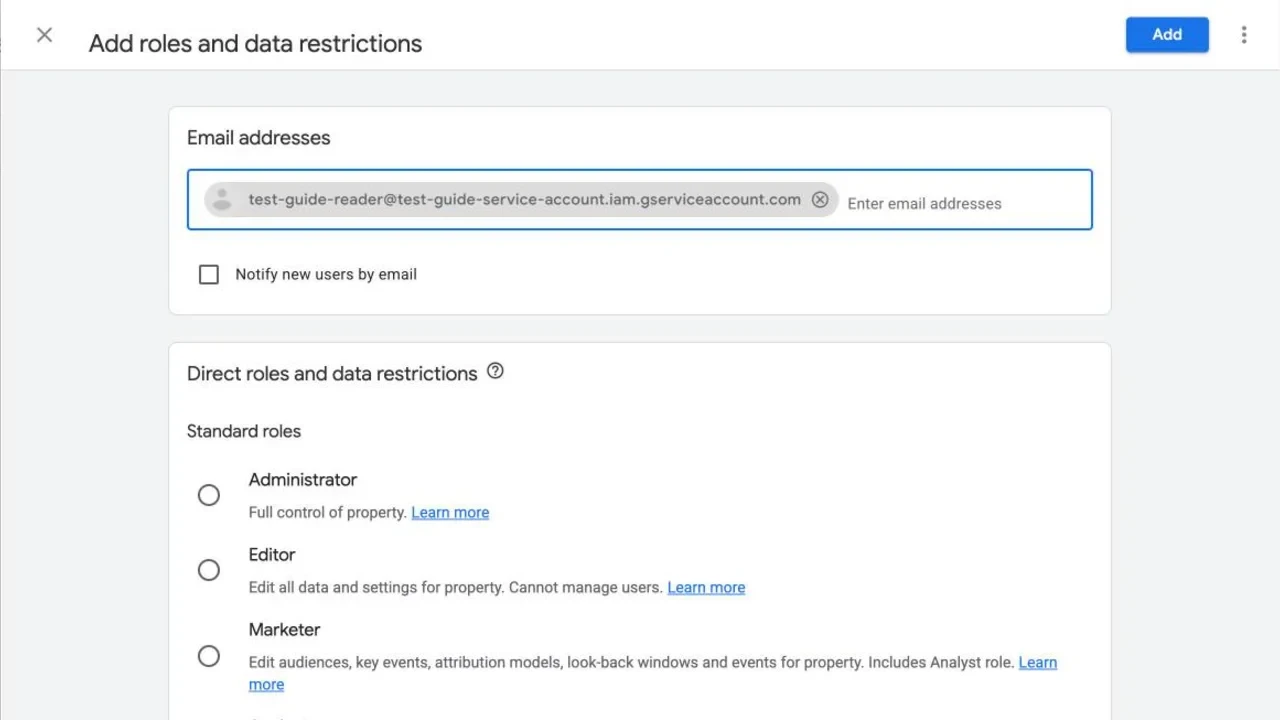
- Click the blue plus button at the top right, then Add users.
- In Email addresses, paste the robot's email and press Enter. It becomes a grey chip.
- Notify new users by email is ticked by default. Untick it. A robot has no inbox.
- Under Standard roles, Viewer is already selected. Leave it. Pick Editor only if you must change settings through the Admin API.
- Click Add at the top right.
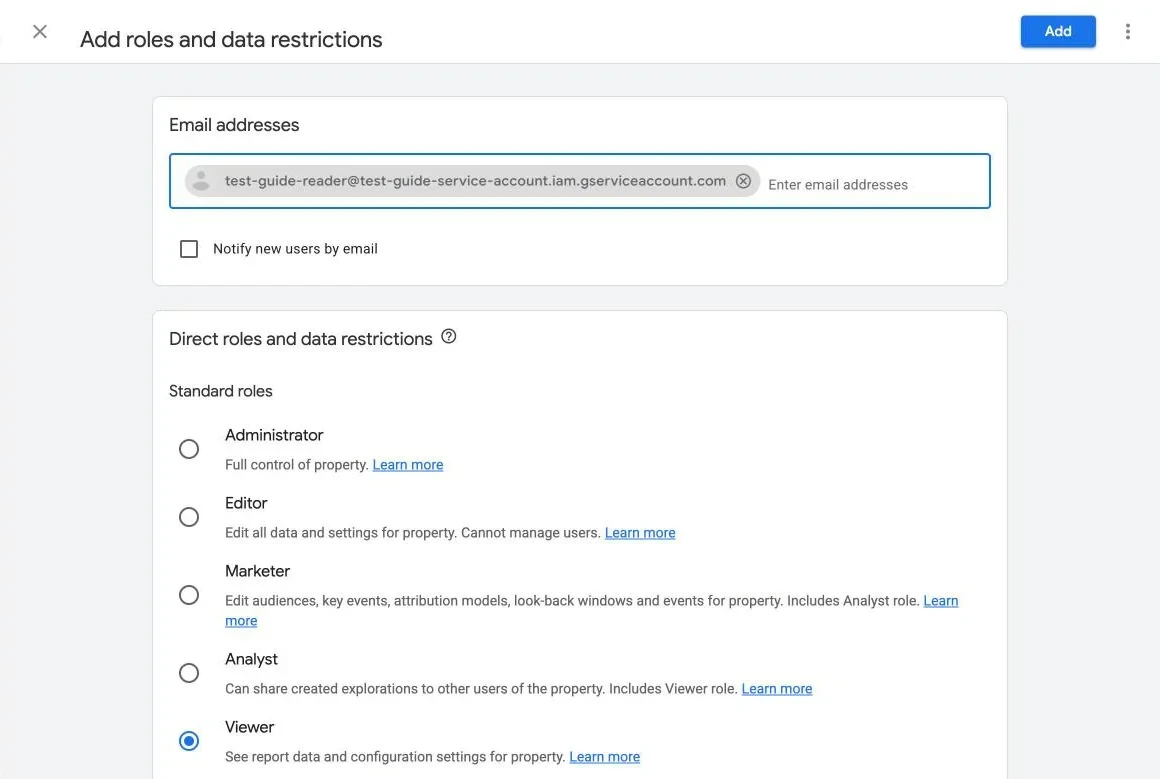
The list now has a new row with the robot's email and the role Viewer. Use Property access management and not Account access management: access given at the account level covers every property in the account, and a robot that reads one property should not get the rest.
Find the numeric property ID
Every Analytics API call asks for a property ID. It is a number, for example 123456789. It is not the measurement ID (that starts with G-) and not the account ID. People mix them up all the time.
- In Analytics, click Admin.
- Under Property settings, click Property details.
- At the top right of the first card, read the number after PROPERTY ID.
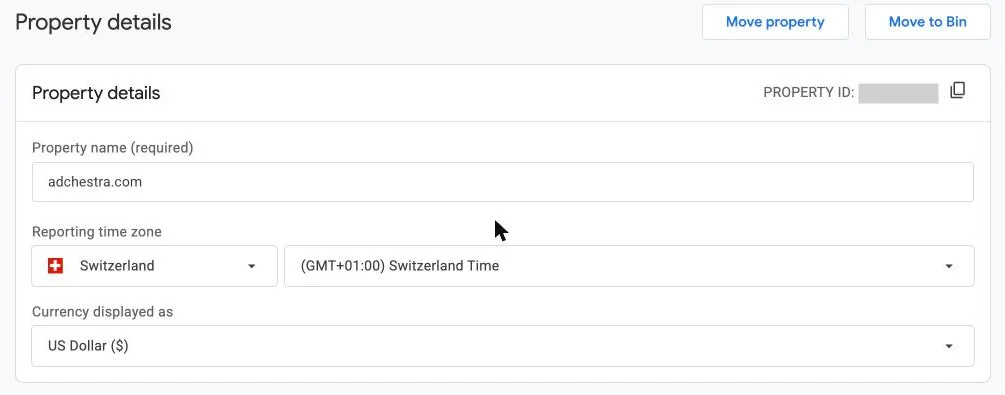
The Data API wants it written as properties/123456789, as Google's page on property IDs shows.
Add the robot to Search Console
Search Console has its own user list. Only an owner of the property can open it, says Google, so sign in as an owner.
- Open search.google.com/search-console and pick the property at the top left. In my account it is
adchestra.com. - In the left menu, open Settings, then Users and permissions.
- Click Add user.
- In Email address, paste the robot's email.
- Open the Permission list. It offers Owner, Full and Restricted. Choose Restricted.
- Click Add.
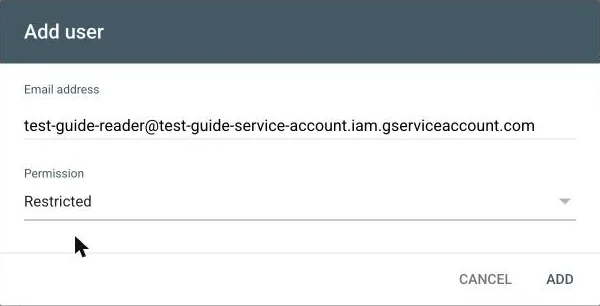
A bar says User added, and the table shows the robot with the permission Restricted. Add the robot to every property you want it to read: access to one does not carry over to another. A domain property and a URL-prefix property for the same site are two properties with two user lists.
Test that it works
Run the smallest call for each product. Both read the key file from this environment variable:
export GOOGLE_APPLICATION_CREDENTIALS="/path/to/key.json"GA4 Data API
This follows Google's quickstart. Install the library with pip install google-analytics-data.
from google.analytics.data_v1beta import BetaAnalyticsDataClient
from google.analytics.data_v1beta.types import DateRange, Metric, RunReportRequest

client = BetaAnalyticsDataClient()
request = RunReportRequest(
    property="properties/YOUR_PROPERTY_ID",
    metrics=[Metric(name="sessions")],
    date_ranges=[DateRange(start_date="7daysAgo", end_date="today")],
)
print(client.run_report(request))
It worked if you get a response with a number, even a zero. An error means one of the cases below.
Search Console API
Install with pip install google-api-python-client google-auth. The scope is the read-only one from Google's authorization page, and the call is sites.list.
import os
from google.oauth2 import service_account
from googleapiclient.discovery import build

credentials = service_account.Credentials.from_service_account_file(
    os.environ["GOOGLE_APPLICATION_CREDENTIALS"],
    scopes=["https://www.googleapis.com/auth/webmasters.readonly"],
)
service = build("searchconsole", "v1", credentials=credentials)
print(service.sites().list().execute())
It worked if the answer lists the property you added the robot to. An empty answer means the robot is not on any property yet.
Every common error, its cause and its fix
"User does not have sufficient permissions for this property"
The big one. Google's error page shows it with the status 403 PERMISSION_DENIED. The robot is not on that GA4 property. Check, in this order:
- Is the robot's email in Property access management of that exact property, in that Google account? People add it to the wrong property.
- Is the email spelled exactly like the Email address line on the service account page?
- Are you sending the right ID? See the next error.
The measurement ID or account ID instead of the property ID
A call with G-XXXXXXXXXX or an account ID inside properties/... does not reach your property. You get a permission or invalid-argument error, and neither says "wrong kind of ID". Use the number from Admin, Property details.
"This email doesn't match a Google Account"
You meet this one in the Analytics form, not in the API. The email turns into a red chip, and Add opens a box titled Unable to add users. I got it right after creating the robot.
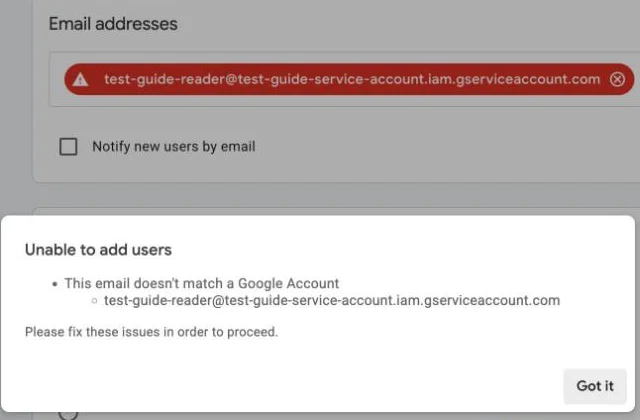
Check the spelling. If it is correct, wait. A new service account is not known to Analytics straight away. About three minutes after I created mine, I removed the chip, typed the address again, pressed Enter, and it was accepted. Search Console took the same address with no wait.
"Google Analytics Data API has not been used in project ... before or it is disabled"
The API is switched off in the project that owns your key. Open APIs and services, then Enabled APIs and services, find the API named in the message (Google Analytics Data API, Google Analytics Admin API or Google Search Console API), enable it, wait a few minutes and retry.
If you enabled it and still get this, you enabled it in another project than the one your key belongs to. The message normally names the project by number. Compare it with the number under IAM and admin, Settings.
"API keys are not supported by this API"
The full text continues "Expected OAuth2 access token or other authentication credentials that assert a principal". You sent a plain API key to the Search Console API, which does not take keys: Google's authorization page says OAuth 2.0 is the only protocol it supports. Use the robot's key file as in the test above, not a key from the Credentials page.
Domain property: use the "sc-domain:" form
For a domain property, the site name in API calls is not a web address. Google's Search Analytics page gives the two forms: a URL-prefix property is the full address with protocol and trailing slash, such as https://www.example.com/, and a domain property is sc-domain:example.com. A web address is not the name of a domain property, so a call that uses one can fail with a permission error even though the robot has access. Copy the exact siteUrl from the test call.
Quota errors
The GA4 Data API gives each property a budget of tokens, points that bigger requests use up. Google lists these limits for standard properties: 200,000 tokens per property per day, 40,000 per hour, 14,000 per project per property per hour, and 10 requests at once. When one runs out you get 429 RESOURCE_EXHAUSTED. Ask for fewer dimensions, shorter date ranges and fewer parallel calls.
For Search Console, Google's usage limits are 1,200 Search Analytics queries per minute per site and per user, plus a separate load quota. If you hit the short-term one, Google says to wait 15 minutes, and to drop page or query grouping and filters or shorten the date range.
Rows missing from a Search Console report
Not an error, but it looks like one. Search Analytics returns 1,000 rows unless you ask for more. The maximum is 25,000 per request, and you page with startRow, per Google.
Remove the robot when you no longer need it
Forgotten access is how a key ends up working years after anyone needs it. I removed mine as soon as I finished testing.
- Analytics: in Property access management, click the three dots on the robot's row, then Remove access. The box lists "1 user". Check that it is the robot, then click Remove.
- Search Console: in Users and permissions, click the three dots on the robot's row, then Remove access, then Remove user. Google confirms with Access removed.
- Google Cloud: on Service accounts, tick the robot and click Delete. Google warns that this also deletes its keys and cannot easily be undone. It offers Disable as the safer first step.
- The project: open IAM and admin, then Settings, click Shut down and type the project ID. Google then says the project is pending deletion and will be deleted after 30 days.
Frequently asked questions
Do I need to give the service account a role in Google Cloud?
No. For GA4 and Search Console the permission lives in each product: a role in Analytics and a permission level in Search Console. Cloud roles control Cloud resources, which these APIs are not.
Is the free tier enough?
Yes. The project, the service account and the API calls here cost nothing, and I did not add billing. The limits are the quotas in the error section.
Can one service account read several GA4 properties?
Yes. Add its email to each property, then use each property's own ID in the call.