 Adchestra
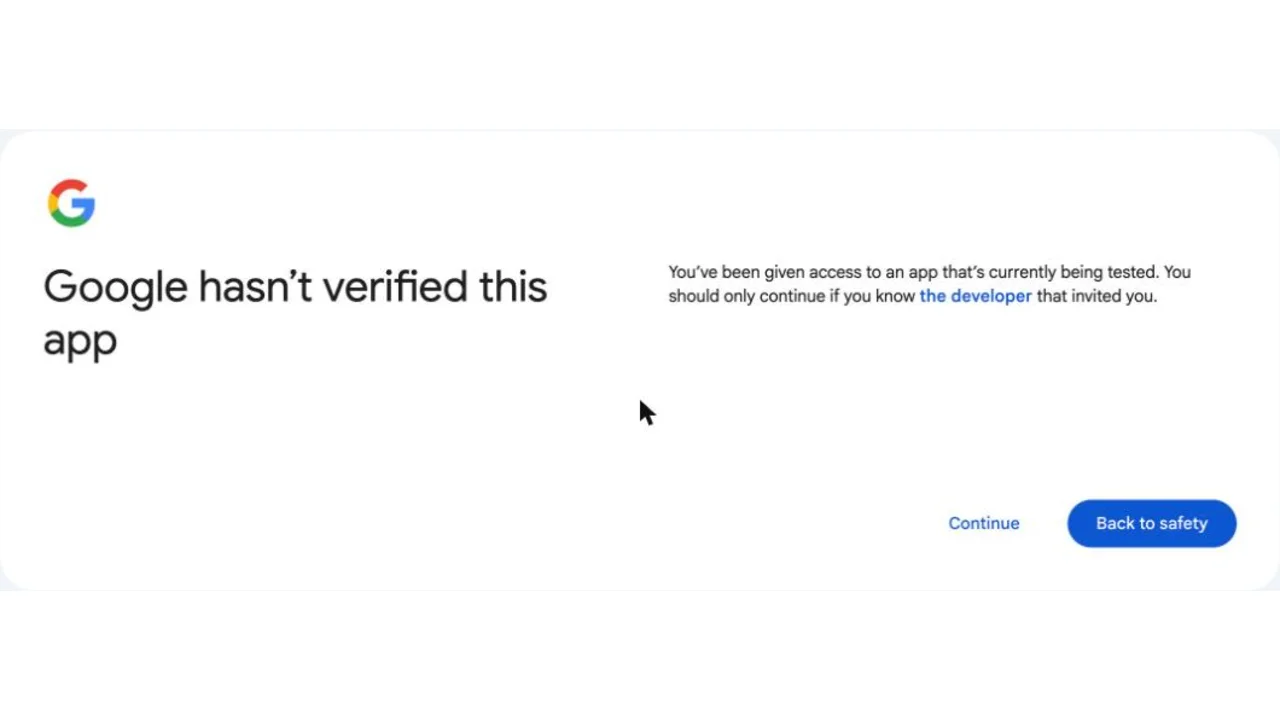
Google stopped you at the sign-in screen
You built your own connection to Google Ads, Analytics or Search Console. You run it, a browser opens, you pick your account, and Google says no. Sometimes politely ("Google hasn't verified this app"), sometimes rudely ("Access blocked"), and sometimes with a code like Error 400: redirect_uri_mismatch that explains nothing.
All of these come from your sign-in client: the OAuth client ID you created in Google Cloud, which tells Google which app is asking. Its settings live in the Google Auth Platform section of the Google Cloud console.
I created a throwaway Google Cloud project and triggered these errors on purpose, so the texts below are exactly what Google shows today. Find your error in the table and jump to its section. Most fixes take two minutes.
Find your error
| What Google shows | Why | Fix |
|---|---|---|
| Access blocked: [app] has not completed the Google verification process. Error 403: access_denied | Your app is in Testing and the account you signed in with is not on the test user list. | Add that exact account under Google Auth Platform, Audience, Test users. |
| Google hasn't verified this app | Your app asks for sensitive data and Google has not reviewed it. This is a warning, not a block. | Click Continue if it is your own app. Only verification removes it for everyone. |
| This app is blocked. This app tried to access sensitive info in your Google Account. | Usually a Google Workspace admin blocks unknown apps, or a shared unverified app hit its user limit. | Ask your Workspace admin to trust the client ID, or use your own client with yourself as a test user. |
| Access blocked: This app's request is invalid. Error 400: redirect_uri_mismatch | The return address in the request is not registered on the client. | Copy the redirect_uri from error details into Authorized redirect URIs, or use a Desktop app client. |
| You can't sign in to this app because it doesn't comply with Google's OAuth 2.0 policy | A redirect or sign-in method Google does not allow, most often an unregistered redirect or the old copy-paste code flow. | Open error details, read the code and redirect_uri, and fix the client or the script. |
| Access blocked: Authorization error. Error 401: invalid_client or deleted_client | The client ID is wrong, or the client was deleted. | Copy the client ID again from Clients, or restore or recreate the client. |
Open the right page in Google Cloud
Every fix starts in the same place.
- Go to console.cloud.google.com/auth/overview.
- Check the project picker at the top left. It must show the project that owns your client. I have lost more time to the wrong project than to any error on this page.
- Click Audience in the left menu. It shows the two settings behind most of these errors: Publishing status and User type.
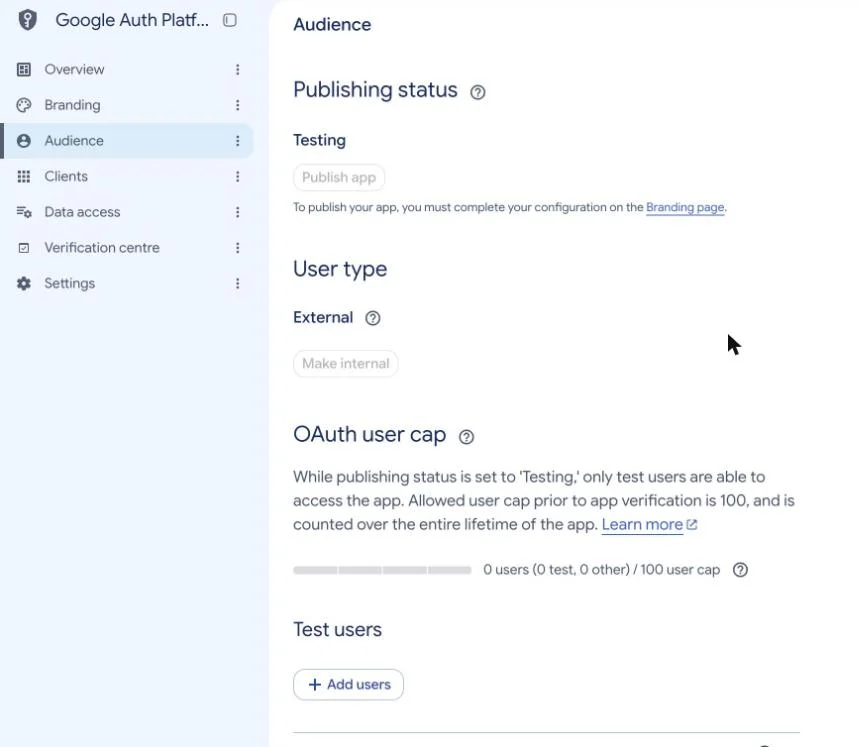
To test a fix, you do not need to run your script. Paste this address into your browser with your client ID and you see exactly what your app would see. Swap in your scope, for example https://www.googleapis.com/auth/adwords for Google Ads.
https://accounts.google.com/o/oauth2/v2/auth?client_id=YOUR_CLIENT_ID&redirect_uri=http://localhost:8080&response_type=code&scope=https://www.googleapis.com/auth/analytics.readonly&hl=enIf you reach the consent screen, click Cancel. Google sends you to localhost:8080/?error=access_denied, which only means you declined. Nothing is granted.
"Access blocked: has not completed the Google verification process"
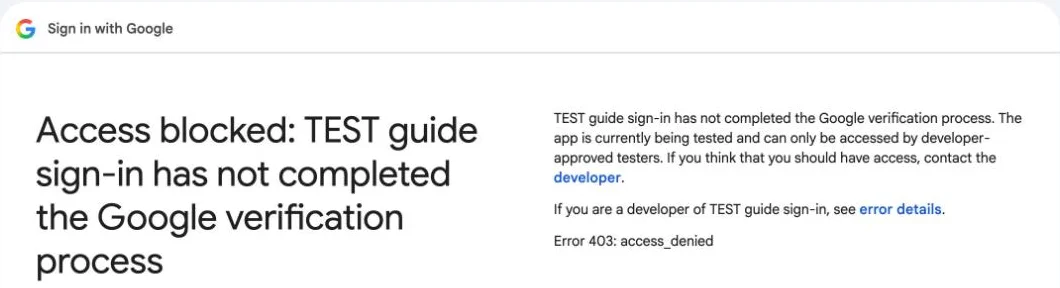
The headline is misleading. You do not need verification. Your app is in Testing, and in Testing only accounts on the test user list can grant sensitive access. Owning the project does not count.
- Open Audience.
- Under Test users, click Add users.
- Type the exact Google account you sign in with and press Enter.
- Click Save, and wait until the account appears in the list. My first click on Save did nothing and I did not notice.
- Sign in again. For me it worked within a minute.
Two traps. If you have several Google accounts in your browser, it is easy to add one and pick another in the account chooser. And the check only applies to sensitive data: when I asked for just the email address, Google let a non-test account straight through. So "it worked yesterday" can mean your script asked for less yesterday.
If the app is set to Internal, an account outside your organization gets Error 403: org_internal instead. Internal apps only accept accounts in that organization.
"Google hasn't verified this app"
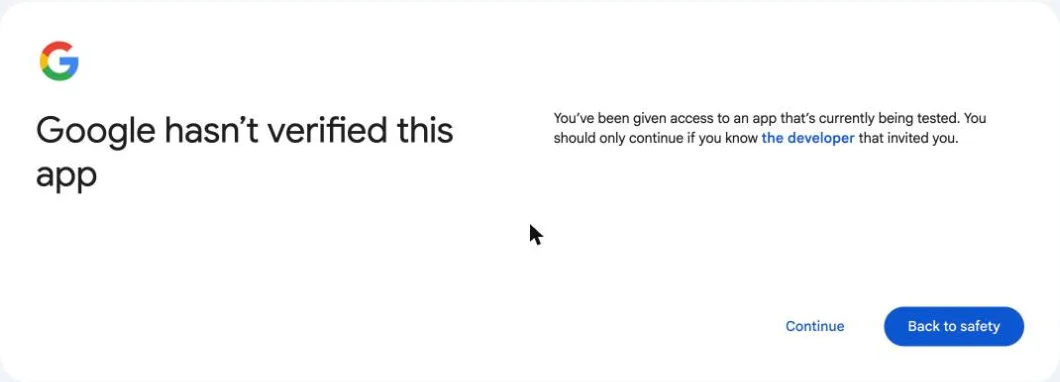
This is a warning, not an error. Google shows it when an app asks for sensitive scopes without a review. A scope is one permission, like "see your Google Analytics data". Google Ads, Analytics and Search Console access are all sensitive, so every self-built connector meets this screen.
The screen says "You've been given access to an app that's currently being tested." It has two buttons: Continue and Back to safety. My own notes from last year said to click Advanced, then Go to [app] (unsafe). That is the version for apps in production. In Testing you just click Continue, then Continue again on the permissions screen. Google made Back to safety the big blue button on purpose. If the developer is you, ignore it.
The warning only disappears if Google verifies the app. For a connector only you use, that is not worth it: apps for personal use, for fewer than 100 users, or in testing do not need verification.
"This app is blocked"
The full text: "This app is blocked. This app tried to access sensitive info in your Google Account. To keep your account safe, Google blocked this access." No Continue, no Advanced link, no error code.
My own Testing client with a test user never shows this screen. That is the clue: it rarely comes from a correctly set up personal client. It has three usual causes.
Cause 1: Your Google Workspace admin blocks unknown apps
This is the most common one, and you cannot fix it alone. On a work account, your admin decides which outside apps may touch company data. In the Google Admin console, under Security, Access and data control, API controls, a setting called Unconfigured third-party apps can be set to Don't allow users to access any third-party apps or Allow users to access third-party apps that only ask for Google sign-in info. Either one blocks your connector the moment it asks for Ads or Analytics data, while plain "Sign in with Google" keeps working. That is why it looks random.
Send your admin two things:
- Your client ID, from Clients in your Google Cloud project. It ends in
.apps.googleusercontent.comand is not a secret. - The steps: in API controls, under App access control, click Manage Third-Party App Access, then Add app, choose OAuth App Name or Client ID, search for the client ID, select it and set it to Trusted.
Google says changes can take up to 24 hours, though usually less.
Cause 2: Someone else's unverified client
Many open-source tools ship a shared sign-in client so you can skip Google Cloud. An unverified app is limited to 100 new users, and after that new people are blocked. Users of one Google Ads tool hit exactly this in 2026. The fix its maintainer confirmed: create your own Google Cloud project with your own Desktop app client. Your project has its own cap, and you are its only user.
Cause 3: Advanced Protection
If your account is in Google's Advanced Protection Program, Google stops most non-Google apps from reaching your Gmail and Drive data. This mostly hits Gmail and Drive connectors. Try another account to confirm.
"Error 400: redirect_uri_mismatch"
The page says "Access blocked: This app's request is invalid", with Error 400: redirect_uri_mismatch at the bottom. The useful part is hidden behind error details. Click it.
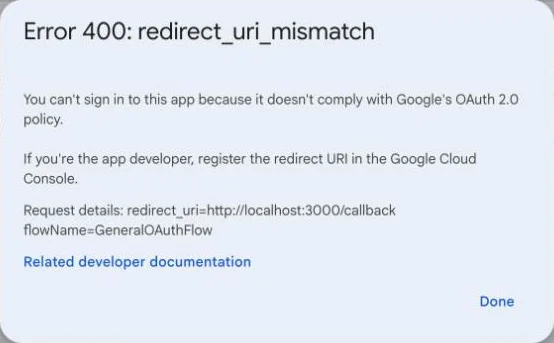
A redirect URI is the address Google sends you back to after sign-in, usually on localhost where your script listens. Google only uses addresses you registered. Note the details also say the app "doesn't comply with Google's OAuth 2.0 policy". Same error, scarier words.
Go to Clients and check the Type column.
Web application. The address must match exactly: http or https, localhost or 127.0.0.1, port, path, even a trailing slash.
- Copy the address after
redirect_uri=from error details. - Click your client's name in Clients.
- Under Authorized redirect URIs, click Add URI and paste it.
- Click Save. Google warns it "may take five minutes to a few hours for settings to take effect", so wait five minutes before you decide it failed.
Desktop app. There is no redirect field. Google accepts any port on localhost. I sent http://localhost:8080 to a Desktop client without registering anything and it went straight through. So if your script runs on your own computer, create a Desktop app client and stop fighting Web application clients. That is what I use for my own Google Ads scripts. Only a tool on a server, or a connector that gives you a callback address to register, needs a Web application client.
"This app doesn't comply with Google's OAuth 2.0 policy"
This sentence appears under several codes. Open error details and read the code. The usual suspects:
- redirect_uri_mismatch. The most common. See the section above.
- The old copy-and-paste flow. Old scripts ask you to copy a code from the browser into the terminal, using the redirect
urn:ietf:wg:oauth:2.0:oob. Google blocked it for production apps on January 31, 2023, but it still works in Testing. I tried it, and in Testing Google showed me a code to copy. That is why such a script works on your machine and breaks the day you publish. Update the script to one that uses a local redirect. - Sign-in inside an app window. Google refuses embedded browsers with the code
disallowed_useragent. Open the link in a normal browser.
"Error 401: invalid_client" and "deleted_client"
Both say "Access blocked: Authorization error". The second line tells them apart.
- "The OAuth client was not found." The client ID in your config is wrong, usually a copy-paste accident or an ID from another project. Copy it again from Clients.
- "The OAuth client was deleted." In Clients, click Restore deleted OAuth clients. Google keeps them restorable for 30 days. After that, create a new client and update your config.
When you create a new client, Google shows the client secret once. The dialog says you "will no longer be able to view or download the client secret once you close this dialog". Click Download JSON before you click OK.
Testing, production, the 100-user cap and verification
Testing versus In production
Every External app starts in Testing, where up to 100 test users listed on the Audience page can sign in. In production, any Google account can. You switch with Publish app on the Audience page, which Google only allows once the Branding page is complete.
Testing has a seven-day catch
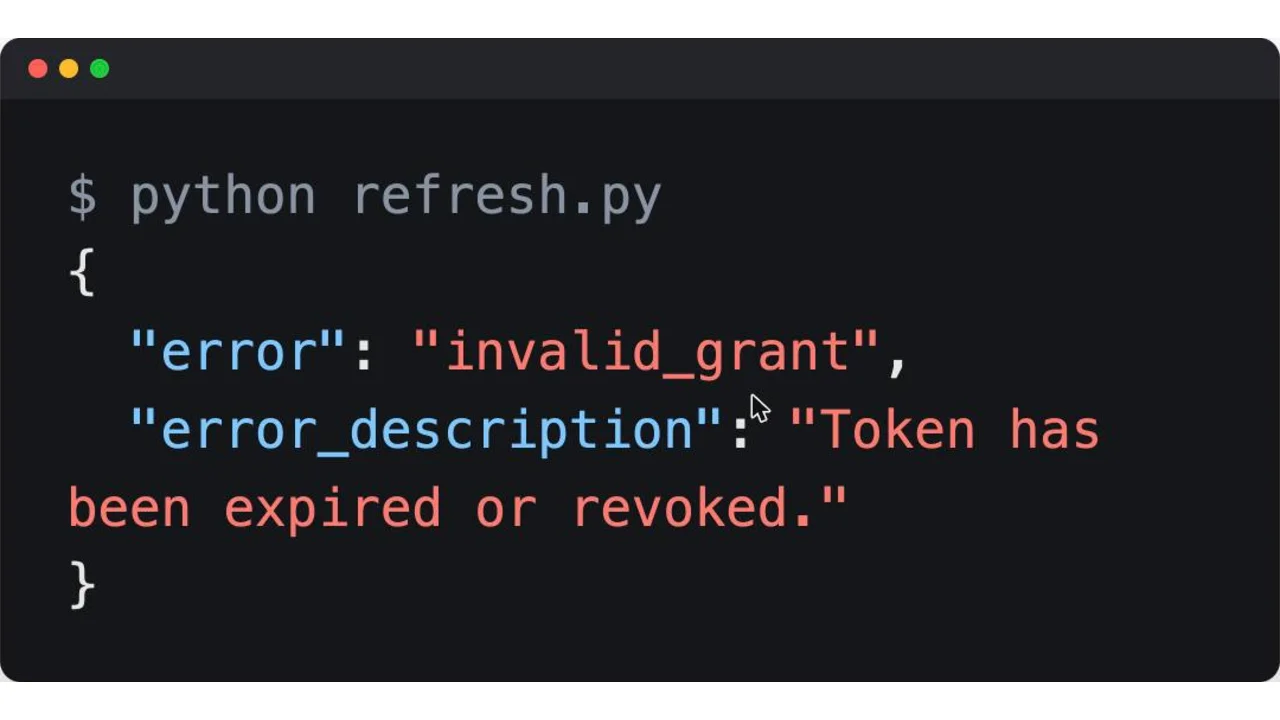
In Testing, sign-ins expire seven days after consent, and so does the refresh token, the long-lived key your script stores. Apps that ask only for name, email and profile are exempt. My old notes said the refresh token "doesn't expire under normal use". That is only true in production. If your connector dies every week with invalid_grant, this is why: sign in again.
The 100-user cap
The Audience page says the "allowed user cap prior to app verification is 100, and is counted over the entire lifetime of the app." For you and a few colleagues that is plenty. Do not add your whole address book.
When you need verification, and how long it takes
You need verification only if strangers will use your app with sensitive or restricted scopes. Google exempts personal use, fewer than 100 users, apps in testing, internal apps and apps an admin trusts. For sensitive scopes Google says the review can take up to 10 days and needs a public home page, a privacy policy on the same domain, domain ownership in Search Console and a demo video. Developers on Google's developer forum report waiting six weeks and more. For a connector you build for yourself, skip it.
Internal apps in Google Workspace
If your project belongs to a Google Workspace organization, Make internal on the Audience page sets the user type to Internal. Internal apps get no unverified screen and no 100-user cap, but only your organization's accounts can sign in. On a personal Gmail account the button is grayed out, because there is no organization. If only colleagues will use your connector, Internal is the best setting on this page.
Frequently asked questions
Why do I get Error 403: access_denied when I own the project?
Owning the project does not make you a test user. While the app is in Testing, only accounts on the test user list can grant sensitive access. Add your account under Audience, Test users, click Save and check that it appears in the list.
Is it safe to click Continue on "Google hasn't verified this app"?
If you created the client yourself, yes. The warning only means Google has not reviewed the app, and the developer is you. Do not click it for an app you did not build and do not trust.
Can I fix "This app is blocked" myself?
On a work account, usually not: your Google Workspace admin has to trust the client ID in the Admin console. On a personal Gmail account, the usual fix is to stop using a shared client and create your own, with yourself as a test user.
Should I publish to production to stop the weekly sign-in?
It stops the seven-day expiry, and Google lets personal apps under 100 users skip verification, so you would see the unverified warning with an Advanced link instead. For a tool only I use, I stay in Testing and sign in weekly, because it keeps the app limited to the accounts I listed.
Does a hosted connector avoid all of this?
It removes your own client, test users and redirect addresses. It does not get around a Workspace admin: if your admin blocks unknown apps, they have to allow the hosted connector too.