 Adchestra
Your script worked last week and now it says invalid_grant
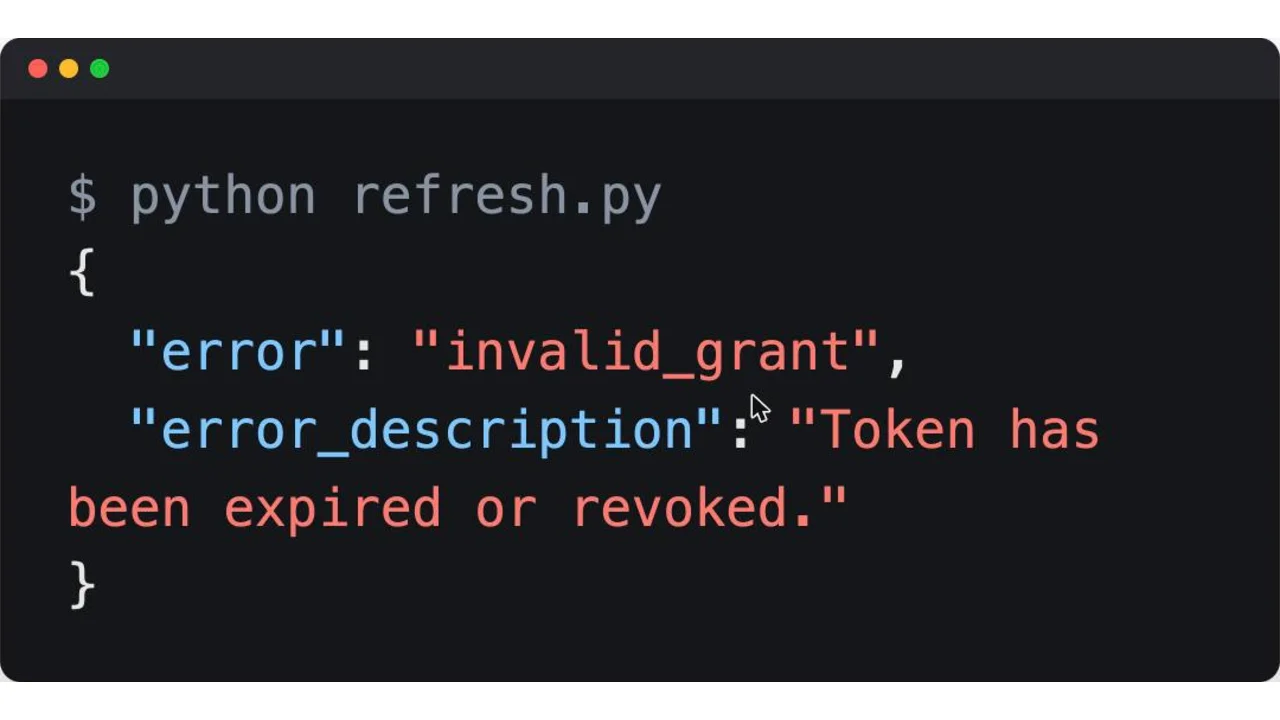
You wrote a script, or you run a self-hosted connector, that reads Google Ads, Analytics or Search Console. You signed in once. It ran fine for days. Then, overnight, this:
{
  "error": "invalid_grant",
  "error_description": "Token has been expired or revoked."
}
The message does not say what happened. This guide lists every cause Google documents, how to recognise each and the exact fix. Most fixes take two minutes.
First, two words. Your script holds two keys. The access token is the short key. It opens the API, and it lasts about an hour. The refresh token is the long key. Your script shows it to Google to get a new access token without asking you to sign in again. invalid_grant almost always means Google refused the long key. Google's documentation says refresh tokens stop working for several reasons, and the rest of this guide goes through them.
Find your cause
| What you see | Cause | Fix |
|---|---|---|
| It dies about 7 days after you signed in, every time. | Your sign-in client is in Testing. Google expires the refresh token 7 days after consent. | Sign in again for now. To stop it, move the app to In production, then sign in once more. |
| It died the moment you or someone else removed the app in the Google account. | The user revoked access. | Sign in again and store the new refresh token. |
| It died after a password change, and the token has Gmail permission. | Google invalidates refresh tokens with Gmail scopes when the password changes. Google Ads, Analytics and Search Console scopes are not on that list. | If your token has no Gmail scope, look at the other rows. If it has, sign in again. |
| It dies at random, or after you ran the sign-in script on a new machine. | More than 100 refresh tokens exist for this account and this client. Google silently cancels the oldest. | Sign in once, store that token, and stop running the sign-in script for the same account over and over. |
| The job ran once, then not for six months, then failed. | A refresh token that has not been used for six months expires. | Sign in again. Run something small every month so the token counts as used. |
| Your first sign-in gave you an access token and no refresh token, so the first refresh fails. | The sign-in request did not ask for offline access, or the account had already consented and Google did not show the consent screen again. | Ask for access_type=offline and prompt=consent, or remove the app in your Google account and sign in again. |
| You see invalid_client, or everything broke on the day someone touched Google Cloud. | The OAuth client was deleted or its secret was changed. Tokens that belong to a deleted client stop working. | Restore the client within 30 days, or create a new one and sign in again. |
| You use a service account, not a user sign-in, and the message says "Invalid JWT" and mentions iat or exp. | The computer's clock is wrong. | Sync the clock. |
| It fails about an hour after you signed in, and you put the same string in the "refresh token" field. | You stored the access token, which lasts about one hour, instead of the refresh token. | Store the field called refresh_token. |
| It fails on a work account on a fixed rhythm, such as every few hours, with "reauth" in the message. | A Google Workspace admin set a session length for Google Cloud services. | Sign in again, or ask your admin to exempt your client. |
Check whether the refresh token itself is dead
Before you change anything, ask Google directly. This sends your refresh token to Google's token address, which is the same request your script makes. Put your own values in the three capital words and run it in a terminal.
curl -s -X POST https://oauth2.googleapis.com/token \
  -d client_id=YOUR_CLIENT_ID \
  -d client_secret=YOUR_CLIENT_SECRET \
  -d refresh_token=YOUR_REFRESH_TOKEN \
  -d grant_type=refresh_token
If the token is alive, Google answers with a new access_token and an expires_in number, usually 3600 seconds. Google's documentation says to read the lifetime from expires_in and not to hard-code it. If the token is dead, you get the error from the top of this page. Now you know the problem is the token and not your script.
Read the error name too. invalid_grant means Google knows your client and refused the token. When I sent a made-up client ID to the same address, Google answered invalid_client with "The OAuth client was not found". That is a different problem, and it points at your client ID or secret.
The command holds your secret and your refresh token. Never paste them in a chat, an issue or a screenshot.
Cause 1: your app is in Testing, so the token lives 7 days
This is behind most of the questions on Stack Overflow. The classic one, "Google OAuth2 Refresh token gets expired in a few days", has more than 60,000 views. You recognise it by the timing: it dies about a week after you last signed in. Not 6 days, not 8. Seven.
Google documents it in two places. Its Cloud help page says authorizations by a test user expire seven days from the time of consent, and that this includes the refresh token when the client asks for offline access. Its OAuth overview says the same about a project with the publishing status "Testing". The only exemption is an app that asks for just name, email and profile. Google Ads, Analytics and Search Console are never exempt.
To see your status:
- Go to console.cloud.google.com/auth/audience. Check the project name at the top left. It must be the project that owns your client.
- Read Publishing status. It says Testing or In production.
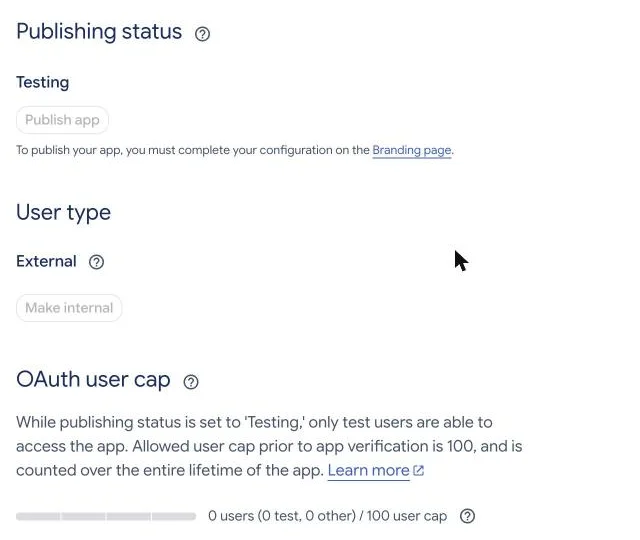
If it says Testing, you have two choices.
- Sign in again every week. Run your sign-in script, store the new refresh token. That is what I did for a long time.
- Move the app to In production. Click Publish app on the same page. The button stays grayed out until the Branding page is complete, and then Google asks you to confirm. See "How to stop it coming back" below for what that means for sensitive scopes.
Do not count on publishing to rescue the token you already have. After you publish, sign in once more and store the new token.
My own old notes said the refresh token "doesn't expire under normal use". That is true only once the app is In production. In Testing it is wrong.
Cause 2: someone removed the app from the Google account
A refresh token is valid until the user revokes access, says Google's documentation. The user is whoever signed in, often you, on a day you were tidying up. Check the list yourself.
- Sign in to the Google account your script uses and go to myaccount.google.com/connections. The page is called Linked apps.
- Look for the name of your sign-in client. It is the name you set on the Branding page in Google Cloud.
- Click it. The detail page lists what the app can do and has a Delete all row: "Remove all links and stop sharing your Google Account data with" the app.
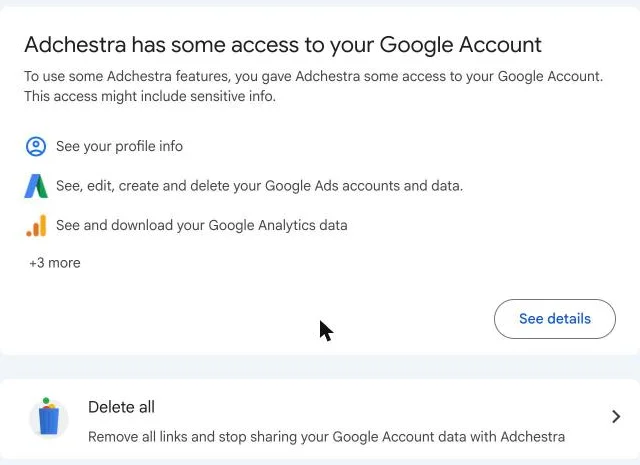
If your app is not in the list, the access was removed. Sign in again to get a new refresh token. Deleting the app here is also the clean way to force a fresh start, which matters for Cause 5.
Password changes
Google also lists a password change, but only when the refresh token contains Gmail scopes. A script that asks only for Google Ads, Analytics or Search Console is not on that list.
Cause 3: the token sat unused for six months
Google's documentation says a refresh token not used for six months stops working. It hits seasonal jobs, like a script that only runs for a Black Friday report. You recognise it by the date: the last good run was over six months ago. Sign in again.
Cause 4: more than 100 refresh tokens for one account and client
Google limits an account to 100 refresh tokens per OAuth client ID. When you create the 101st, Google quietly cancels the oldest, with no warning. There is also a larger limit across all your clients for one account.
This is the "tokens stop working at random" cause. It happens when your sign-in script runs on every start, when many machines share one client and one account, or when you tested a lot during setup and each test made a token.
The fix is boring. Sign in once, store the refresh token and reuse it. Never run the sign-in step from a loop or at startup. Then sign in once more, because the token that died is not coming back.
Cause 5: Google never gave you a refresh token
Sometimes the sign-in succeeds, the script stores something, and the first refresh fails. The refresh_token field was empty. Google's documentation gives two reasons.
- The request did not ask for offline access. Without
access_type=offline, Google returns only the short access token. - Google returns a refresh token on the first authorization only. If the account already consented to your client, the next sign-in skips the consent screen and returns no refresh token. To get one again, the same page says you must send
prompt=consent, or the user must revoke the existing grant first.
My own script for fetching a Google Ads refresh token handles this on purpose. It uses a Desktop app client and Google's Python library, opens a browser for consent, and writes the token to a file instead of printing it. The lines that matter:
credentials = flow.run_local_server(port=0, prompt="consent")

if not credentials.refresh_token:
    raise SystemExit("Google returned no refresh token. Remove this app in your Google account and run again.")
prompt="consent" shows the consent screen every time, so Google hands over a refresh token every time. The check stops the script from saving an empty token. The trade-off is Cause 4: forcing consent on every run is how you reach 100 tokens. If you wrote the sign-in address by hand, add access_type=offline&prompt=consent to it.
Cause 6: the OAuth client was deleted or its secret changed
A refresh token belongs to the client that created it. Google's help page on OAuth clients says that calls using existing access or refresh tokens of a deleted client will fail, and that a deleted client can be restored within 30 days. It also says a disabled client secret is rejected in OAuth flows.
You recognise it by the timing: right after someone cleaned up Google Cloud or rotated a secret. The error is often invalid_client, as in my test above.
- Open console.cloud.google.com/auth/clients in the right project.
- If your client is missing, click Restore deleted OAuth clients.
- If it is gone for good, create a new client of type Desktop app, download its JSON file, update your config and sign in again.
The sneaky version: you pasted a new client ID and secret and kept the old refresh token. A refresh token belongs to the client that issued it, so replace all three together.
Cause 7: the computer's clock is wrong
This one is real but narrower than the forums make it sound. Google documents the clock cause for service accounts. When your script signs a request with a service account key, Google answers invalid_grant with "Invalid JWT: Token must be a short-lived token (60 minutes) and in a reasonable timeframe", and its service account page says to check the clock of the computer that signs the request and sync it.
For an ordinary user sign-in with a refresh token, Google's pages do not name the clock as a cause, so check the other causes first. If you use a service account, check the clock first:
- Compare your computer's time with a time website.
- On a server or in a container, check that the time service runs. A virtual machine that was paused and resumed is a classic case.
Cause 8: you stored the access token as the refresh token
Both keys are long strings, and the token response holds them in different fields. Google's documentation describes expires_in as the remaining lifetime of the access token. If your script worked for about an hour and then failed, check which one you stored. Copy the value of refresh_token, not access_token. A good script stores the refresh token and asks for a new access token when the old one ends.
Cause 9: your Google Workspace admin limits sessions
On a work account, an admin can set a session length for Google Cloud services. Google says it is a fixed interval from 1 to 24 hours, not an idle timer. When it ends, apps can return a "reauth related error" until the user signs in again, and server-to-server apps have no user to do that. Google's OAuth overview lists it as a reason a refresh token stops, and users of Google's official Google Ads server report exactly this.
The fix is on the admin's side: the Exempt Trusted apps option on the same Google page. Without it, you sign in again each time the session ends.
How to stop it coming back
1. Move the app to In production
This removes the seven-day limit, the biggest cause by far. On the Audience page, click Publish app. Google's help page says production apps are open to any Google account, and that an app with sensitive or restricted scopes may be subject to verification.
Google Ads, Analytics and Search Console are sensitive scopes. In practice this means two things:
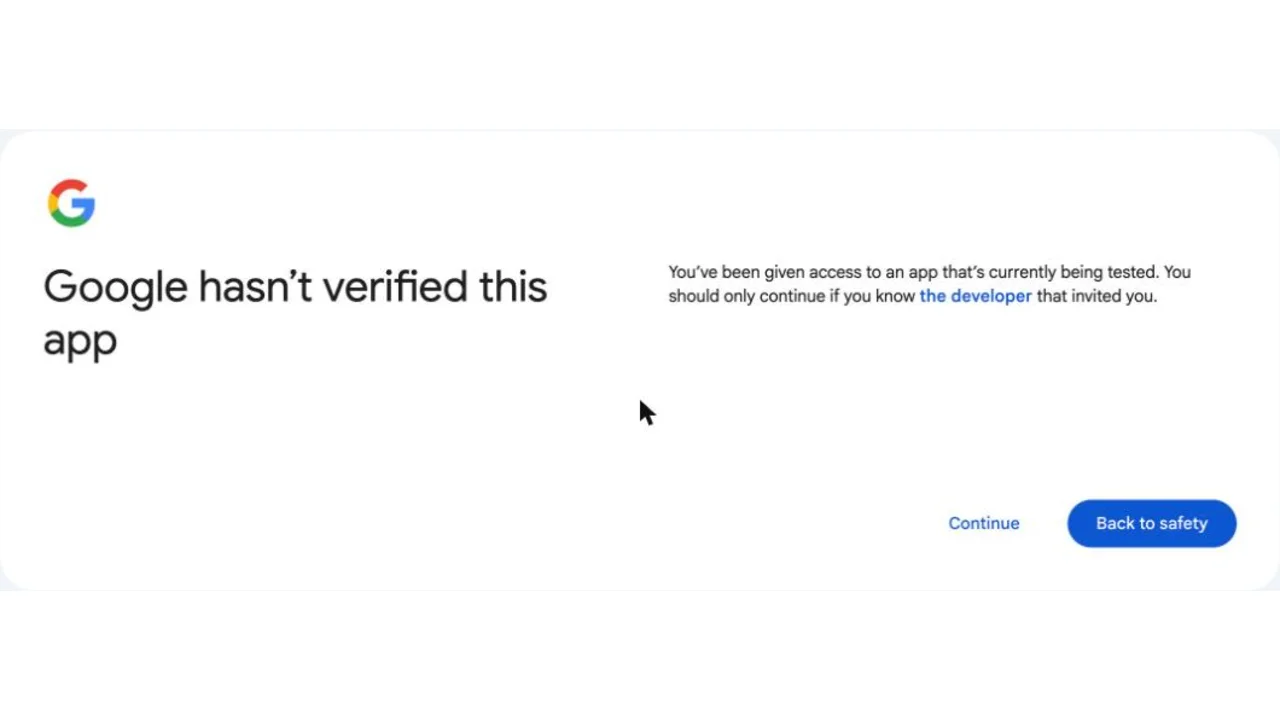
- You see the "Google hasn't verified this app" warning when you sign in. For your own app, you click through it. I explain that screen in How to fix "This app is blocked" on Google sign-in.
- Google caps an unverified app at 100 new users over its lifetime. For a script only you or a few colleagues use, that is plenty. If strangers will use your app, you need verification, and Google says sensitive scope review can take up to 10 days.
I stay in Testing for tools that only I use and re-sign in weekly, because it keeps the app limited to the accounts I listed. For anything that has to run unattended, I publish.
2. Store the newest refresh token
Sign in once, save the refresh_token in your secrets file or password manager, and reuse it. Do not run the sign-in step again just because you can. Each run makes a new token and moves you toward the 100 limit.
3. Handle the error by sending the user to sign in again
Google's own advice for a failed refresh is to authenticate the user again and ask for consent to get new tokens. When your script sees invalid_grant, stop retrying, because a dead token never revives, and tell a human: "Google sign-in expired, run the sign-in step again." That beats a stack trace at 3 a.m.
4. Use the token once a month
This protects against the six-month rule. If the job runs rarely, add a tiny call in between that asks for an access token.
Frequently asked questions
How long does a Google refresh token last?
There is no fixed lifetime. In production it lasts until it is revoked, goes unused for six months, or hits one of the other limits in Google's documentation. In Testing it lasts seven days. The access token is the one that lasts about an hour.
Why does my token expire after exactly 7 days?
Your sign-in client is in Testing. Google's help page says test authorizations, including refresh tokens, expire seven days after consent. Publish the app, then sign in once more.
Why am I asked to consent again and again?
Either your script forces consent on every run with prompt=consent, or the old token died and it starts over. Force consent only when you need a new refresh token, then store it.
Is invalid_grant always the refresh token?
No. Google's documentation also returns it for an invalid authorization code. If it appears at first sign-in and not on a refresh, check the code and the redirect address.
Does a hosted connector avoid all of this?
It removes the work, not Google's rules. A hosted connector keeps the sign-in alive for you: you do not create a client, publish an app or store a token. Tokens can still be revoked, and a Workspace admin's session rule still applies to you.