 Adchestra
The API says no, and the account is yours
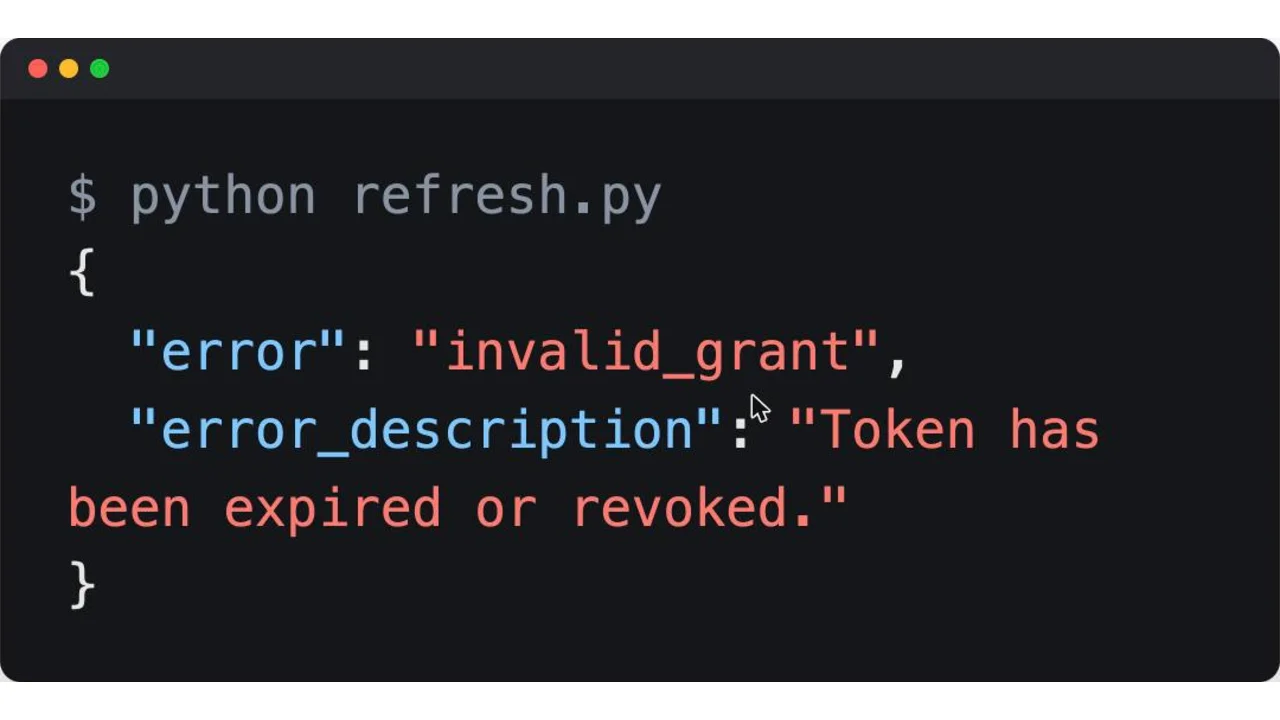
I own my Google Ads account. I am an admin on it. And the first time I called the Google Ads API on it, Google told me I did not have permission to access it.
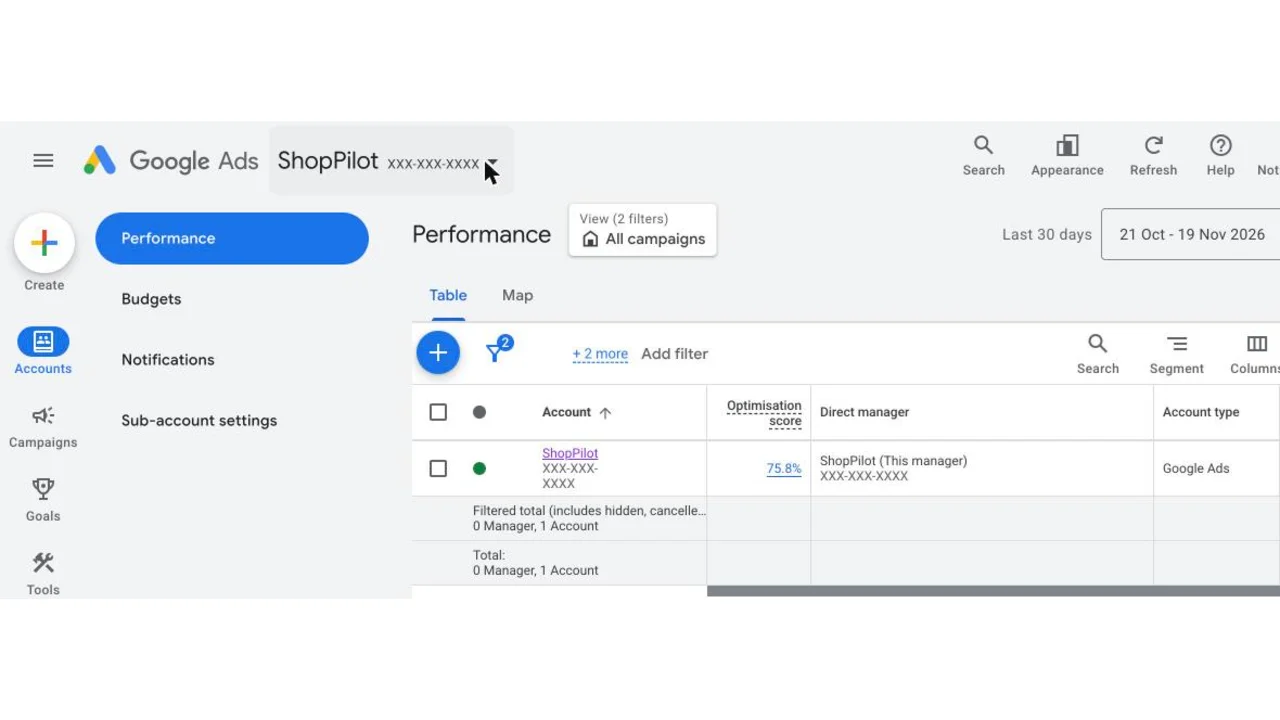
The reason was boring. My ads account sits under a manager account (a Google Ads account that holds other accounts, also called an MCC). My Google login has access to the manager, not to the ads account itself. So every API call has to go in through the manager, and the API has to be told that. Skip that detail, and the account you see every day in the browser is invisible to the API.
This guide covers every permission error you are likely to meet: the error text, the usual cause, the fix and how to check it worked. Most people are done in ten minutes. Find your error in the table and jump to that step.
Find your error
| Error text | Most likely cause | Fix |
|---|---|---|
USER_PERMISSION_DENIED: "User doesn't have permission to access customer" | You reach the account through a manager account and did not send the manager's ID in login-customer-id, or you sent the wrong ID there. | Set login-customer-id to the manager account's ID, ten digits, no dashes. Keep the ads account's ID as the customer ID in the request. See step 3. |
"The caller does not have permission" (status PERMISSION_DENIED) | This is only the outer wrapper. The real reason is the error code inside it, most often USER_PERMISSION_DENIED. | Read the error_code under the wrapper and fix that one. See step 1. |
INVALID_LOGIN_CUSTOMER_ID_SERVING_CUSTOMER_ID_COMBINATION | The manager ID in login-customer-id is not above the account you are calling. | Put the ID of a manager that really holds that ads account in login-customer-id. Check the hierarchy with the query in step 3. |
NOT_ADS_USER: "The Google account used to generate the access token is not associated with any Google Ads account" | You signed in with the wrong Google account, or with a service account nobody added to Google Ads. | Sign in again with the Google account that is listed in Google Ads under Admin, Access and security. Or add that account (or the service account's email) there. See step 4. |
CUSTOMER_NOT_ENABLED: "The customer account cannot be accessed because it is not in an enabled state" | The ads account never finished signup, or it was cancelled. | Open the account in Google Ads and finish setup, or reactivate it. See step 5. |
CLOUD_PROJECT_NOT_APPROVED_FOR_PRODUCTION (or ACTION_NOT_PERMITTED in v24 and older) | Your Google Cloud project only has Test access, and you called a real account. | Call a test account, or apply for Explorer access for your Google Cloud project. See step 6. |
Which ID goes where
- Customer ID (the account in the request path,
customers/1234567890/...): the ads account whose campaigns you want to read or change. Always this one. login-customer-id(a request header): the account your Google login was invited to. If you were invited to the manager, it is the manager's ID. If you were invited straight to the ads account, it is the ads account's ID, or you can leave it out.- Both IDs: ten digits, no dashes. Google Ads shows
123-456-7890; the API wants1234567890. - Calling the manager itself (for example to list its accounts): customer ID and
login-customer-idare both the manager's ID. - Several managers in a chain: use the top manager that your login was invited to. Google calls it the root account, and it decides your access level.
What changed on September 9, 2026
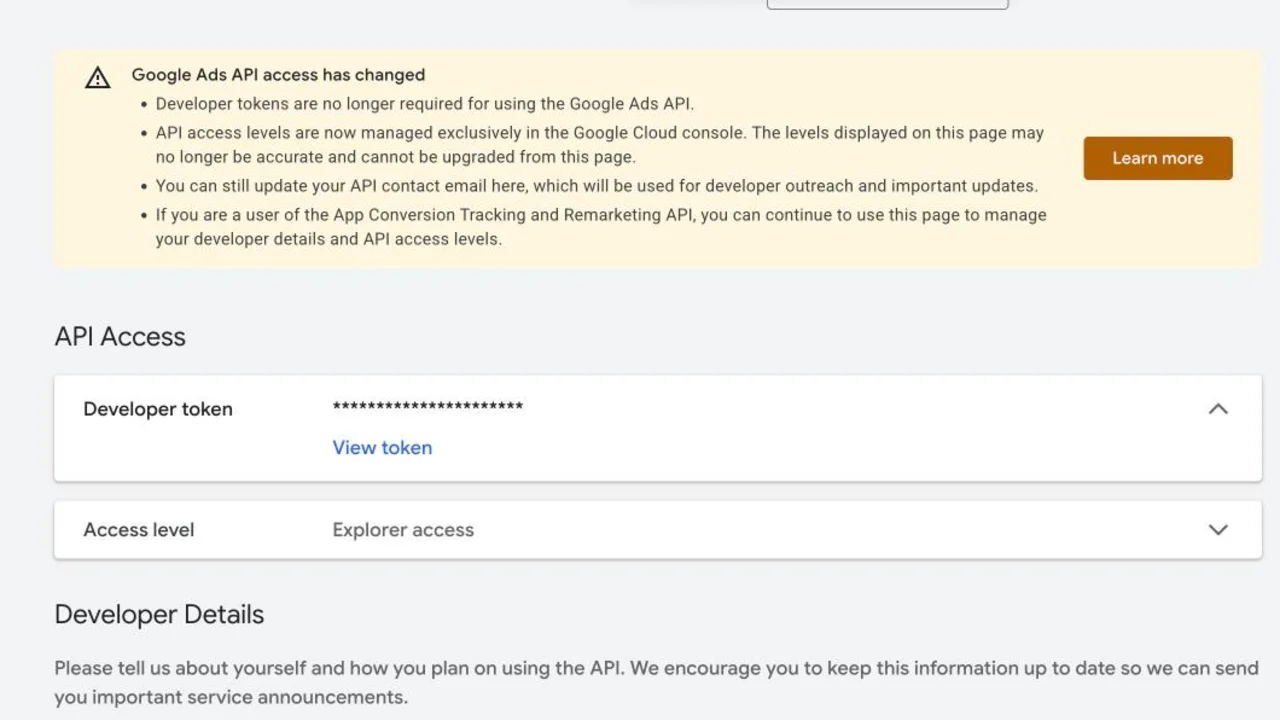
Most answers on Stack Overflow and in the Google Ads API forum are from 2020 to 2025. The login-customer-id part is still true. The part about tokens is not.
- Developer tokens are gone. Google retired them on September 9, 2026. You may still send the
developer-tokenheader, and the API ignores it. No answer that says "your token is not approved" applies any more. - Access belongs to a Google Cloud project. Your access level (Test, Explorer, Basic or Standard) belongs to the Google Cloud project that owns your OAuth client or service account. Check it on the Google Ads API page in the Google Cloud console. The API Center in Google Ads now warns that the levels it shows "may no longer be accurate".
- You no longer need a manager account for the API. The token used to live in a manager account, so everyone made one. That is how I ended up with an ads account I can only reach through a manager. If you have that setup, you still need
login-customer-id.
Read the real error, not the wrapper
The Google Ads API wraps every failure in a general status, and then lists the specific reason inside. People google the wrapper and get lost. In the Python client library, a permission failure usually looks like this:
status = StatusCode.PERMISSION_DENIED
details = "The caller does not have permission"
...
errors {
  error_code {
    authorization_error: USER_PERMISSION_DENIED
  }
  message: "User doesn't have permission to access customer. Note: If you're accessing a client customer, the manager's customer id must be set in the 'login-customer-id' header. See https://developers.google.com/google-ads/api/docs/concepts/call-structure#cid"
}
Ignore the first two lines. The line that matters is error_code. Look it up in the table above, or in Google's list of authorization errors. Google's common errors page gives the cause and fix for the most frequent ones.
One look-alike is not about Google Ads access at all: "Google Ads API has not been used in project ... before or it is disabled." The API is switched off in the Google Cloud project that owns your OAuth client. Enable it there and wait a few minutes.
Find the manager ID and the ads account ID
You need two numbers, and you need to know which one is the manager.
- Go to ads.google.com while signed in with the Google account your code uses. If you have more than one account, Google shows Select a Google Ads account.
- Look under each name. A manager account has the word Manager under its name. The number on the right is its ID.
- Click the manager. In the left menu, click Accounts. The table lists the ads accounts under it, each with its ID under the name, and the Direct manager column says which manager holds it.
- Copy both numbers and remove the dashes.
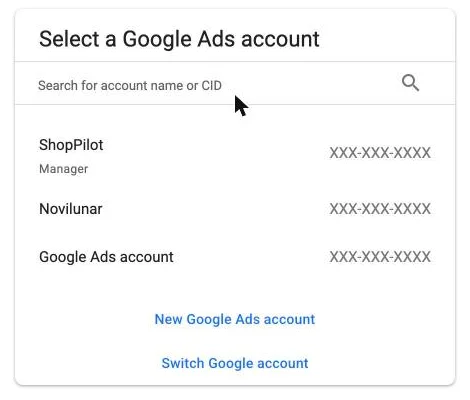
Now the part that explains the whole error. My ads account is not in the picker. Only the manager is, because my Google login was invited to the manager. In the browser you click the manager, then the account, and it just works. The API needs to be told "I am coming in through this manager", and that is what login-customer-id says.
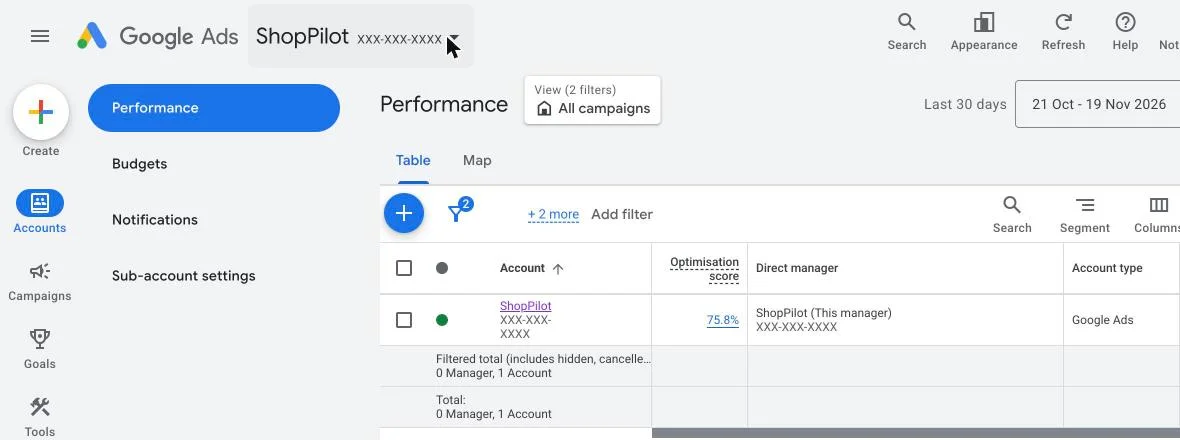
If your ads account does show up in the picker on its own, your login has direct access to it. Then you do not need login-customer-id for that account, and your error is more likely one from step 4 or 5.
Set login-customer-id to the manager
Google's call structure page says it in one line: when you reach an account through a manager, the login-customer-id header is required and must be the manager's customer ID. If you leave it out, it defaults to the account you are calling, and you get USER_PERMISSION_DENIED.
Where you set it depends on how you call the API.
Client libraries (google-ads.yaml)
All official client libraries read a configuration file. In Python it is google-ads.yaml. Add one line:
login_customer_id: 1234567890Or, if you load settings from environment variables:
export GOOGLE_ADS_LOGIN_CUSTOMER_ID=1234567890Then keep the ads account's ID in the request itself, for example ga_service.search(customer_id="9876543210", query=query). Two different numbers. That is correct.
REST with curl
The ads account goes in the address. The manager goes in the header.
curl -f --request POST \
  "https://googleads.googleapis.com/v26/customers/ADS_ACCOUNT_ID/googleAds:search" \
  --header "Content-Type: application/json" \
  --header "Authorization: Bearer ${OAUTH2_ACCESS_TOKEN}" \
  --header "login-customer-id: MANAGER_ID" \
  --data '{"query": "SELECT customer.id, customer.descriptive_name FROM customer"}'
Google's official MCP server
If you run Google's Google Ads MCP server yourself, add "GOOGLE_ADS_LOGIN_CUSTOMER_ID": "MANAGER_ID" to its env block.
Adchestra Local
Adchestra Local asks for both IDs during setup: --account is the ads account and --manager is the manager. It then sends the manager as login-customer-id on every call. The classic mistake is to swap the two, so check them before you run it.
adchestra-local setup --client YOUR_CLIENT_JSON_FILE --account ADS_ACCOUNT_ID --manager MANAGER_IDCheck the hierarchy if you are unsure
If you do not know which manager holds which account, ask the manager. Call the manager with its own ID as both customer ID and login-customer-id, and run this query:
SELECT
  customer_client.client_customer,
  customer_client.descriptive_name,
  customer_client.manager,
  customer_client.level,
  customer_client.status
FROM customer_client
For my setup it returns two rows: the manager itself at level 0 with manager = True, and my ads account at level 1 with manager = False and status ENABLED. Every account in the answer can be called with that manager in login-customer-id. An account that is not in the answer cannot. Google explains the levels on its account hierarchy page.
Check which Google account you signed in with
Nobody suspects this one, because the sign-in looked fine. Your refresh token belongs to whichever Google account you clicked on the consent screen. With a personal Gmail and a work account in the same browser, it is easy to click the wrong one. The token works. It is just the wrong person.
The symptom is NOT_ADS_USER when that Google account has no Google Ads access at all, and USER_PERMISSION_DENIED when it has access to some other account but not this one.
See which accounts your token can open
Call ListAccessibleCustomers. It needs no customer ID and ignores login-customer-id, so it shows exactly what your login was invited to:
curl -f --request GET \
  "https://googleads.googleapis.com/v26/customers:listAccessibleCustomers" \
  --header "Content-Type: application/json" \
  --header "Authorization: Bearer ${OAUTH2_ACCESS_TOKEN}"
Read the answer this way:
- Error
NOT_ADS_USER: wrong Google account. Sign in again with the right one. - Your manager is listed, your ads account is not: normal. Go back to step 3 and set
login-customer-id. - Neither is listed: this login has not been invited to either one. Sign in with the account that was, or get invited.
See who has access, and at what level
In Google Ads, open the manager (or the ads account), click Admin in the left menu, then Access and security, then the Users tab. Each row shows the user, the Customer ID of the account they were added to, and their Access level.
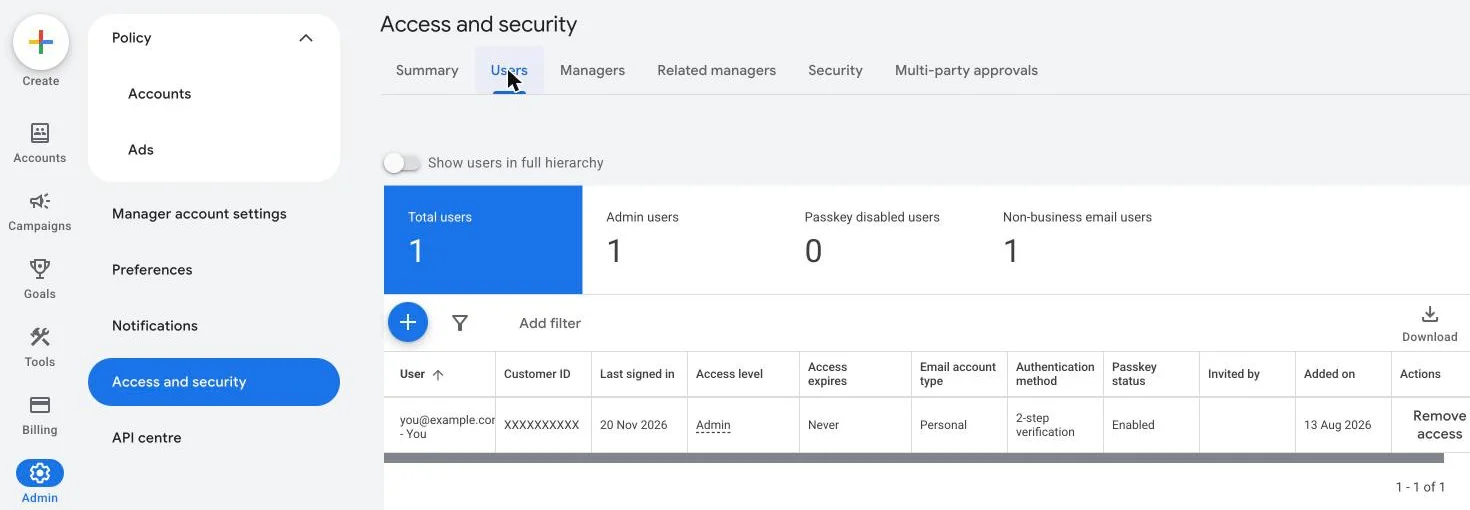
That Customer ID column is the most useful thing on the page. It is the account your login was invited to, which makes it the right value for login-customer-id.
The Access level matters too. Admin and Standard can read and change. Read only can read reports, so writes fail. Email only only receives emails and is no use for the API. Google explains the levels in its help article on access levels.
Fix the sign-in
- Open myaccount.google.com/permissions while signed in as the wrong account and remove access for your app.
- Run your refresh-token script again. On the consent screen, pick the Google account that shows up in the Users list above.
- Replace the old refresh token with the new one.
For a service account (a robot Google account that belongs to a Google Cloud project), there is no consent screen. You add its email address as a user in Admin, Access and security, exactly like a person, as Google's service account guide describes. Add it to the manager, and it can reach every account under it with the manager in login-customer-id.
Fix CUSTOMER_NOT_ENABLED
Here the login is fine and the header is fine. The account itself is not usable. Google lists two causes: the account never finished signup, or it was deactivated.
- Run the hierarchy query from step 3 and look at
customer_client.status.ENABLEDis fine.CANCELEDmeans the account was closed.SUSPENDEDmeans Google blocked it. - If it is cancelled, open it in Google Ads and reactivate it. You find it in the manager's Accounts table after you remove the status filter.
- If it is new, open it in Google Ads and finish the setup it asks for.
The new-account case annoys people most, because the sign-up flow pushes you to create a campaign and add billing when you only wanted an account for the API. A thread in the Google Ads Community asks how to activate an account without launching a paid campaign, and it has no clear answer. What I would do: finish the setup and keep any campaign it makes paused.
Rule out Test access and test accounts
Since September 9, a new Google Cloud project starts at Test access. Test access can only call test accounts, which are special Google Ads accounts that never serve ads. If you call a real account, you get CLOUD_PROJECT_NOT_APPROVED_FOR_PRODUCTION. In API v24 and older, the same thing comes back as ACTION_NOT_PERMITTED, which sounds like a user permission problem and is not one. The fix is to apply for Explorer access on the Google Ads API page in the Google Cloud console, as described on Google's access levels page.
The reverse also trips people up. Test accounts must sit under a test manager account. If you call a test account with a real manager in login-customer-id, or the other way round, you get a permission error even though every ID looks correct. Keep test and real accounts in separate hierarchies, with separate settings.
Google also lists a known issue: some projects upgraded after September 9 still fail on real accounts with AUTHORIZATION_ERROR. Your code is fine. Google's workaround is a new Google Cloud project with Explorer access.
Confirm it worked
Run the smallest possible query against the ads account, with the manager in login-customer-id:
SELECT
  customer.id,
  customer.descriptive_name,
  customer.manager,
  customer.status,
  customer.test_account
FROM customer
It worked if you get one row back with your ads account's ID, manager = False and status ENABLED. On my account it returns exactly that, and test_account = False, which also confirms my project has more than Test access.
If the small query works and a write fails later, check your access level from step 4.
Frequently asked questions
Should login-customer-id be the manager ID or the client ID?
The manager ID, whenever your login was invited to the manager and not directly to the client account. The client account's ID goes in the request path as the customer ID. If your login was invited directly to the client account, you can leave the header out.
Why do I get USER_PERMISSION_DENIED when I am an admin on the account?
Because your admin access is almost always on the manager, not on the account itself, and the API was not told to go through the manager. Set login-customer-id to the manager's ID. If you are a real admin directly on the account, check that your refresh token belongs to the same Google account.
Do I still need a developer token in 2026?
No. Google retired developer tokens on September 9, 2026. Your access level now belongs to the Google Cloud project that owns your OAuth client or service account. The header is still accepted and ignored.
Does login-customer-id work through several manager levels?
Yes. Use the top manager that your login was invited to. It can reach every account below it, at any depth, as long as the account shows up when you run the customer_client query on that manager.