 Adchestra
Before you start
We'll connect Claude Desktop to your Google Ads account using Adchestra Local. It runs on your computer and gives Claude tools to read campaigns and make changes through MCP.
The setup has three parts: install the connector, give it access through Google, then add it to Claude. You'll use Claude's regular chat; Claude Code isn't needed.
Adchestra Local has no subscription fee. Google Ads spend and any Claude subscription are separate.
Install uv and Adchestra Local
We'll use uv to install the connector. On Mac, open Applications → Utilities → Terminal. On Windows, open PowerShell from Start. Paste the command below and press Enter:
Mac
curl -LsSf https://astral.sh/uv/install.sh | shWindows PowerShell
powershell -ExecutionPolicy ByPass -c "irm https://astral.sh/uv/install.ps1 | iex"These commands come from the uv installation instructions. After installation, close and reopen Terminal or PowerShell, then check that uv is installed:
uv --versionInstall the connector from the Adchestra Local repository:
uv tool install git+https://github.com/ShopPilot/adchestra-localIf installation reports that Git is missing, install Git, reopen your terminal and retry. If adchestra-local is not found after installation, run uv tool update-shell and reopen your terminal.
Run adchestra-local --help. You should see commands including setup, doctor and install-claude.
Find your advertiser account ID
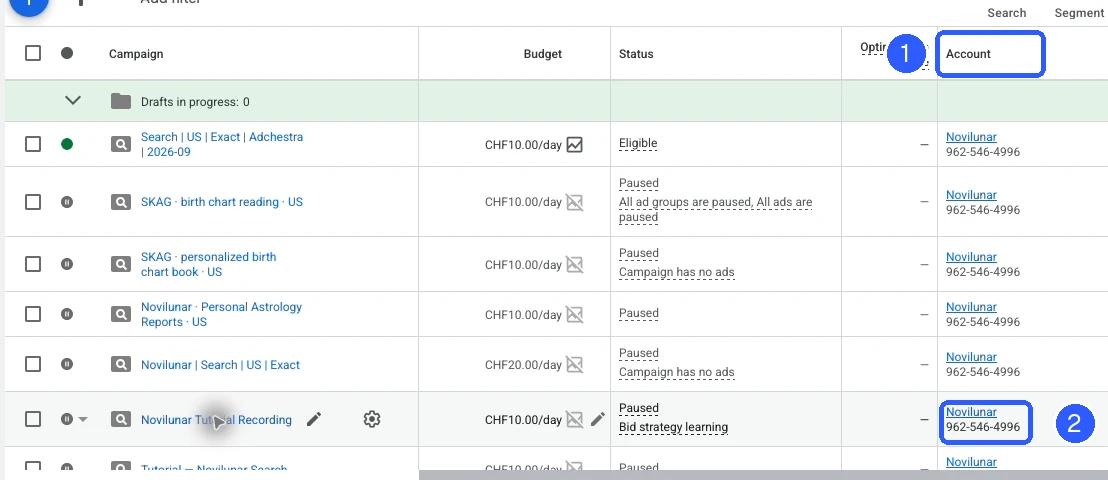
- Open Google Ads and select the account containing your campaigns.
- Copy its ten-digit customer ID. Remove dashes when you use it in the setup command.
- If you access it through a manager account, keep the manager ID separately. Use the advertiser ID for
--account; add the manager ID with--manageronly when needed.
Create a Google Cloud project
The Cloud project holds the permissions for this connection. The connector itself will still run on your computer.
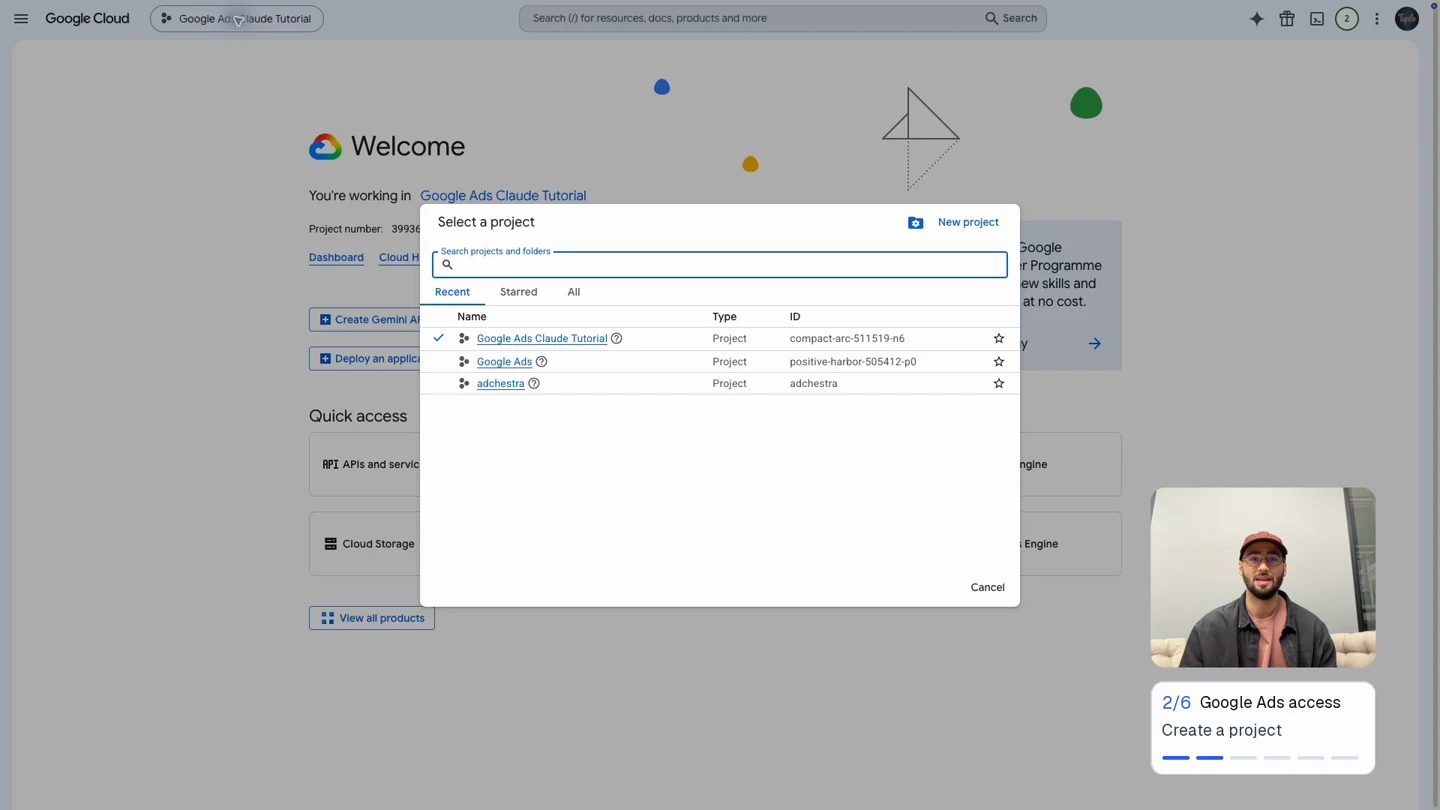
- Open Google Cloud Console.
- Open the project selector at the top, then choose New project.
- Name it Google Ads Claude Tutorial and click Create.
- Select that project. Keep the same project selected throughout the remaining Google Cloud steps.
Enable the Google Ads API and request Explorer access
The API lets the connector talk to Google Ads. Explorer access allows it to work with your live account.
- In your selected project, open APIs & Services → Library.
- Search for Google Ads API, open it and click Enable.
- Open Google Ads API Overview.
- Expand Upgrade access level. With Explorer shown as the next level, apply for access.
- Wait until Current access level says Explorer.
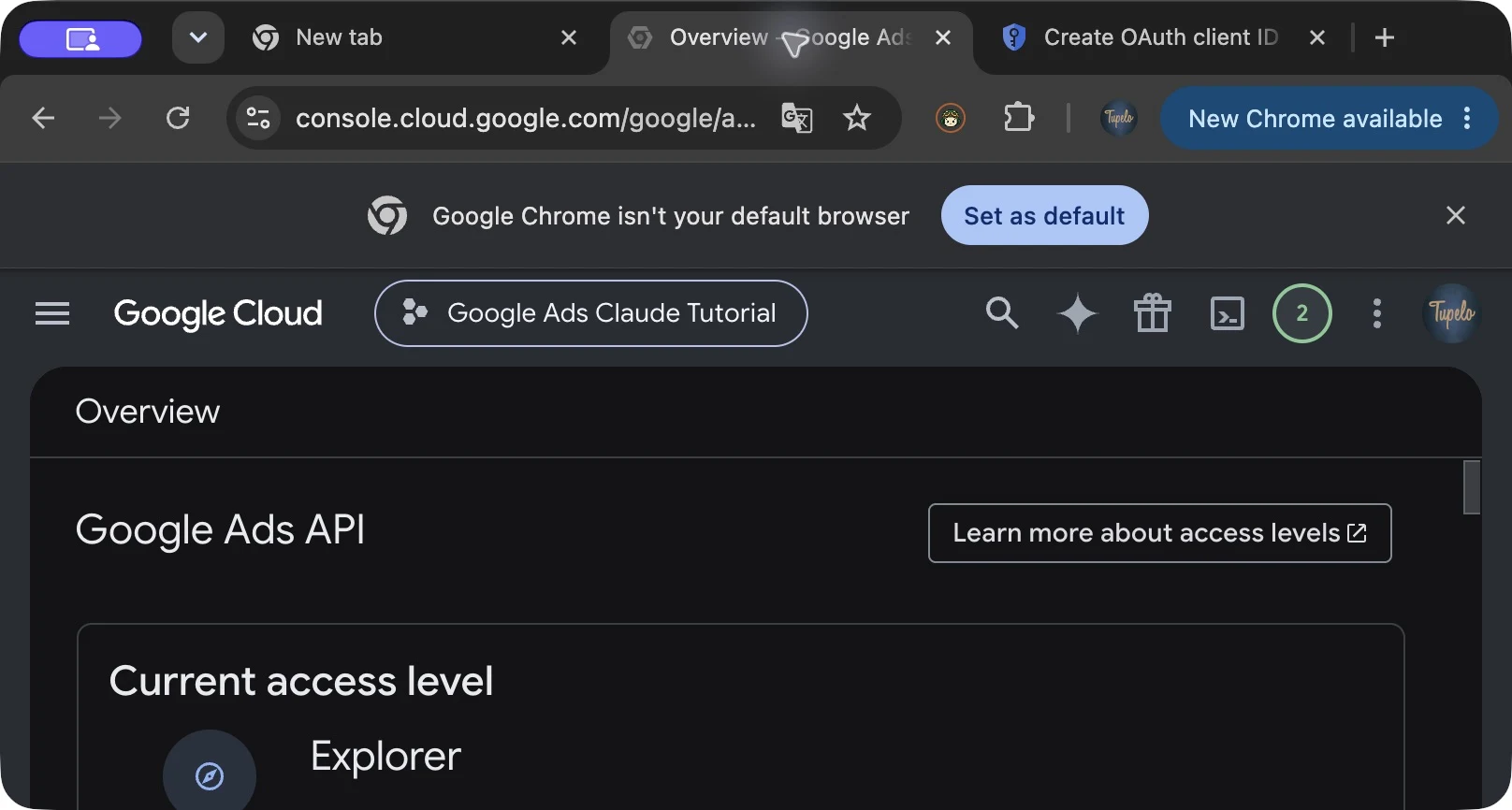
Explorer covers campaign reporting and management, but not Keyword Planner API calls. For keyword research, you can export results from Keyword Planner in Google Ads and upload them to Claude. Direct API access requires Basic access.
Set up Google sign-in
Next, tell Google who can use the connection. For this setup, you'll add your own login as a test user.
- Open Google Auth Platform → Overview → Get started.
- Enter an app name, such as Google Ads Claude Tutorial, and your support email.
- Choose External as the audience. Add your contact email and finish the setup.
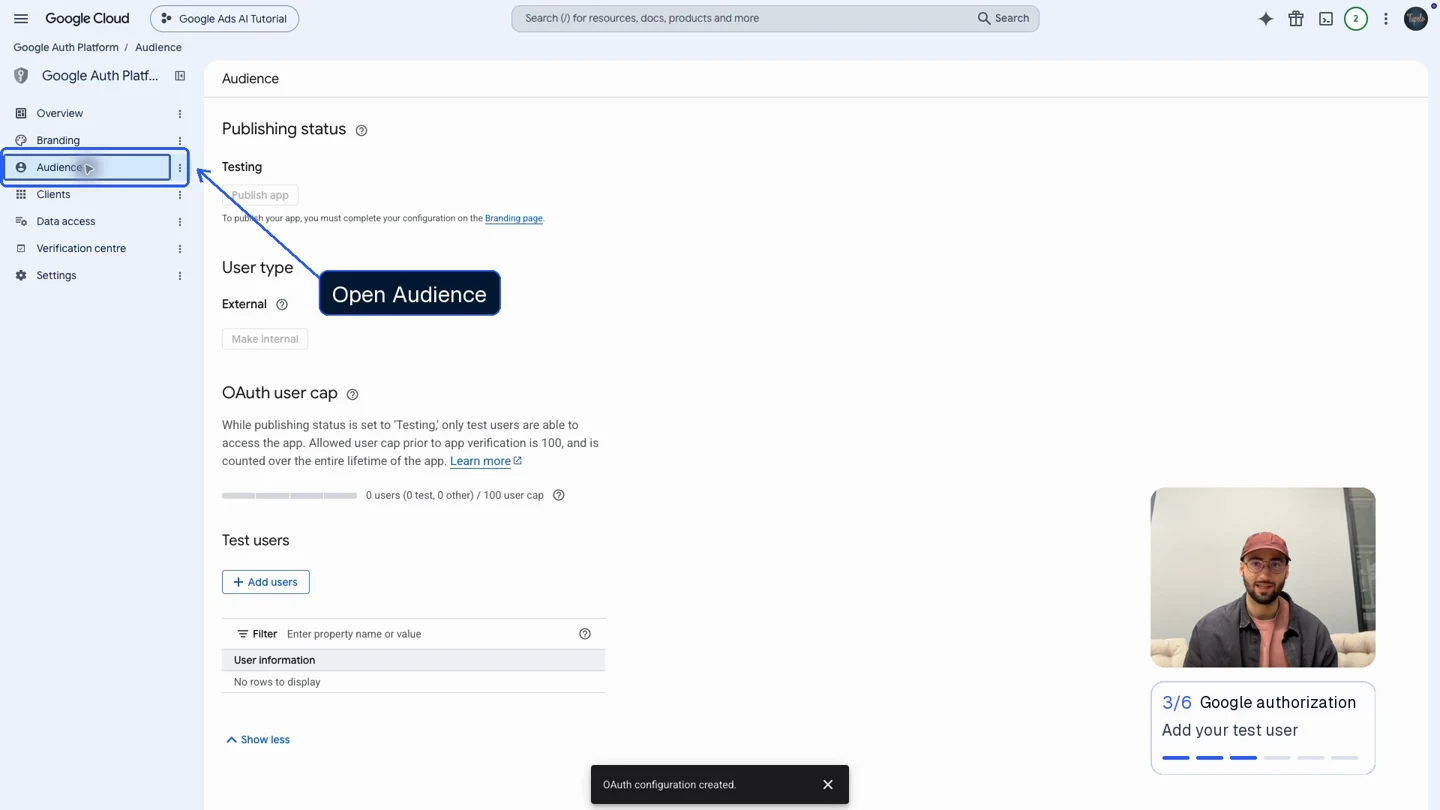
- Open Audience. Under Test users, click Add users.
- Add the exact Google email that has access to your Ads account. Save.
If you use more than one Google login, add the one with access to your Ads account. Signing in with an email missing from this list will cause an access-denied error.
Create and download your Desktop OAuth client
This creates the JSON file the connector needs to open Google's sign-in flow.
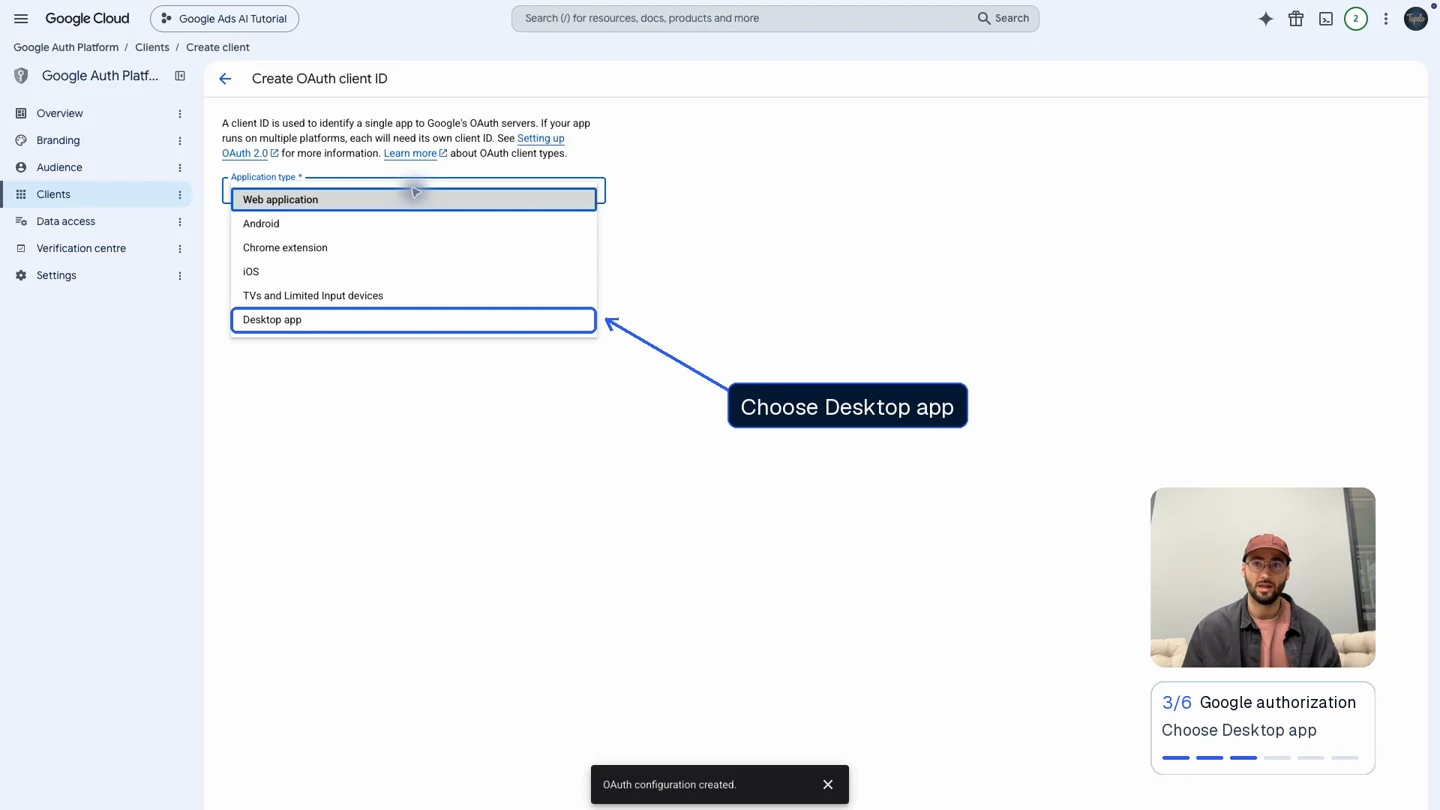
- Open Google Auth Platform → Clients → Create client.
- Choose Desktop app as the application type.
- Give it a recognizable name, such as Claude Desktop Google Ads.
- If the form offers Use this client for an AI-powered agent, select it.
- Click Create, then Download JSON.
Keep this file and your saved login tokens private. Do not upload them to Claude or share them.
Check the connection
Run the connector's connection check:
adchestra-local doctorThe result should show a successful connection to your advertiser account. Common errors and their fixes are listed at the end of this article.
Add the connector to Claude Desktop
Preview the configuration first:
adchestra-local install-claudeThen save it:
adchestra-local install-claude --applyThis adds Adchestra Local alongside your existing connections and backs up the old configuration.
Mac
Fully quit Claude with Claude → Quit Claude, then reopen it. Closing its window alone is not enough.
Windows PowerShell
Quit Claude completely, including its system-tray icon if it remains running, then reopen it.
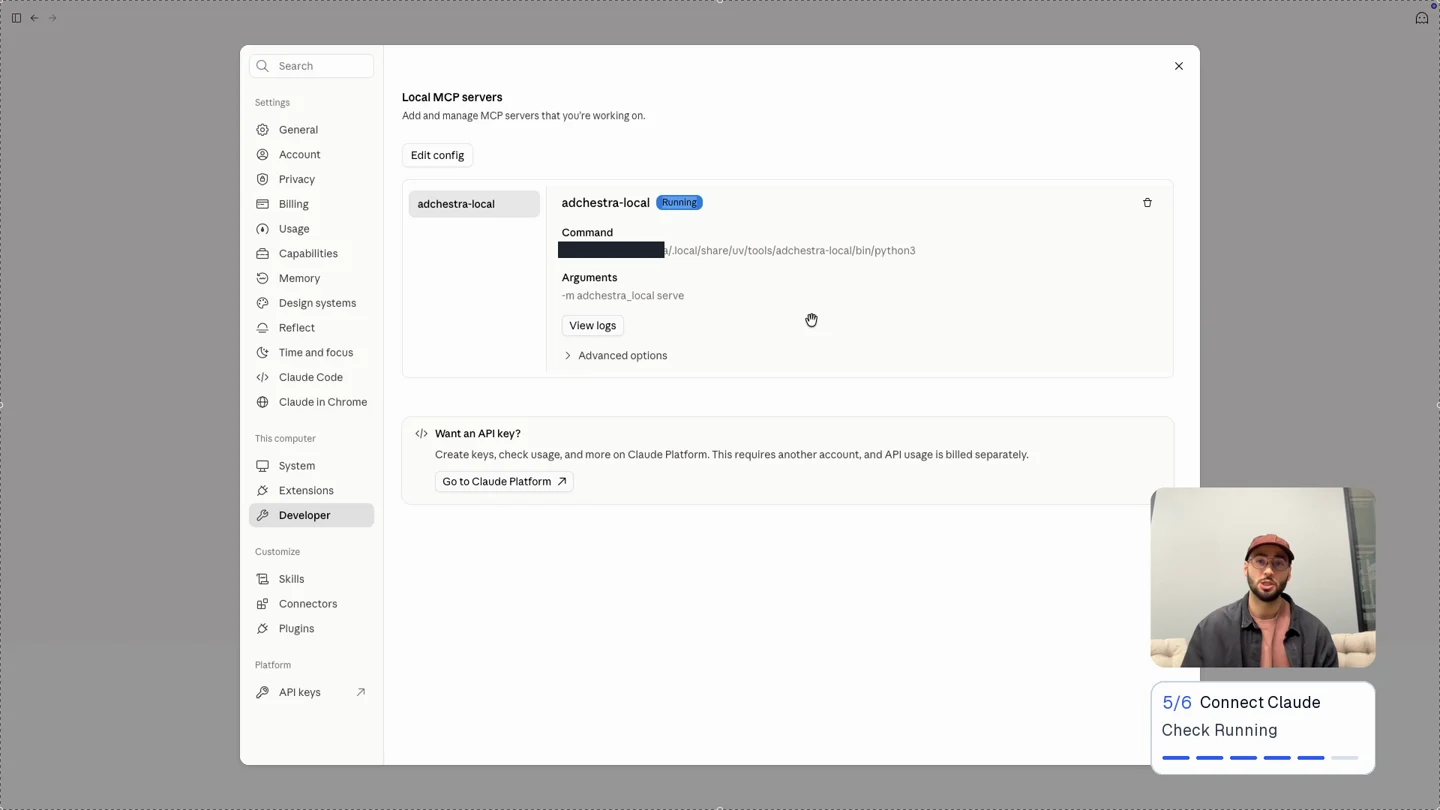
- In Claude Desktop, open Settings → Developer.
- Find adchestra-local and check that the server is running.
- Start a new normal chat and enable the connector in the tools/connectors menu if needed.
Confirm Claude can read your campaigns
Use adchestra-local to show my Google Ads account name and currency, then list my campaigns with their IDs and status. Read only. Do not make changes.Approve the read request and compare the returned account and campaign status with Google Ads.
Keep tools that change campaigns on Allow once. Review the proposed budget and targeting before enabling a campaign.
Once Claude returns your campaigns, you're connected. The next article walks through building a campaign with Claude, with prompts for keyword research, ads and reviewing results.
Reconnect after seven days and fix common errors
Google's Testing mode expires this authorization after seven days. To sign in again, run:
adchestra-local reconnectSign in, run adchestra-local doctor, then restart Claude. You can avoid this weekly expiry by moving the app to Production, which may require more setup with Google. Google explains the requirements here.
| Problem | What to check |
|---|---|
| Command not found | Reopen your terminal. Run uv tool update-shell if the installed connector is missing from PATH. |
| Google access denied | The signed-in email must be a test user and have Ads access. Check the selected Cloud project and Explorer approval. |
| Wrong account | Distinguish the advertiser ID from the optional manager ID. Do not substitute a Cloud project number for an Ads customer ID. |
| Claude server stopped | Run doctor. Fully quit and reopen Claude after installing its configuration. |
| Keyword Planner denied | Explorer does not allow planning calls. Export Keyword Planner results from Google Ads and attach them to the chat. |
| Setup says a connection exists | Use reconnect to renew authorization. It is not a command for changing the configured advertiser account. |
If you'd rather have us handle the setup and hosting, try Adchestra. We built it to connect Google Ads to Claude, ChatGPT and other MCP-compatible AI tools. It's free for two weeks, then $2.95 USD/month. Cancel anytime.