 Adchestra
Connect Claude and select the right account
Claude can research keywords, draft ads and create a campaign in your account. First, it needs a connection to Google Ads:
- Run it locally: follow the free Adchestra Local setup for Claude Desktop.
- Let us host it: follow the Adchestra setup instructions. It's free for two weeks, then $2.95 USD/month. Cancel anytime.
For hosted Adchestra, use this address. Once you've signed in with Google, start a new Claude chat with the connector enabled.
https://mcp.adchestra.com/mcp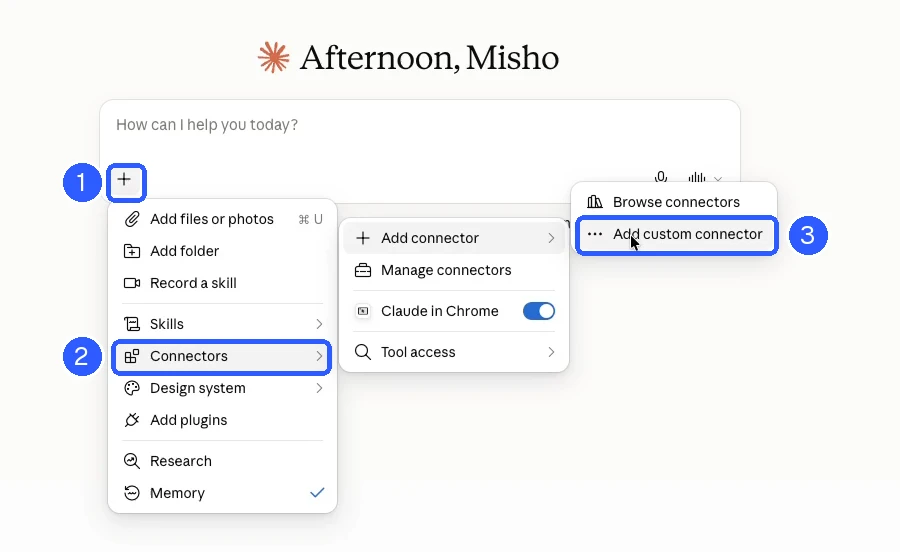
List my Google Ads accounts with their names, advertiser IDs and currencies. Read only. Do not make any changes.If you manage several accounts, give Claude the advertiser ID for this campaign. Keep the campaign in one chat so it can refer back to your earlier choices.
Using another AI?
The planning and writing prompts work in other AI tools too. For account access, see the connection instructions for your app. You can also use the prompts without a connection and enter the changes yourself using our Google Ads tutorial.
Choose what to advertise
We'll build a Search campaign, which shows text ads when people search on Google. Start with one product or service in one market. That makes the keyword research simpler and the results easier to read.
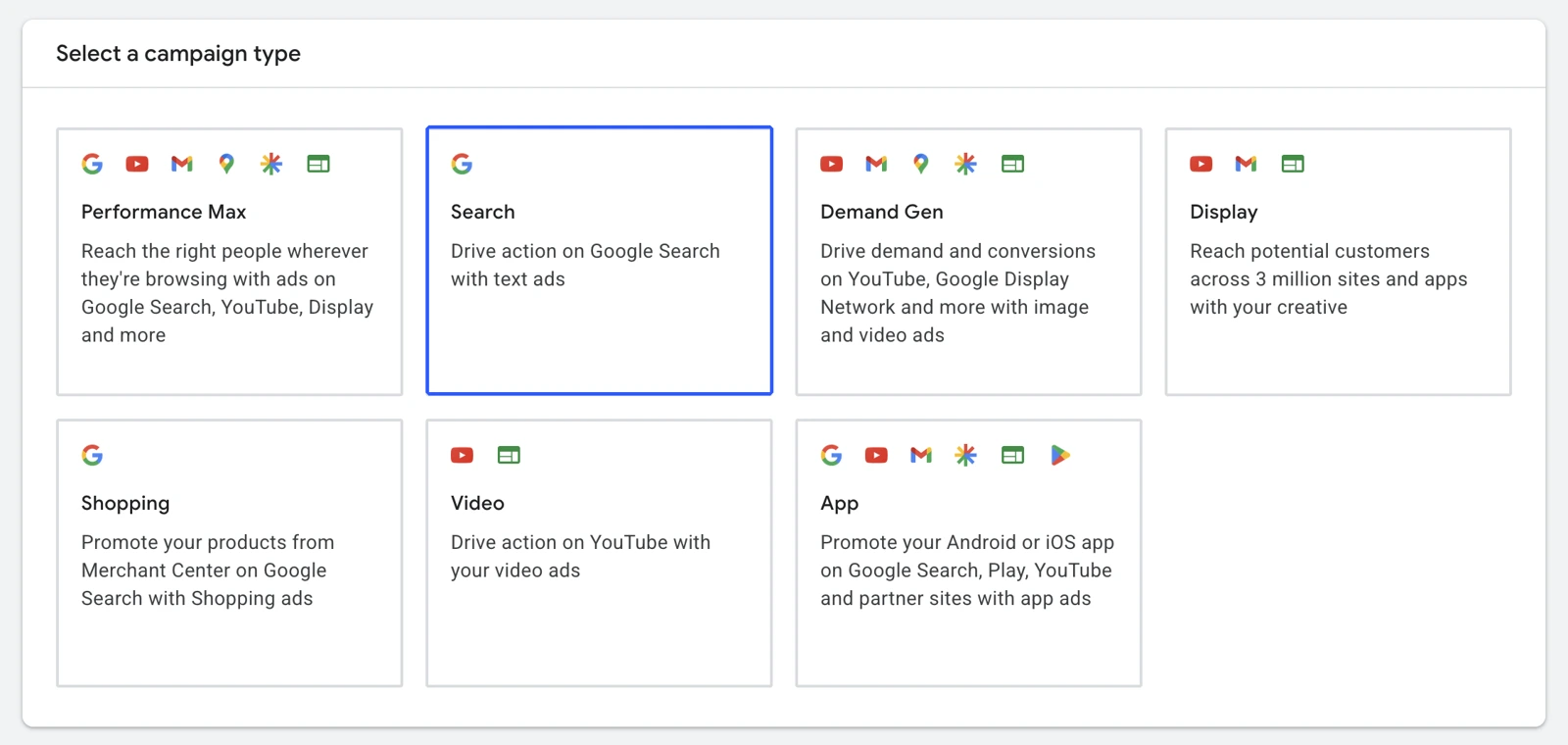
In the video, I use Novilunar's beginner astrology report. Give Claude your product page and enough context to understand who would buy it:
Use advertiser account [ACCOUNT ID]. We sell [PRODUCT OR SERVICE] to [CUSTOMER TYPE] in [COUNTRY OR REGION], in [LANGUAGE].

Read [WEBSITE URL]. Choose the best landing page for one focused Search campaign. Tell me which offer you understood, its price and who it is for. If you cannot read the page, ask me for its contents. Do not invent missing facts. Draft only and ask before applying changes.
Correct any misunderstanding here. Claude will use this description when choosing keywords and writing the ads.
Set up conversion tracking
A conversion is a purchase, enquiry or other result you want from the ad. Tracking it lets you judge the campaign by what customers do after the click.
- Set up tracking using the Shopify purchase-tracking walkthrough or the general conversion-tracking walkthrough.
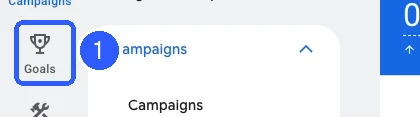
- Open Goals → Conversions → Summary in Google Ads. Check which action the campaign will optimize for.
- For a store, use completed purchases as the primary purchase action. Check for duplicates, such as importing the same purchase through two routes.
- Use Tag Assistant to test the event. Complete a test purchase and check its value, currency and transaction ID. Confirm one purchase produces one event.
Read the conversion setup in account [ACCOUNT ID]. Which actions are primary for our campaign's goal? Check whether completed purchases are counted, whether purchase actions may duplicate each other, and what still needs a website test. Do not change anything.Claude can inspect the account settings, but you'll need to test the checkout or form on your website. For lead campaigns, keep track of which enquiries later become customers.
Find searches worth paying for
Keywords tell Google which searches you want to appear for. Start by asking Claude to look for people searching for your product, using Keyword Planner's search volumes and bid estimates:
Use Keyword Planner data to find searches from people looking to buy [OFFER] in [COUNTRY], in [LANGUAGE]. Show monthly search volume, advertiser competition and top-of-page bid estimates with currency. Separate likely buying searches from informational searches. Do not invent metrics or substitute guesses if the tool is unavailable.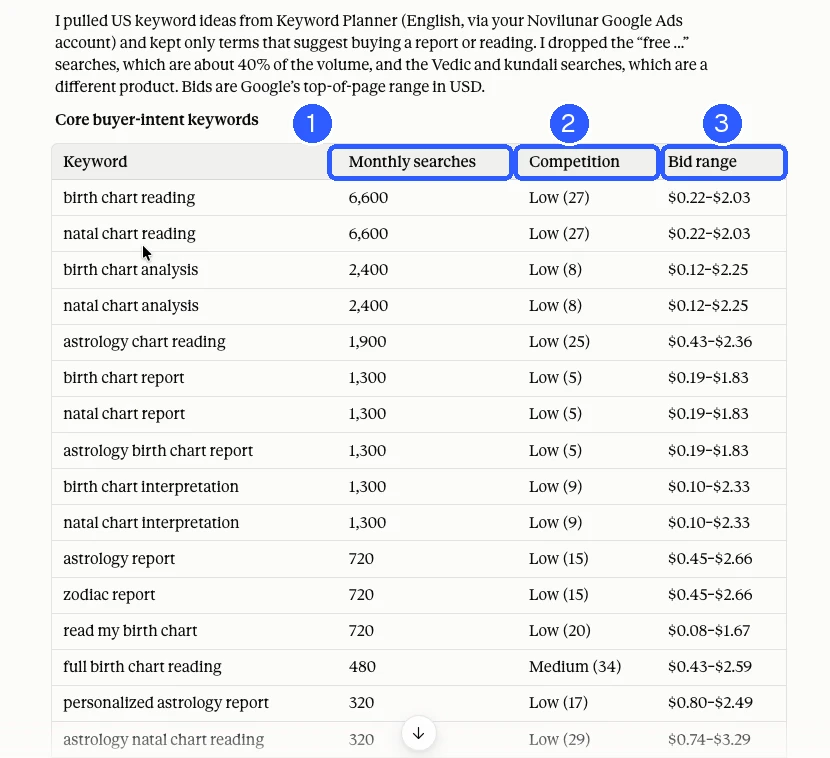
Using the free local connector
Google's Explorer access doesn't include Keyword Planner API calls. Export the data from Google Ads and let Claude work with the file:
- Open Tools → Planning → Keyword Planner → Discover new keywords in Google Ads.
- Enter your product or website and set the target country and language.
- Get results and download the keyword ideas as a CSV. Check that the download uses the market and currency you intended.
- Attach the CSV to Claude and send the prompt below.
Use the attached Keyword Planner export for [OFFER] in [COUNTRY]. Rank relevant buying searches using the supplied demand and bid data. Explain what to exclude. Keep the source currency and date visible. Do not fill missing metrics with estimates of your own.Read the searches before comparing the numbers. “Used Toyota Corolla for sale” suggests someone looking to buy a car. A cheaper search about Toyota wallpapers won't do the same job. The bid estimates help you judge cost; the search tells you whether the person might want what you sell.
For direct Keyword Planner access through the API, Google requires Basic access.
Choose match types and ad groups
A match type sets how closely a search must relate to your keyword. Exact match gives Google less room than phrase or broad match, though it still includes similar meanings.
| Match type | How to enter it | What it does |
|---|---|---|
| Exact | [used Toyota Corolla] | Matches the same meaning or intent, including close variants. It does not require identical wording. |
| Phrase | "used Toyota Corolla" | Allows a wider set of searches that include the meaning of the keyword. |
| Broad | used Toyota Corolla | Allows the most freedom to find related searches. |
Start with mostly exact match and a few phrase keywords. You'll have a smaller set of searches to learn from before testing broader reach. More on match types.
Using our reviewed keyword list, propose a focused starter set with mostly exact match and a few phrase keywords. Put searches for the same offer in one ad group. Show each ad group's keywords, matching ad angle and final product URL. Explain your choices. Draft only.Each ad group holds related keywords and ads. A Corolla search should lead to a Corolla ad and a Corolla page. Put Land Cruiser searches in their own group so you can write an ad for that buyer.
Suggest negative keywords for clearly irrelevant searches for [OFFER]. Explain what each negative would block and which negative match type you propose. Do not exclude terms simply because they have not converted yet. Draft only.Negative keywords block unwanted searches. For a paid report, free may be worth excluding; pdf probably isn't if that's how you deliver it. Negatives don't automatically cover close variants, so check both “job” and “jobs”.
Write a clear ad that matches the landing page
Write up to 15 distinct headlines and 4 descriptions for [AD GROUP]. Use only verified facts from [PRODUCT PAGE URL] and the context we reviewed. Headlines must be 30 characters or fewer; descriptions 90 or fewer, including spaces. Show character counts.

Include what we sell, useful benefits and a clear next step. Do not invent discounts, reviews, guarantees or delivery promises. Use [PRODUCT PAGE URL] as the final URL. Draft only.- Product: “Used Toyota Corollas”.
- Useful detail: “View Prices and Mileage”.
- Next step: “Book Your Test Drive”, if the page actually offers one.
Google tries different combinations of your headlines and descriptions. Read a few combinations yourself to catch repetition. You can pin a headline to a position when its placement matters, but that reduces the combinations Google can try. Ad requirements and character limits.
Send the click straight to the product or service in the ad. A visitor who searched for a Corolla shouldn't have to find it again on your homepage.
Create the campaign, paused
Maximize Clicks tries to get visits within your budget. If you use it, set a maximum CPC based on your research. Maximize Conversions bids for the conversion actions you configure; those actions must represent the outcome you actually want.
In the video, I use CHF 10 per day and a CHF 0.60 click limit. CHF means Swiss francs; we're based in Switzerland 🇨🇭. Use the keyword prices and your margins to choose your own limits. A click cap that's too low may get no traffic.
Show the final Search campaign plan for account [ACCOUNT ID]. Use [CURRENCY] [DAILY BUDGET] per day and [BIDDING STRATEGY, INCLUDING MAXIMUM CPC IF RELEVANT]. Target [COUNTRY OR REGION] in [LANGUAGE]. Turn off Search Partners and Display expansion where offered. Use Presence location targeting if supported.

Include our reviewed ad groups, match types, negative keywords, responsive Search ad and final URLs. Show how much the campaign could spend in a full month and any settings the connector cannot apply. Do not apply anything yet.
Review the plan before asking Claude to create it. Keeping the campaign paused gives you time to check it in Google Ads before it spends:
Create only the plan we reviewed. Keep the new campaign paused and do not enable it. Run validation and ask for my approval before applying. After creation, return the campaign ID, status and any incomplete items.- In Google Ads, open Campaigns → Campaigns. Confirm the campaign exists and is Paused.
- Open its Ad groups, Keywords and Ads. Check that all reviewed items actually exist.
- Check the budget, bid strategy, networks and final URLs.
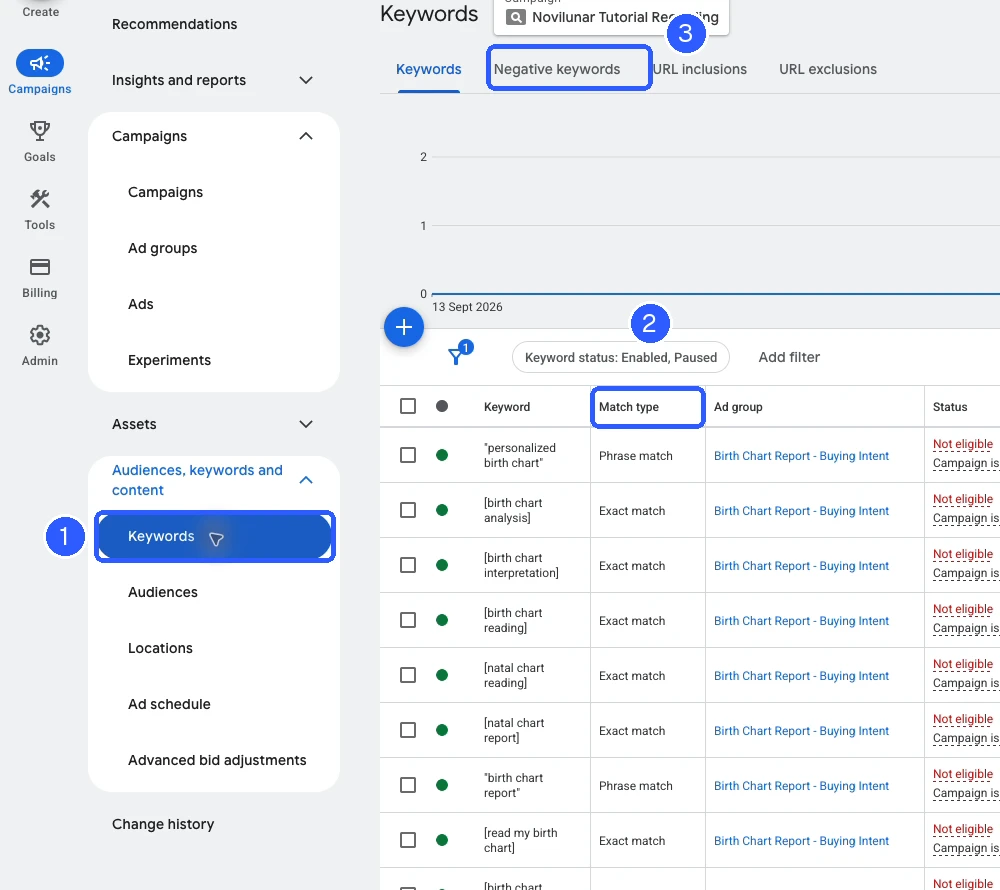
You can add supporting information through Assets → +: sitelinks to other pages, callouts for benefits, and structured snippets for lists such as services. Add these directly in Google Ads if the connector can't create them.
Preview the ad and test the destination
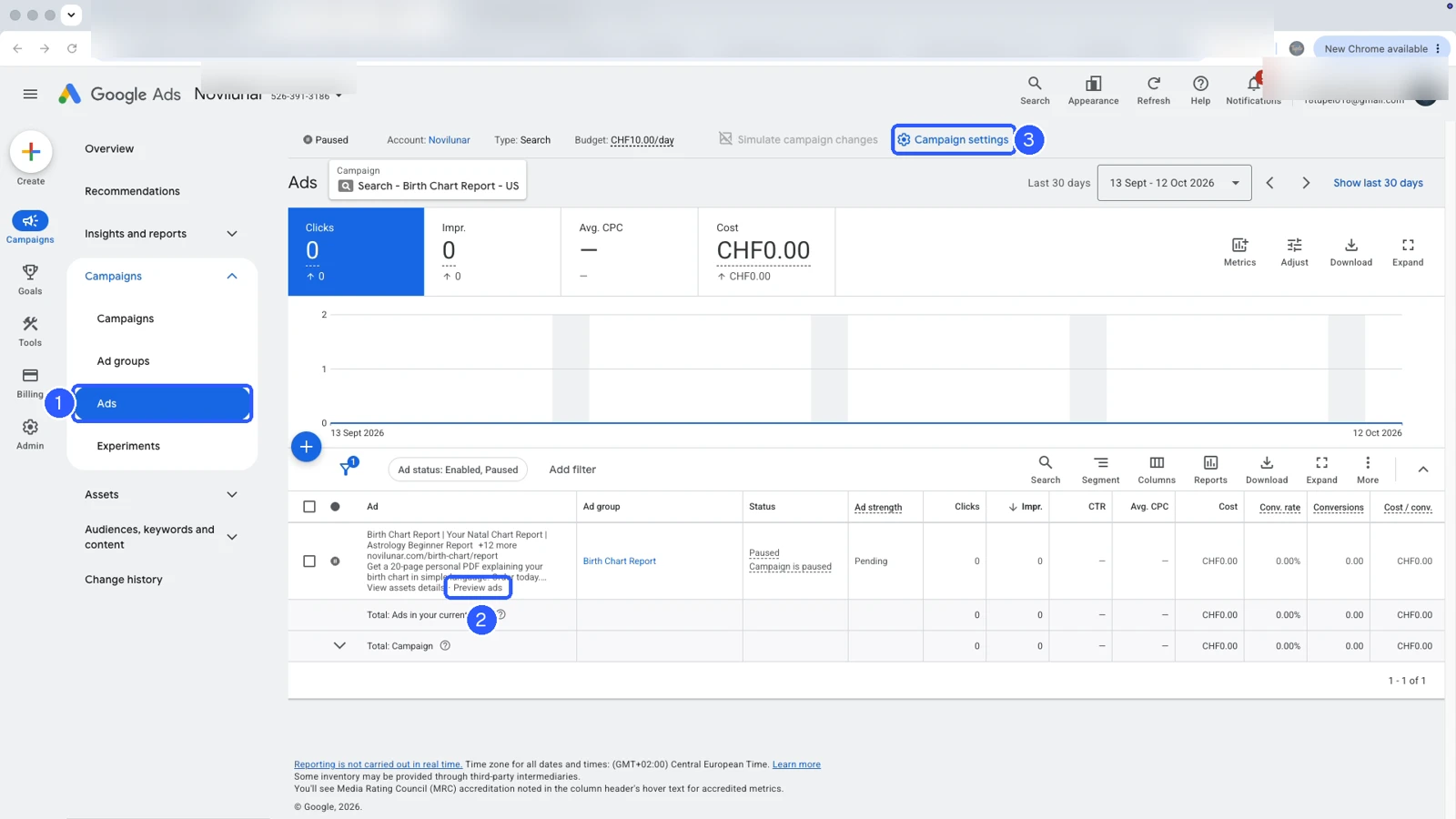
- Select the campaign, then open Campaigns → Ads.
- Click Preview ads under the ad.
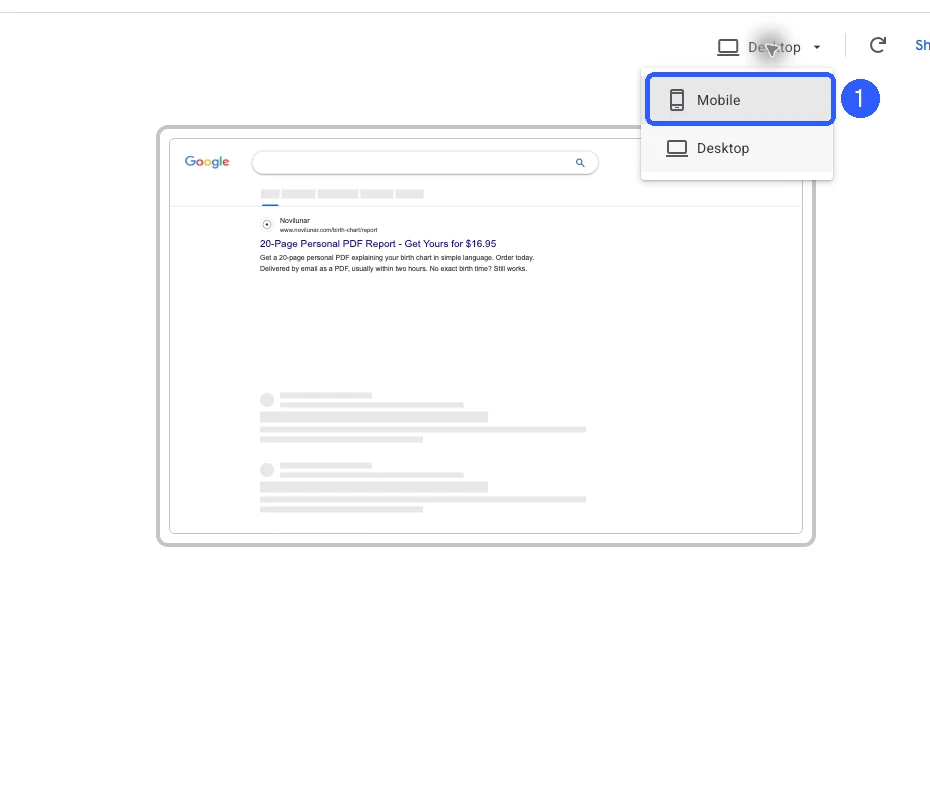
- Use the device menu to inspect Desktop and Mobile. Check that the product and next step are clear.
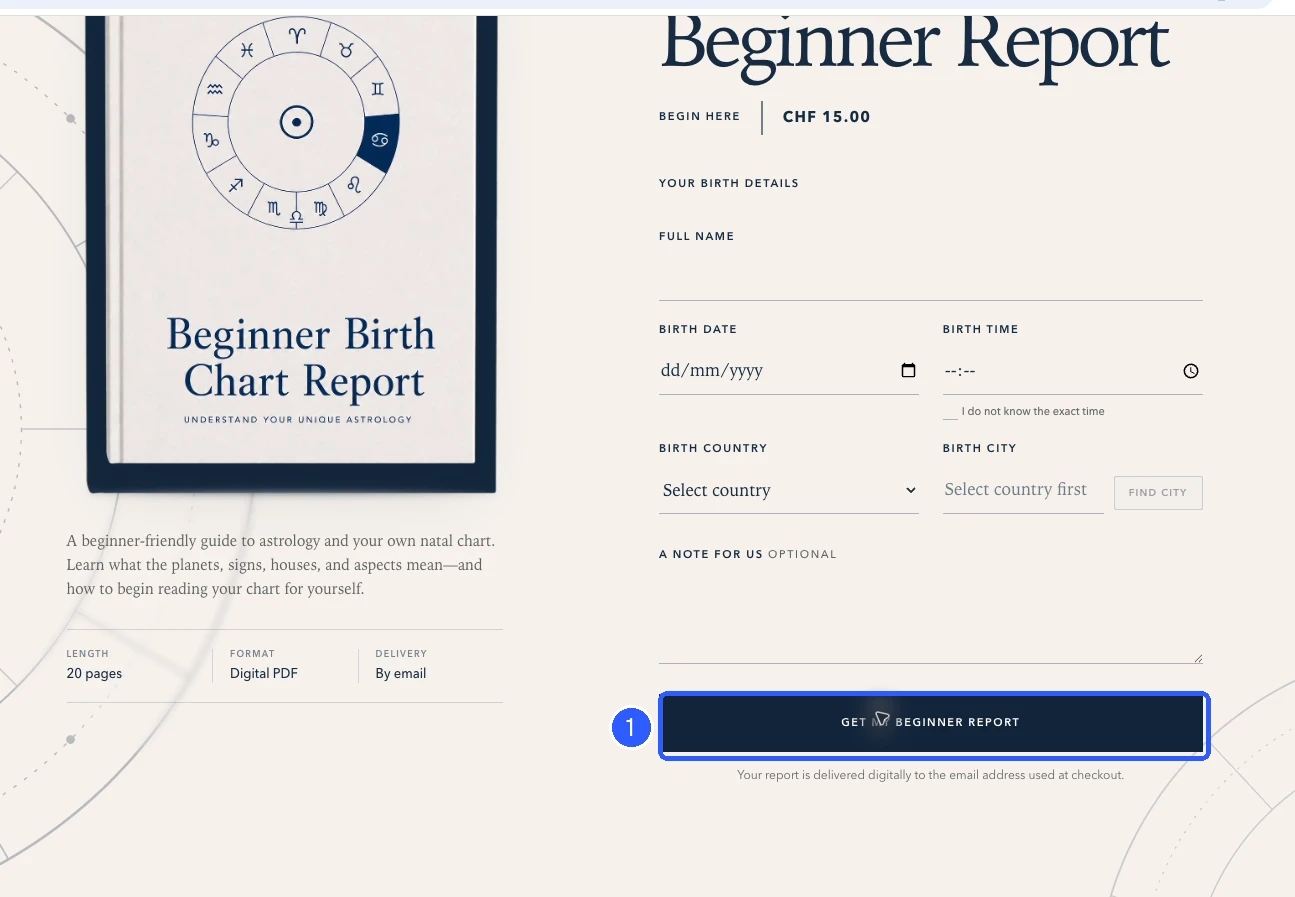
- Open the final URL yourself. On your phone, check the offer, price, CTA and checkout or enquiry form.
Check location targeting in Google Ads
- Open Campaign settings → Locations.
- Check the regions you can serve, then expand Location options.
- For this tutorial, choose Presence: People in or regularly in your targeted locations.
- Save, then reopen the section to check your choice was saved.
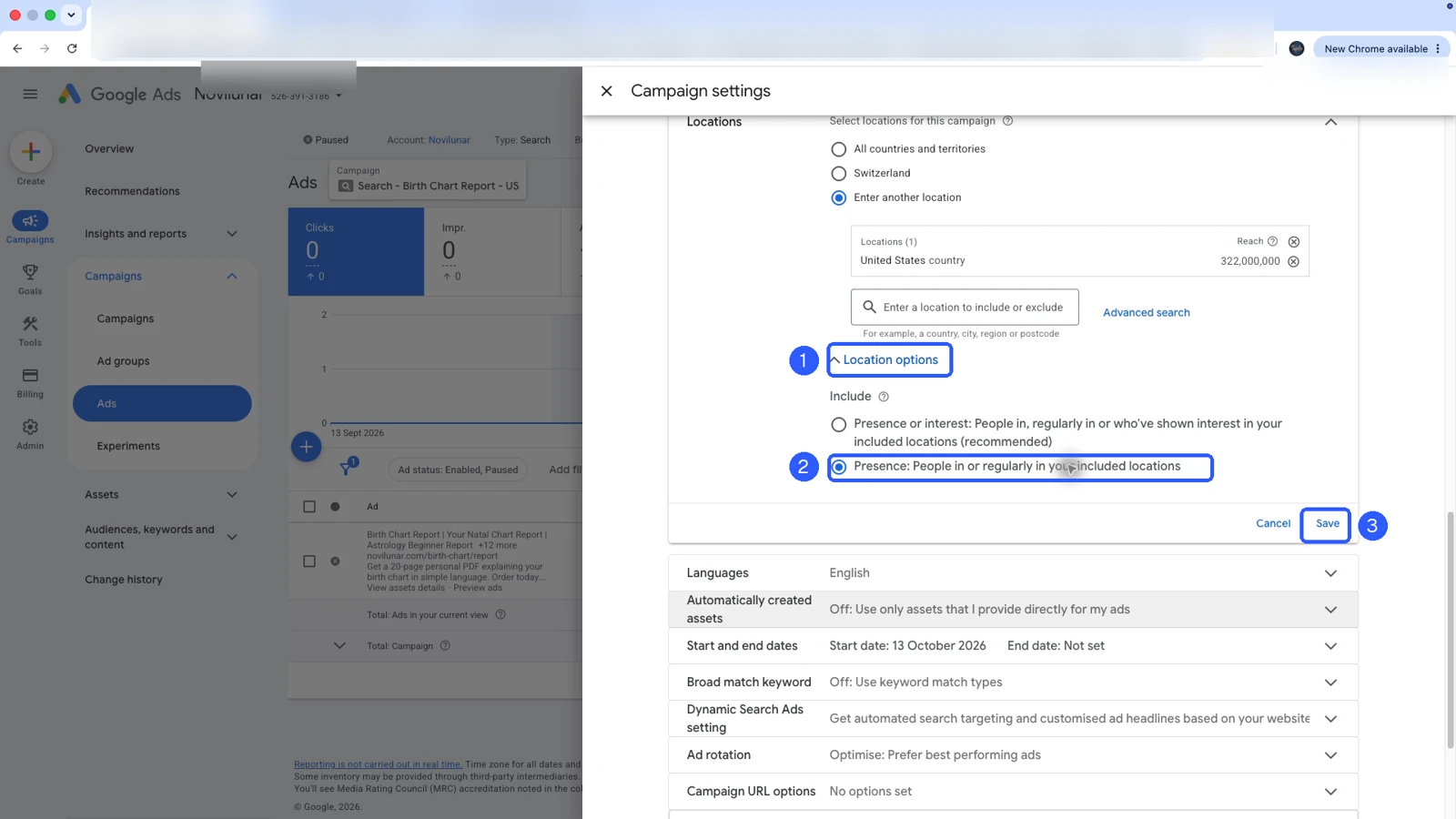
Presence or Interest can include someone abroad researching your region. That may suit a hotel, but for local customers, Presence is usually a better starting point. Google estimates location, so it isn't exact. More on location options.
Review and launch
- Tracking passed a real website test.
- Budget, currency, bidding and full-month spending limit are correct.
- Location, language and networks are correct.
- Keywords, negatives, ads and final URLs match your offer.
- Mobile page, CTA and checkout work.
- Billing and ad policy issues have been resolved.
To launch, open Campaigns → Campaigns, click the campaign status and choose Enabled. Enable its ad group and ad too. Spending can begin once Google approves the campaign and any account issues are resolved.

See what brings in customers
Read campaign [CAMPAIGN ID] for [DATE RANGE]. Show spend, clicks, purchases and purchase value with the account currency. Calculate cost per purchase and ROAS. Tell me about conversion delays, missing data or too little evidence to judge. Do not change settings.Spend ÷ purchases = cost per purchase. Spending 100 to get five orders costs 20 per order. Compare that with what you keep from an order after product costs, fulfilment, payment fees and refunds.
Purchase revenue ÷ ad spend = ROAS. Revenue of 300 from 100 in advertising is 3× ROAS. Whether that is profitable depends on your margins.
Show reported search terms for campaign [CAMPAIGN ID] over [DATE RANGE]. Identify clearly irrelevant intent and propose negatives with match types. Explain the effect of each negative and any gaps in the report. Do not add them until I approve.Check approved negatives under Keywords → Negative keywords. To inspect queries yourself, open Insights and reports → Search terms. The report does not expose every search.
Make one change at a time and note the date. Purchases can happen days after the click, so give a test time before judging it. If the searches fit your product but sales are weak, look at the offer and page before paying for more traffic.