 Adchestra
Start with one product or service
A Search ad appears when someone searches on Google. The useful part is that the search tells you something about what they want. “Used Corolla for sale” is a good place to meet a potential car buyer.
For your first campaign, choose one product or service, the region you sell in, and the page you want people to visit. Keeping these narrow makes it easier to see which searches lead to customers.
We'll build the campaign in Google Ads, using Novilunar's beginner astrology report as the example from the video.
Start a new Search campaign
A campaign contains your budget and targeting settings. We'll add the keywords and ads inside it next.
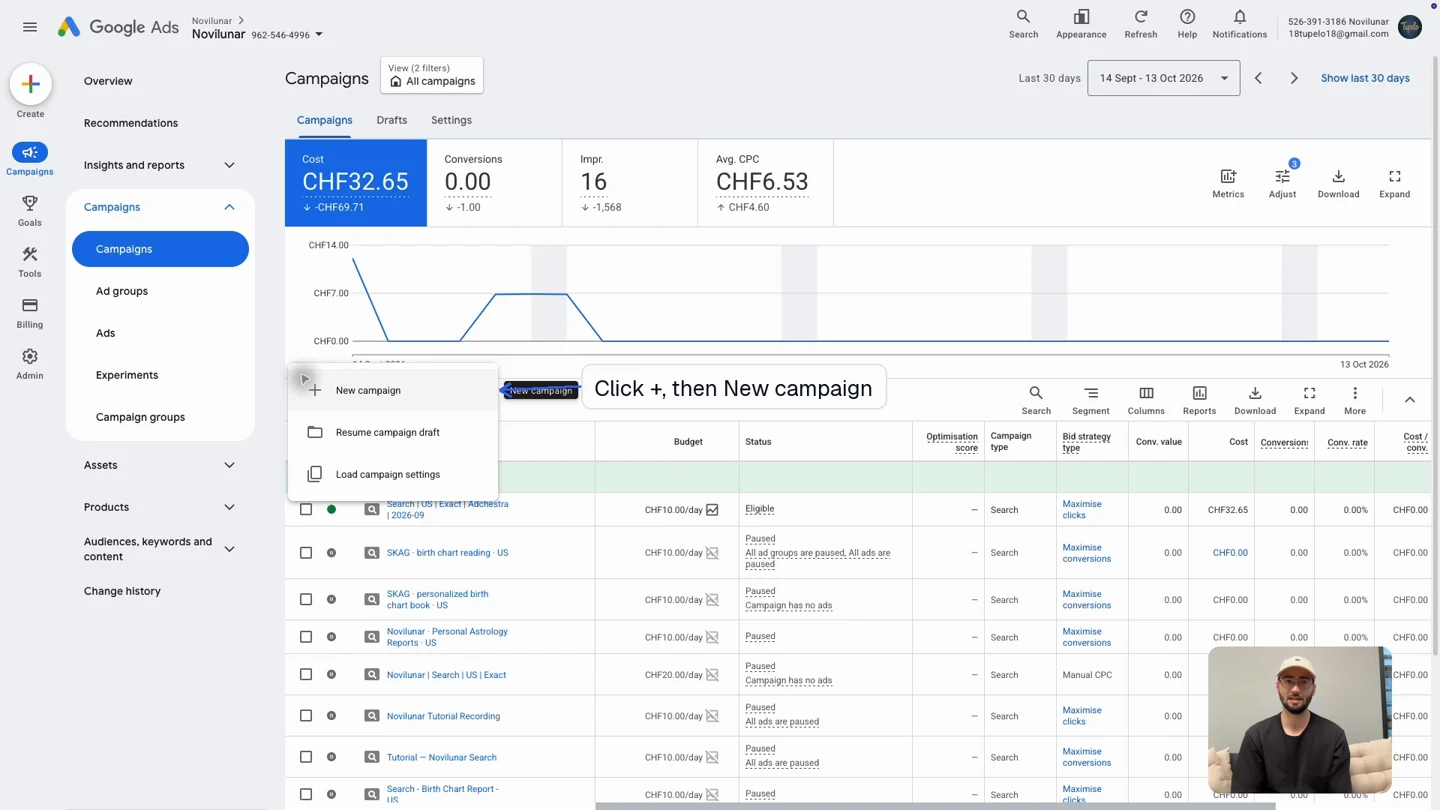
- Open Campaigns → Campaigns.
- Click + → New campaign.
- Choose Create a campaign without a goal's guidance, if offered, to choose the settings yourself.
- Select Search. Choose website visits if prompted, enter your website, and continue.
- Name the campaign so you can recognize it later, for example Search | Beginner Report | US.
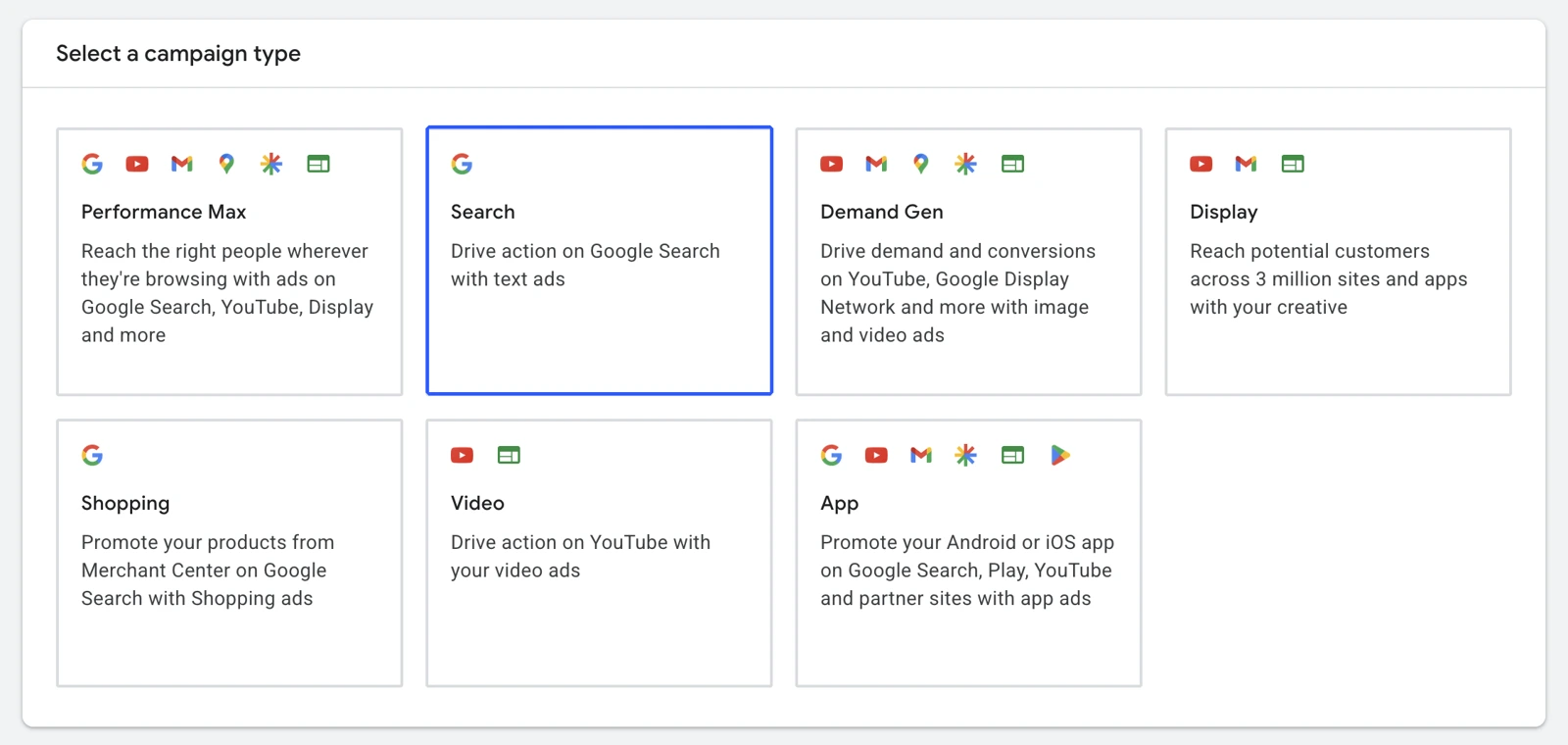
What are the other campaign types for?
- Shopping: product photos and prices, using an eligible Merchant Center product feed.
- Display: banners across websites and apps.
- Video: video ads, including YouTube placements.
- Demand Gen: visual ads across discovery surfaces.
- App: app installs and engagement.
- Performance Max: automated delivery across multiple Google channels.
Start with Search to reach people already looking for your product or service.
Choose your conversion goal and test it
A conversion is the action you want after someone clicks: a purchase, an enquiry or a booking. Tracking it lets you see what each customer costs and gives Google a result to bid towards.
- Open Goals → Conversions → Summary to inspect your conversion actions.
- Set up purchase tracking with the Shopify walkthrough or the general website walkthrough.
- Check the campaign's selected goals. Use the action that reflects the result you want, and check for duplicate purchase actions.
- Connect Tag Assistant and perform a test purchase or enquiry. Confirm the event fires once, at the correct point. For purchases, check value, currency and transaction ID.
Decide how to bid
Google runs an auction for each search. Your bidding strategy tells it what to aim for in those auctions.
- In the campaign's bidding step, open the focus or strategy options.
- For the controlled traffic test in this tutorial, select Clicks / Maximize Clicks.
- Enable Set a maximum cost-per-click bid limit where offered. Choose a limit based on the keyword costs and what a customer is worth to you.
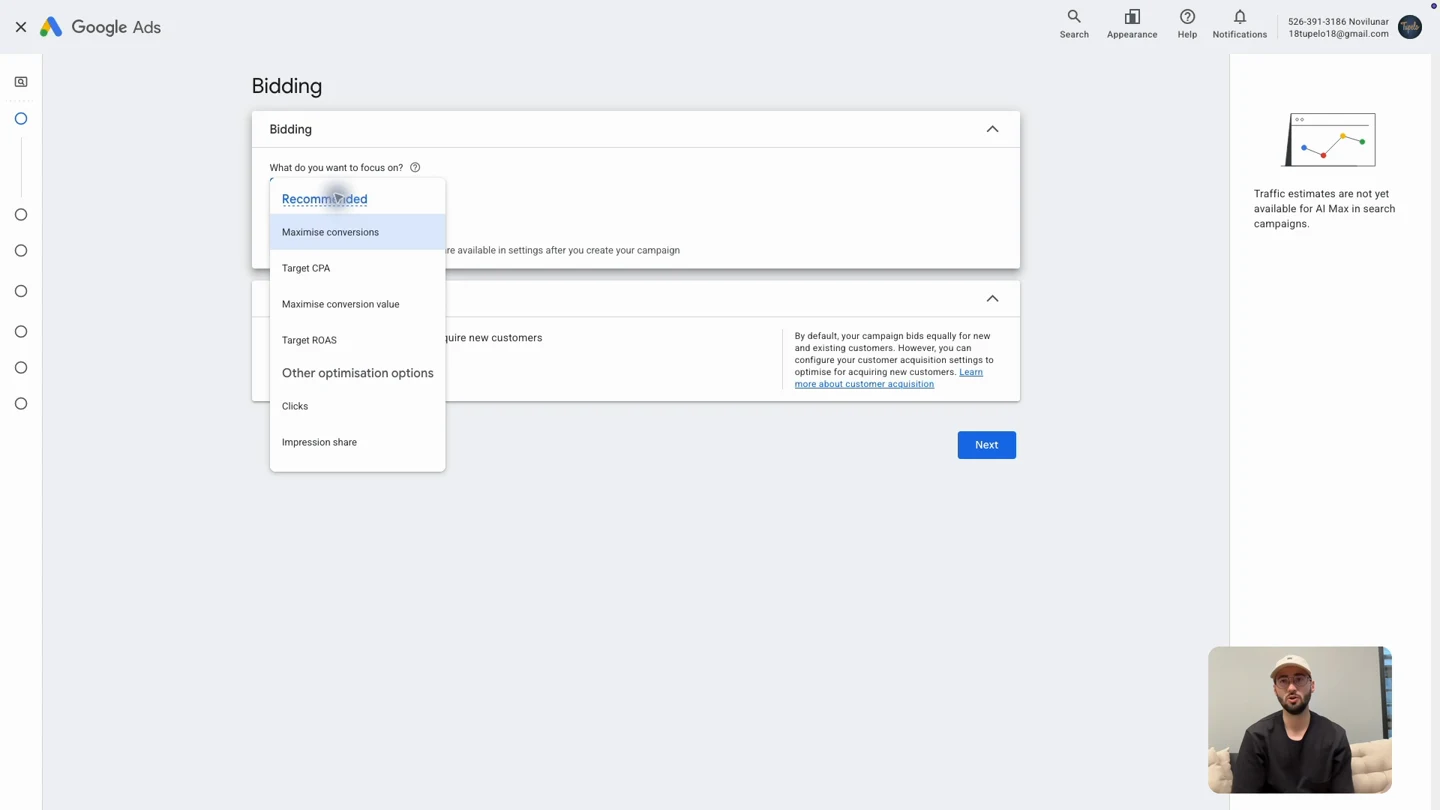
Maximize Clicks aims to bring in visits within your budget. Maximize Conversions aims for the actions you track, so the choice of conversion matters. If you track purchases, that's what it will try to get.
In the video, I use a maximum CPC of CHF 0.60. CHF means Swiss francs; we're based in Switzerland 🇨🇭. Choose your bid from the keyword prices in your market. If the cap is too low to compete, the campaign may get no traffic.
To estimate what you can afford per click, multiply your target cost per customer by your expected conversion rate. A target of 20 per customer and a 2% conversion rate gives you 0.40 per click. Treat that as a starting estimate and update it as sales come in.
Choose where your ads appear
- Under Networks, turn off Google Search Partners and Display expansion if offered. That keeps this first test focused on Google Search.
- Under Locations, choose the countries, cities or regions you can serve. Remove unintended broad locations.
- Expand Location options. For this tutorial, choose Presence: People in or regularly in your targeted locations.
- Choose the language that matches your ads and landing page.
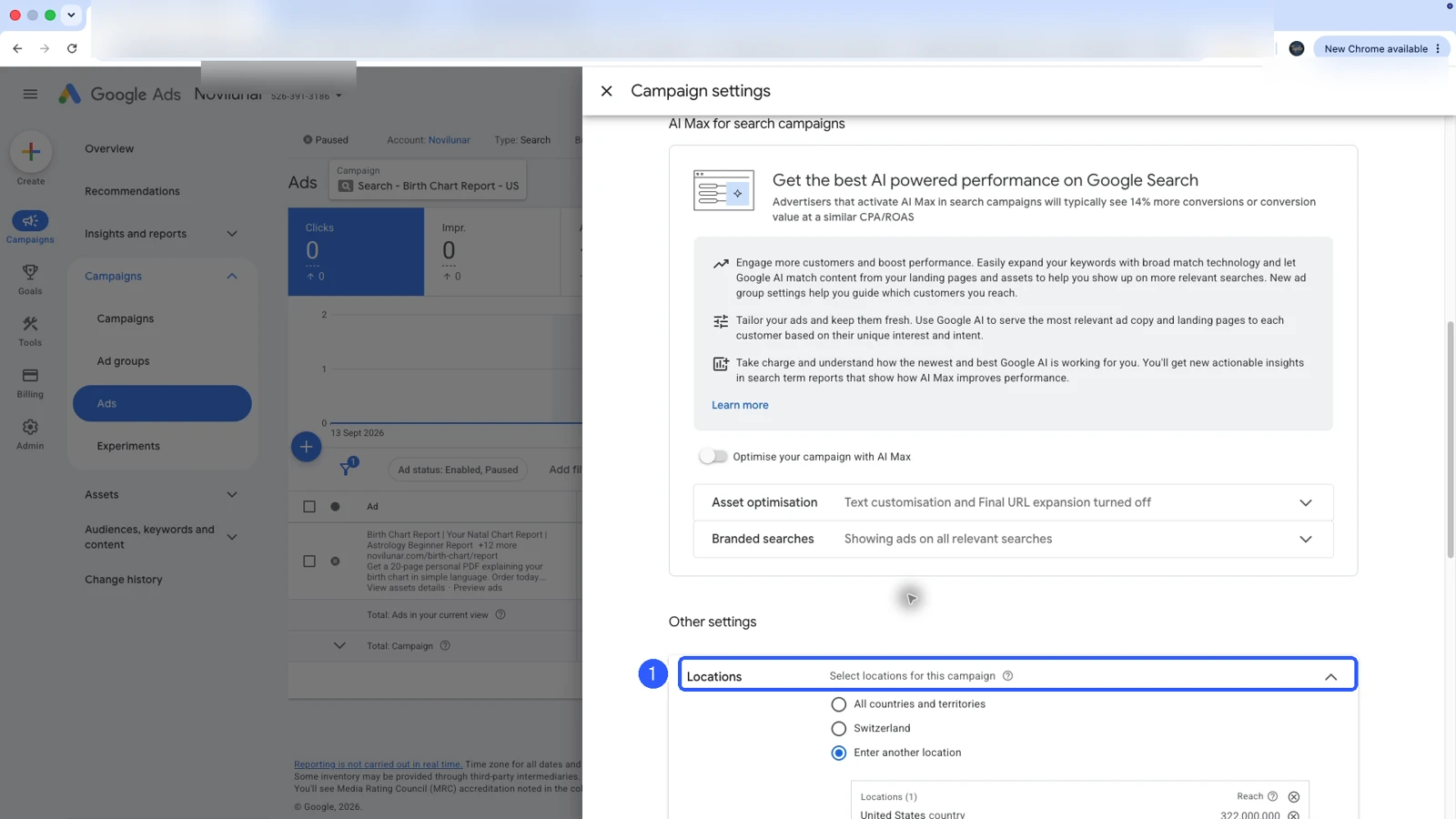
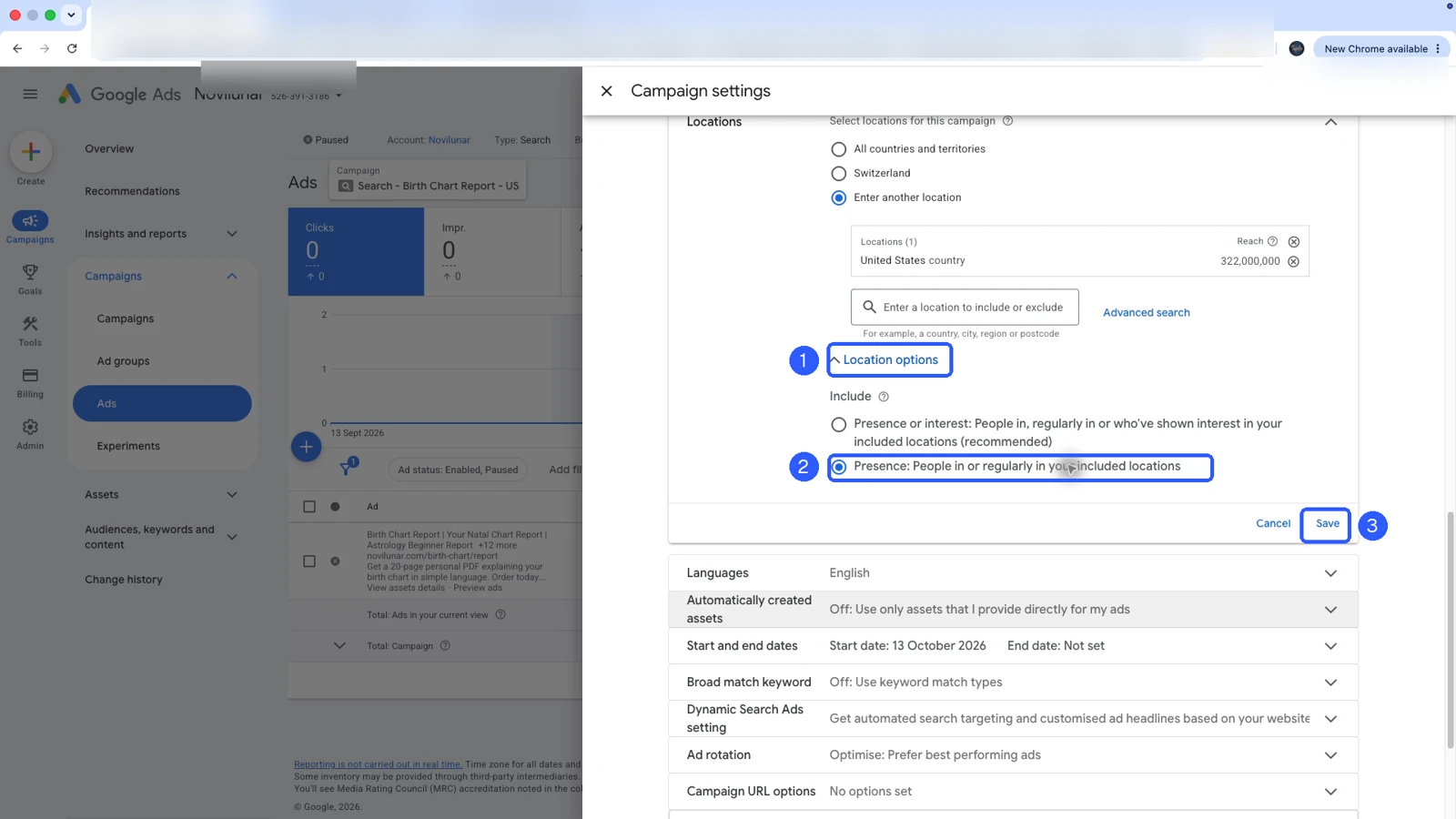
The default Presence or Interest option can include someone abroad researching your region. That may suit a hotel. For a business serving local customers, Presence is usually the better starting point. Google estimates location from several signals, so it isn't exact. More on location options.
Research keywords before adding them
Keep the campaign draft open. Open Keyword Planner in a second Google Ads tab:
- Open Tools → Planning → Keyword Planner.
- Select Discover new keywords.
- Enter a product phrase or use your product website as the starting point.
- Set the intended country and language, then click Get results.
- Keep searches that match what you sell. Compare Avg. monthly searches, Competition and the Top of page bid estimates.
- Download the useful results so you can compare your choices and keep a record of the market and date.
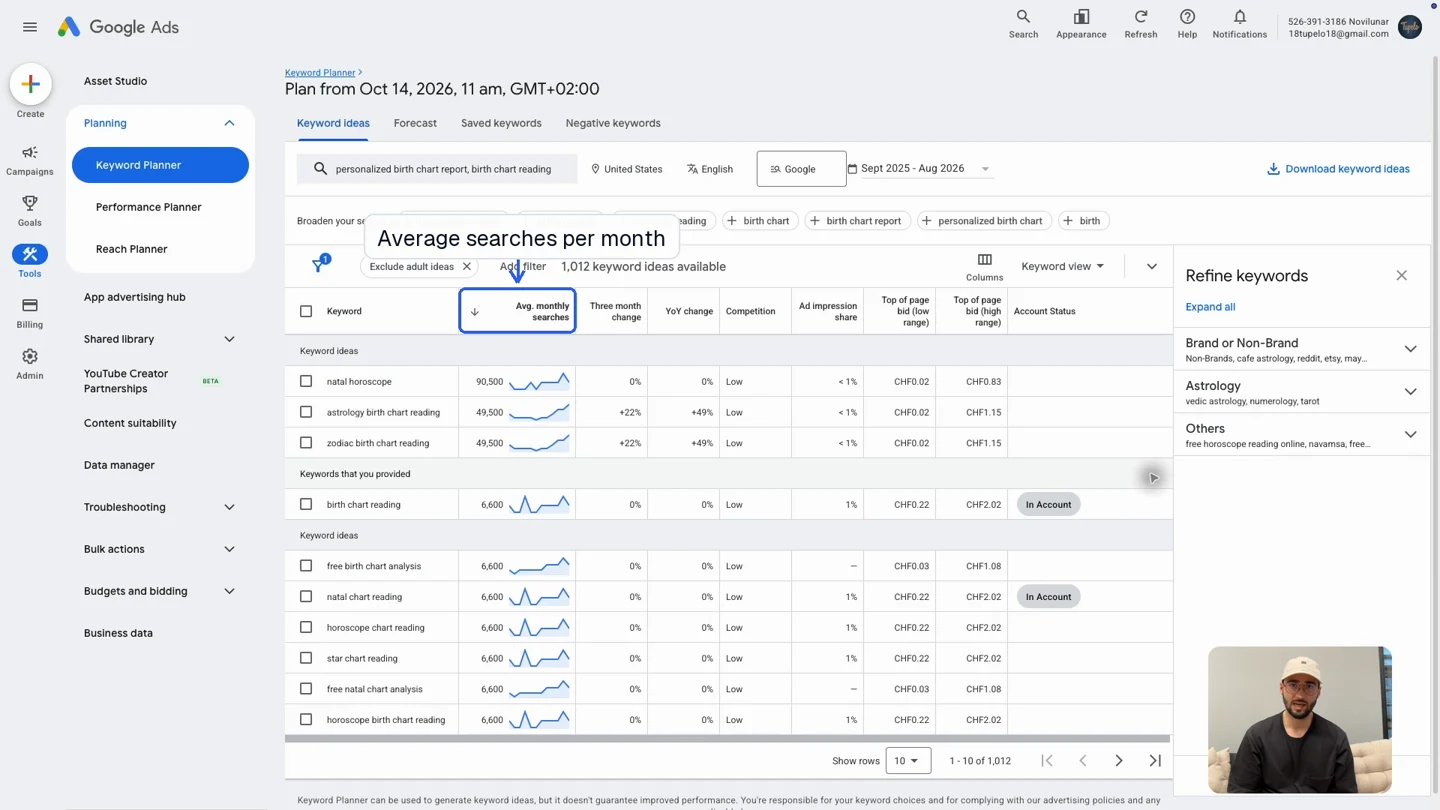
- Search volume: roughly how often people search for a term each month.
- Competition: how much advertisers compete for it. This is separate from organic search rankings.
- Bid estimates: a range of past bids for ads near the top of the page. Useful for planning, though your click prices will vary.
Look at the search before the numbers. Someone searching for “free astrology calculator” probably won't want to pay for a report. High volume won't help if the offer is wrong for the person searching.
Choose match types and negative keywords
Return to the campaign's keyword step. Enter each keyword on its own line. Use square brackets for exact match and quotation marks for phrase match:
[used Toyota Corolla for sale]
[used Toyota Corolla]
"used Toyota Corolla near me"
Exact match can match searches with the same meaning or intent, including close variants. Phrase match reaches a wider set of searches that include the keyword's meaning. Neither requires a literal word-for-word match. Broad match, entered without quotes or brackets, gives Google the most freedom.
Start with mostly exact match and a few phrase keywords. This gives you a smaller set of searches to learn from. Broad match is worth testing later with conversion tracking and bidding that can steer it towards customers. More on match types.
Add negative keywords for clearly unsuitable intent. After saving the campaign, open Audiences, keywords and content → Keywords → Negative keywords → +. Select the correct campaign or ad group before saving.
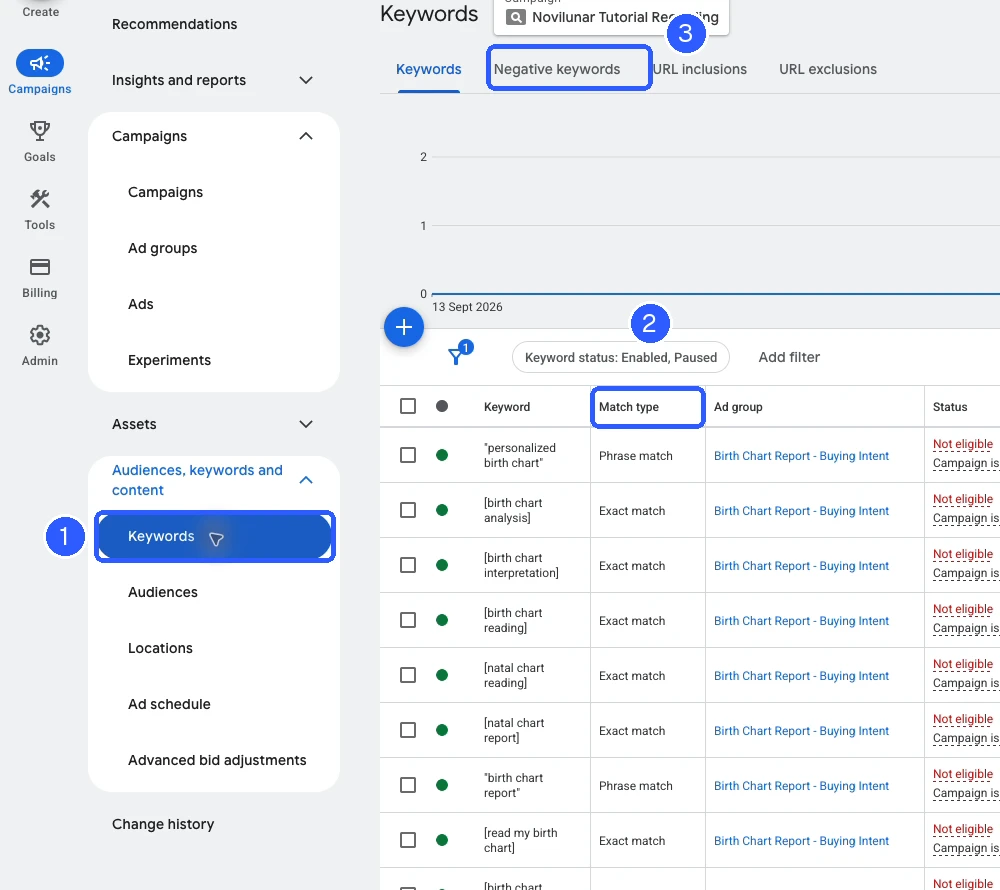
Negative keywords block searches you don't want to pay for. A dealer selling cars might add jobs; a paid report might add free. Negatives don't automatically cover close variants, so check both “job” and “jobs”.
Make one ad group for each distinct offer
An ad group holds a set of keywords and the ads shown for them. Group searches by what the person wants, so each ad can take them straight to the right page.
| Ad group | Search | Ad and destination |
|---|---|---|
| Corolla | Used Corolla for sale | Corolla ad → Corolla inventory page |
| Land Cruiser | Used Land Cruiser for sale | Land Cruiser ad → Land Cruiser inventory page |
Name the first ad group after its product or service and add the keywords you've chosen. To add another group later, open Campaigns → Ad groups → +.
Write the ad and choose the exact landing page
- Enter the product or service page as the Final URL.
- Add headlines that explain the product, real benefits and the next step.
- Add descriptions with useful detail: what customers receive, a reason to choose you and how to act.
- Check every factual claim and character limit before saving.
A responsive Search ad supports up to 15 headlines of 30 characters and 4 descriptions of 90 characters, including spaces. Google combines them, so avoid headlines that only make sense in a particular sequence. Responsive Search ad requirements.
| Purpose | Example headline |
|---|---|
| Say what you sell | Used Toyota Corollas |
| Give useful information | View Prices and Mileage |
| Give the next action | Book Your Test Drive |
A specific detail often does more work than a slogan. “View Prices and Mileage” gives a car buyer a reason to click.
For later edits, open Campaigns → Ads, find the ad and choose its edit/pencil action. Save your change and expect Google to review edited ads again.
Add useful assets and check both previews
Open Assets → + and add relevant supporting information:
- Sitelinks: links to real, useful pages such as another product category or pricing.
- Callouts: short, true benefits such as available delivery options.
- Structured snippets: factual lists using an appropriate header.
- Promotions: a real offer with the correct terms and dates.
Google chooses which assets to show with each ad, so you won't see all of them in every preview.
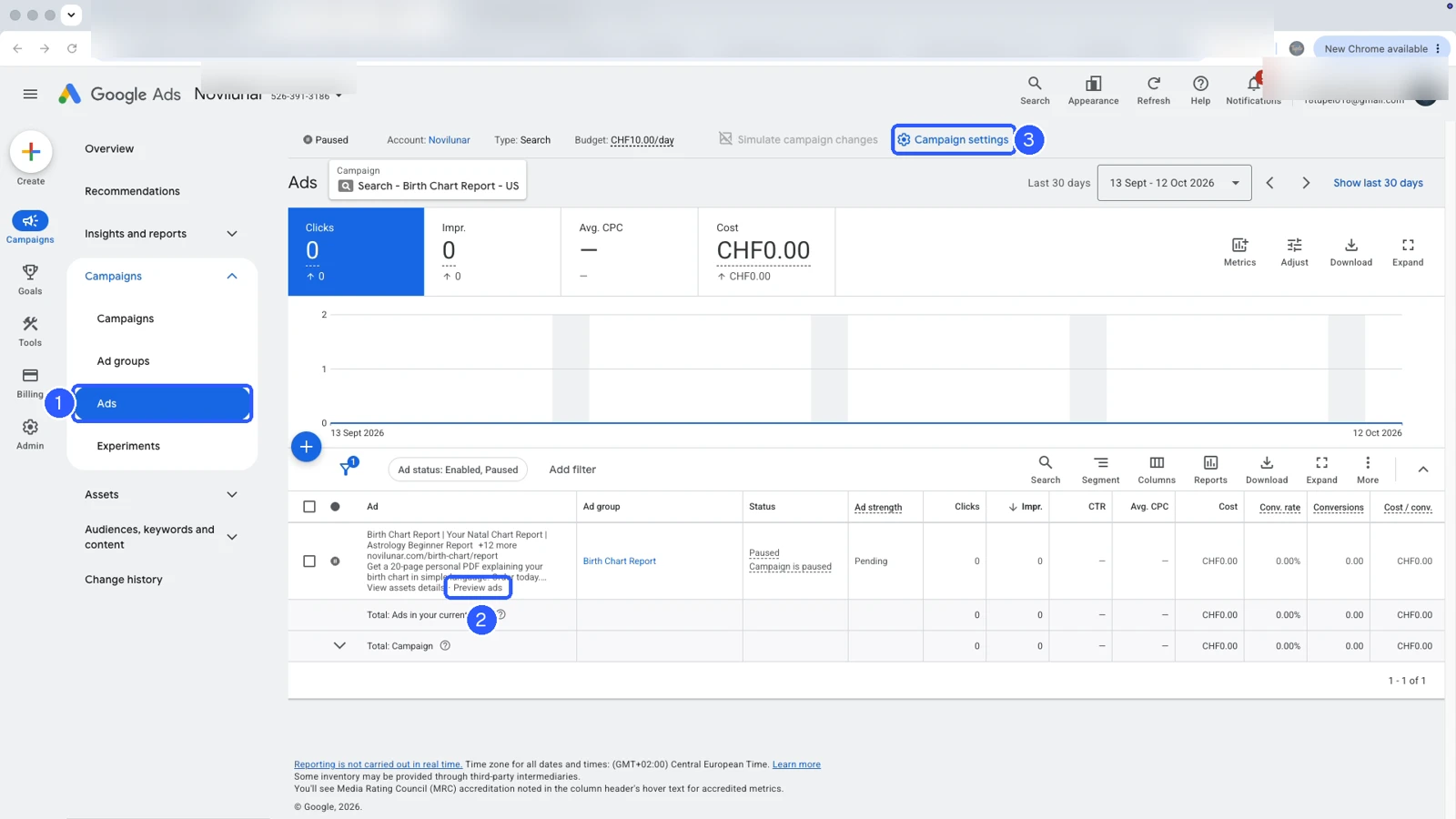
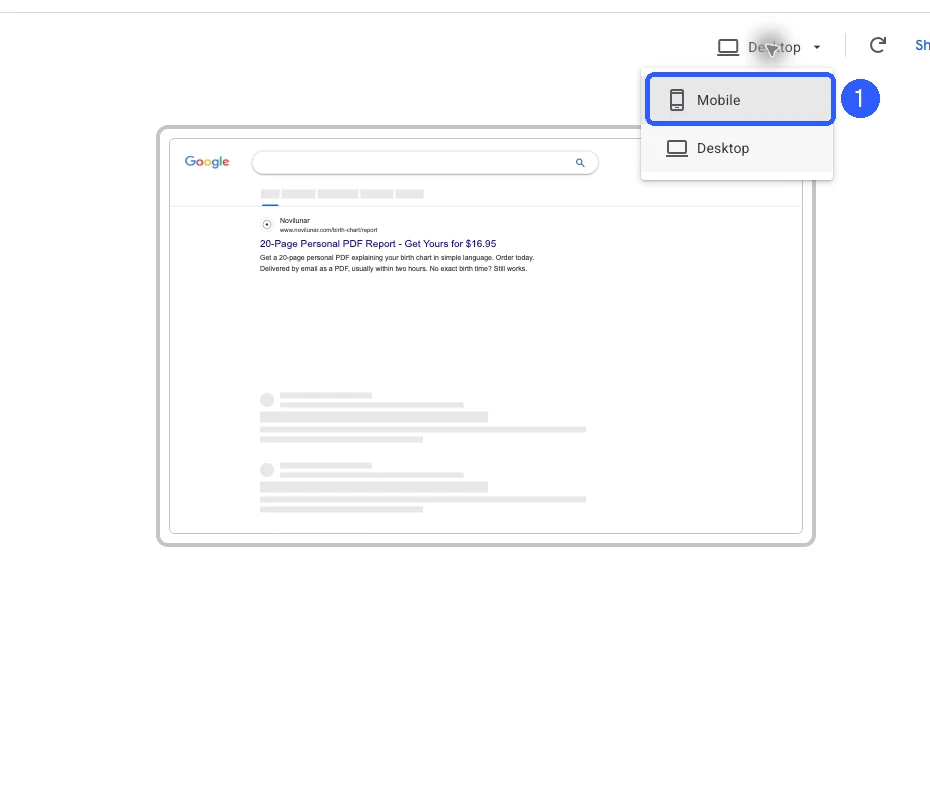
- Open Campaigns → Ads → Preview ads under the saved ad.
- Use the device selector to inspect Desktop and Mobile.
- Open the final URL yourself on a phone. Check the product, price, clear CTA and completed checkout or enquiry path.
Set the average daily budget
Choose what you can afford for a full first month, then divide it by 30.4 to plan an average daily budget. The budget is set at campaign level, not separately for each ad.
*For most campaigns, with an unchanged average daily budget. Budget changes and partial months affect the limits. Actual spend can be lower. Google's spending-limit rules.
To change this later, open Campaign settings → Budget or edit the budget in the campaign table.
Review before you publish
- The campaign is Search and uses the intended conversion goal.
- Tracking passed a website test.
- Budget and bidding match what you can afford.
- Locations, Presence setting, language and networks are correct.
- Ad groups, match types and negatives match your offer.
- Ad copy is accurate and opens the correct product page.
- Mobile checkout or enquiry works; billing is ready.
When you're ready, publish the campaign and check that its ad group and ad are enabled. It can start spending once Google's review is complete. To hold it back, open Campaigns → Campaigns, click its status and choose Paused.
If an approved campaign gets no impressions, check its dates, targeting, billing messages and CPC cap before increasing the budget.
Review results and improve one thing at a time
- Open the campaign and choose a useful date range.
- Check spend, clicks, purchases or leads and conversion value. Add the relevant columns through Columns → Modify columns if needed.
- Open Insights and reports → Search terms. These are actual reported queries, not just the keywords you entered.
- Add negatives for clearly irrelevant intent, such as “Toyota dealership jobs” when you sell cars. Choose the appropriate campaign/ad group and negative match type.
- If relevant people click but do not buy, check the offer and page before assuming you need more traffic.
Spend ÷ purchases = cost per purchase. A spend of 100 for five purchases means 20 in advertising per purchase. If the contribution after product costs, fulfilment and fees is only 10, those orders lose money after ads.
ROAS = purchase revenue ÷ ad spend. It measures revenue relative to advertising spend, not profit. Judge lead campaigns by qualified leads and eventual sales, not form submissions alone.
Give a change time to produce results before making the next one. Some purchases happen days after the click. Keeping a note of what you changed and when helps you work out what made a difference. The search terms report is useful here, though Google doesn't show every query.
If you'd like Claude to help with this work, we've written a separate tutorial with prompts you can copy. Our connector, Adchestra, handles the connection to your account. It's free for two weeks, then $2.95 USD/month. Cancel anytime.