 Adchestra
An AI that guesses menus is worse than no AI
Fixing conversion tracking is the most bought Google Ads job on Upwork. I found about 27 listings, usually $100 to $300. Google's help forum shows people trying a cheaper way: a store owner who spent ten hours arguing with ChatGPT about a script that did not work, another who was told to do what he had already done, a developer who says that between him and Claude Code they cannot see why no hits arrive.
The AI cannot see your account, so it invents the menus. An AI that reads your real conversion setup tells you what is there instead of what usually is there.
This guide is the diagnosis I run, in order: seven checks, the exact prompt for each, what a good answer looks like and the fix. It takes about 45 minutes, and the AI changes nothing. A conversion action is one thing you count as a win, such as a purchase or a form. A tag is the piece of code on your website that tells Google it happened. My examples use a made-up store that sells standing desks.
Which way is right for you
| Way | Cost | What the AI can do | Pick it if |
|---|---|---|---|
| Copy from Google Ads and paste | Free | Read what you paste, nothing else. You fix things by hand. | You check tracking once or twice a year, or want to try it today |
| Adchestra | 10 requests free, then a 14-day trial, then $2.95 a month | Read the conversion setup live, plus GA4 key events and Tag Manager tags. It changes Google Ads and GA4 only after you approve a preview, and it only reads Tag Manager. | You check often, or do not want to copy tables around |
Both routes run the same seven checks. One limit applies to both, and to every AI: no AI can see whether the tag fires on your website. Step 5 is that test, and it is yours.
Three rules that stop the AI from inventing things
- Read only. Every prompt says "change nothing". You decide what to fix.
- Enabled actions first. Old accounts hold many removed actions. Without this rule Claude lists them all and buries the table. I ask for removed ones in one line at the end.
- Say what you cannot see. Every prompt asks for it. That list is the most honest part of any answer.
Route 1: copy the setup out of Google Ads
Skip this step if you use Adchestra. Set the date range to 90 days. You need three things.
- The conversion table. Click Goals, then Conversions, then All conversions. Take a screenshot of the table. The columns you need are Conversion action, Conversion source, Tracking status, Action optimisation (Primary or Secondary), Count (Every or One), Click-through conversion window and Included in account-level goals.
- The settings of each primary action. Click the action's name, then Edit Settings, and screenshot it: category, value, count, windows.
- The goals of each campaign. Open the campaign, click Campaign settings and open Conversion goals, and screenshot it.
In a new chat click the plus button in the message box, choose Upload or add files and add everything. Put this line at the top of every prompt below:
Use only the attached files and screenshots, not any connected account. Read only. If a check needs data I did not attach, tell me which screen to open and what to copy.Route 2: let the AI read the setup itself
Skip this step if you use files. Connect Adchestra once, in How to connect Claude to Google Ads: one address, https://mcp.adchestra.com/mcp, and you sign in with Google.
A connector can be off for one chat. In a new chat click the plus button in the message box, open Connectors (or Plugins) and switch Adchestra on. Then put this line at the top of every prompt below:
Check the conversion tracking in my Google Ads account "YOUR ACCOUNT NAME". Read only: change nothing and do not prepare any change or preview.1. List every conversion action
Step 1: list every conversion action in one table: name, source (website tag, GA4 import, app, phone call, upload), category, status, primary or secondary, counting (Every or One) and value setting (its own value, a default value, or always the default). Enabled actions first, removed ones in one line at the end. Tell me whether anything is live, meaning an enabled campaign that can use these actions.Primary means the action feeds the Conversions column and automatic bidding. Secondary means it is only watched: it shows in All conv. and bidding ignores it. Google describes both. Smart Bidding means Google sets your bids automatically from your conversions.
A good answer: one or two primary actions, each the event that makes you money. For my example store: Purchase, website tag, primary, Every, own value. Add to cart and begin checkout are secondary.
A bad answer, and the fix:
- Page view, add to cart or a click marked primary. Bidding learns to find people who click, not people who buy. Open the action, click Edit Settings, open Action optimisation and choose Secondary action not used for bidding optimisation, as Google describes.
- A GA4 import marked primary. Google says Analytics imports are secondary by default, so someone chose this. See step 2.
2. Find double counting
Every sale is counted twice, the return looks great and Smart Bidding learns from fiction. Two usual causes:
- Two actions for one purchase. A website tag plus a GA4 purchase imported into Google Ads, both primary.
- "Every" on a lead. The Count setting decides how many conversions one ad click can create. Google recommends Every for sales and One for leads. With "Every", one person who submits a form three times is three leads.
Step 2: among the enabled conversion actions, do two probably count the same event (a website tag plus a GA4 import, or two website tags for one page), and are both primary? Does any lead or form action count Every when it should count One? For each problem say which action to make secondary or change, and why. One verdict: PASS, WARNING or FAIL.A good answer: one primary action per real event, and any GA4 import secondary.
The fix: keep the action that sends the real order value and make the other Secondary. Do not remove it yet: it stays in your reports and leaves bidding. For "Every" on a lead, open the action, Edit Settings, Count, choose One. Google says this changes only future reporting. Two tags on the website for one purchase look like one action in the account. Step 5 covers that.
3. Check which action each campaign bids on
A campaign uses the account's default goals or its own. A clean list does not help if a campaign optimises on the wrong thing.
Step 3: for each enabled campaign say whether it uses the account-default goals or its own, and which conversion actions it can bid on (only primary actions in a biddable goal count). One table: campaign, bidding strategy, goals used, actions it bids on, conversions in the last 30 days. Flag any campaign that bids on something that is not a purchase or a lead. One verdict: PASS, WARNING or FAIL.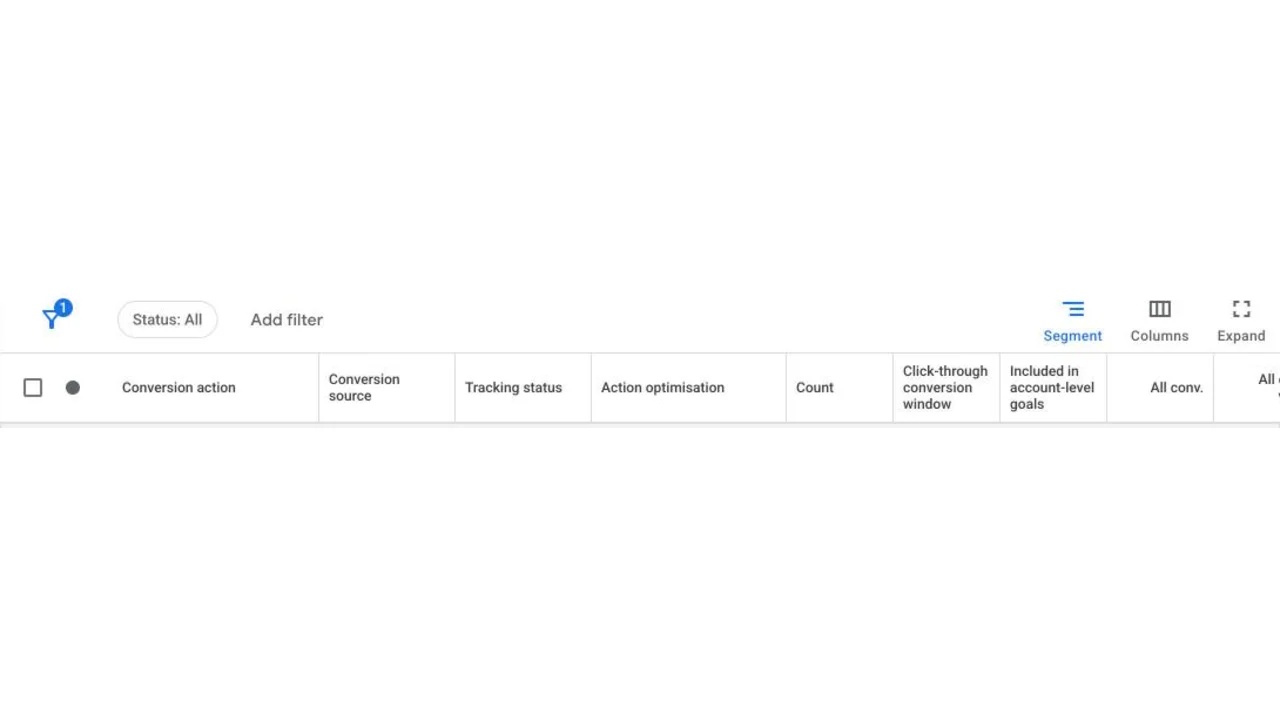
A good answer: each campaign bids on the purchase or lead action and nothing else. A bad answer: a campaign with its own goals that includes Page view. Fix it in Campaign settings, Conversion goals, then leave it alone for two weeks.
4. Read the status column
The Tracking status column is Google's own opinion on whether the tag works. Many guides still use older names such as Inactive, No recent conversions and Unverified. The five current names are on Google's status troubleshooter.
| You may see | What it means | What I do |
|---|---|---|
| Active | Everything works as intended. | Nothing. |
| Needs attention | Something needs fixing, but recording has not stopped completely. | Hover over the status. Google lists the steps there. |
| Misconfigured | Recording has stopped completely because of a setup error or a broken tag. The serious one. | Click the action to see each issue, such as "Conversion has not received tag pings in the last 7 days". Then test the page with Tag Assistant (step 5). |
| Awaiting conversions | No conversion in the last 7 days. Usually the action is under 48 hours old, campaigns are paused or traffic is low. | Check those three causes, then do the test order in step 5. |
| Removed | The action was deleted or archived and tracks nothing. | Nothing, unless a live tag still points at it. |
Step 4: for each enabled conversion action, tell me its tracking status in plain words, using Google's current names (Active, Needs attention, Misconfigured, Awaiting conversions, Removed) and the older ones (Inactive, No recent conversions, Unverified). If it is a problem, say what Google suggests and the likeliest cause. If you cannot see the status, say so and tell me where to read it.With a connector, Claude read the settings of each action and what each one recorded, but not the Tracking status column, and it said so. So on either route, screenshot that column and paste it in. An AI that says "Active" without seeing it is guessing.
5. Test the website side yourself
No AI can do this check, and it finds most real problems. Google Ads shows that an action exists. It cannot show that your checkout runs the code, runs it once and passes the ad click ID. That ID is the gclid, added to the address of every ad click. Without it a sale cannot be tied to an ad.
Shopify is the classic trap. Custom pixels there run in an isolated frame that cannot read the storefront's cookies, so the conversion records with no click ID and is attributed to nothing, while the account looks healthy. Shopify's browser API exists for this. I would use Shopify's own Google and YouTube app unless I had a reason not to. Run one or the other, never both, or every sale counts twice.
- Open Tag Assistant. It is Google's free tool, explained here. Go to tagassistant.google.com, click Add domain, enter your site's address and click Connect. Your site opens in a new window.
- Do the real thing in the window it opens. For a shop, place a test order of a small, non-zero value, such as a 90% discount. A zero order cannot tell "value arrived" from "value broke". For a form, send one real submission. Use an order you can cancel or refund.
- Read the result. You want your Google Ads conversion tag fired once on the thank-you page, not twice and not zero times.
- Wait a few hours, then open Goals, Conversions, All conversions. Check All conv. for that action and that the value matches the order. A conversion from normal browsing shows no campaign. That is correct: attribution only appears for a visit that came through a real ad click.
With Adchestra, Claude can also read your Tag Manager container (read only):
Step 5: read my Tag Manager container for this site. List every tag that sends a Google Ads conversion or a GA4 purchase event, with its trigger. Could two tags fire for the same purchase, or does a purchase tag fire on a page that is not the order confirmation? Read only. Say what you cannot know without loading the site.It cannot see code outside Tag Manager or what your cookie banner does, so the test order still matters.
6. Check enhanced conversions and consent
Enhanced conversions send hashed customer details, such as an email, from your site to Google when someone converts. Hashed means scrambled one way, so Google never receives the readable value. Google matches it to signed-in people who saw your ad, which recovers sales a tag alone misses. Google explains how they work. Consent mode passes a visitor's cookie choice to Google's tags, and Google can model some conversions it cannot observe.
With a connector, Claude can read whether the customer data terms are accepted and whether the leads variant is on. It cannot see whether your tag sends the data or what your banner does. In Google Ads open Goals, Conversions, Conversion settings. It shows Customer data terms, Enhanced conversions for leads and Enhanced conversions, each with its state. Then open Goals, Summary and its Diagnostics tab. Paste what you see.
Step 6: are enhanced conversions on, and has Google accepted the customer data terms for this account? Say what you can read and what you cannot. Then tell me where in Google Ads to see the enhanced conversions status and diagnostics, and how to test whether my cookie banner blocks the tag. Claim nothing about my website that you cannot see.A good answer splits what it read from what it could not. A bad answer says "enhanced conversions are working" with no source. If a purchase action has them off, turn them on in the settings with the method your site uses (the Google tag, Tag Manager or the API). On Shopify I use the official Google app instead of hand-writing it.
7. Check value and currency
If every purchase is worth 1, Smart Bidding thinks a $39 order equals a $1,200 desk. A wrong currency makes every report wrong by the exchange rate.
Step 7: for each enabled primary action: does it use the value sent by the tag, a default value, or always the default? What are the account currency and the action's currency? Which click-through and view-through windows and which attribution model are set? Flag a purchase with a default value of 1, a currency that differs from the account's, and a window much shorter than my sales cycle. One verdict per action: PASS, WARNING or FAIL.A good answer: a purchase with the tag's own value, in the account currency, with the default used only when the tag sends nothing. A bad answer: "always use the default" on a purchase. Open the action, Edit Settings, Value, and choose Use different values for each conversion. No AI can see whether your checkout sends the real total. Only the test order shows it: All conv. should match the order, not the default.
The whole diagnosis in one prompt
Once you have seen the answers, run everything at once. With files, add the files line at the top.
Diagnose the conversion tracking of my Google Ads account "YOUR ACCOUNT NAME". Read only: change nothing and do not prepare any change or preview. Enabled conversion actions first, removed ones in one line at the end. Keep each step short and give it PASS, WARNING or FAIL with one line saying why.

1. List every conversion action: name, source, category, status, primary or secondary, counting, value setting. Is any campaign live?
2. Double counting: two actions probably counting one event, both primary; Every on a lead or form.
3. Per enabled campaign: account-default goals or its own, and which actions it can bid on. Flag any that bids on something that is not a purchase or lead.
4. Tracking status of each enabled action, in Google's current names (Active, Needs attention, Misconfigured, Awaiting conversions, Removed) and the older ones. Say if you cannot see it.
5. Website side: list the Tag Manager tags that send Google Ads conversions or GA4 purchases, with triggers. List what I must test myself with Tag Assistant and one small real order.
6. Enhanced conversions and customer data terms: what you can read and what I must check by hand. Consent: what you cannot see.
7. Value and currency of each primary action, lookback windows, attribution model.

Finish with at most 8 fixes in the order that protects data quality most, each with exactly where to click in Google Ads, and say what you could not verify. Then stop and wait for me.
My order never changes: list, double counting, what bids on what, status, website. Fixing a value before you know you are counting twice is wasted work. Then make one change at a time. Google says that after a big change Smart Bidding needs one to two conversion cycles to adapt. With Adchestra, ask Claude to prepare one change, such as making an action secondary. It shows a preview and nothing happens until you say yes.
Frequently asked questions
Why does Google Ads show fewer sales than my shop?
Common causes are ad blockers, cookie refusals, a tag that fires only on some payment methods and sales that did not come from an ad. Count the shop's orders for the same days, then run steps 2 and 5. A gap is a signal to investigate, not proof of one cause.
Should I trust a GA4 import over the Google Ads tag?
Use one primary source per event. I prefer the Google Ads tag for purchases because it carries the click ID and the order value, with the GA4 import as a secondary check. The two use different consent and attribution rules, so they never match exactly.
What does Misconfigured mean in Google Ads?
Google says conversions have stopped recording because of a setup error or a broken tag. Click the action to see the exact issue. A common one is that the tag has sent nothing for 7 days. The tag only sends something when a visitor completes the action, so on a quiet site do one test conversion with Tag Assistant, as in step 5, before you decide the tag is broken.
Can AI fix my conversion tracking on its own?
It can read the setup, find double counting and wrong goals, and prepare a change in Google Ads for you to approve. It cannot see whether the tag fires on your website. That part is one test order and Tag Assistant, and it is yours.