 Adchestra
Claude is guessing about your tags
If you ask an AI why a tag does not fire, it answers from memory of how Tag Manager usually looks. It does not see your container. People tell the same story again and again: one person on Google's own forum wrote that they had spent ten hours arguing with ChatGPT because the script it gave them did not work. Another said Gemini does not know the menu structure of the product it was asked about. The steps sound confident and they are invented.
The fix is to let the AI read the real container. Then it can say which tags you have, what triggers them and what changed last week, instead of describing a container that does not exist.
Google Tag Manager (GTM) is the free tool that holds the tracking snippets (tags) of your website in one place. A trigger says when a tag fires, for example on every page or on a purchase. A variable is a value a tag or trigger uses, like the page URL. A container is the box that holds all of them for one site, and a workspace is your draft copy of it. Nothing you change in a workspace is live until you publish a version.
This guide shows two ways to give Claude your container. One is a file upload that takes about two minutes. The other is a connector, a plug-in for Claude that uses MCP (Model Context Protocol, the standard way to connect a tool to an AI assistant). Every prompt below is one I ran on my own container.
Which way is right for you
| Way | Cost | Setup time | What Claude can do | Pick it if |
|---|---|---|---|---|
| Export the container and upload it | Free | 2 minutes | Read every tag, trigger and variable in the file you uploaded | You have one question today, or you want an audit without connecting anything |
| Adchestra (hosted) | 10 requests free, then $2.95 a month | 3 minutes | Read tags, triggers, variables, versions and unpublished workspace changes live, in any chat. It reads Tag Manager; it does not edit it | You want fresh answers every time without exporting a file |
| Self-host your own server | Free, plus your own time | Days | Whatever you write | You are a developer and want to build against the Tag Manager API yourself |
My honest advice: start with the export. It is free, it works today, and for an audit it is genuinely good. If you catch yourself exporting a new file every time something changes, connect properly.
Way 1: Export the container and upload it to Claude
You download your container as a JSON file and give it to Claude. JSON is a plain text format. Claude reads it well. No connector, no Google Cloud, no payment, and it works on every Claude plan.
- Open tagmanager.google.com. Under Accounts click the name of your container.
- Click the Admin tab at the top.
- In the Container column click Export Container.
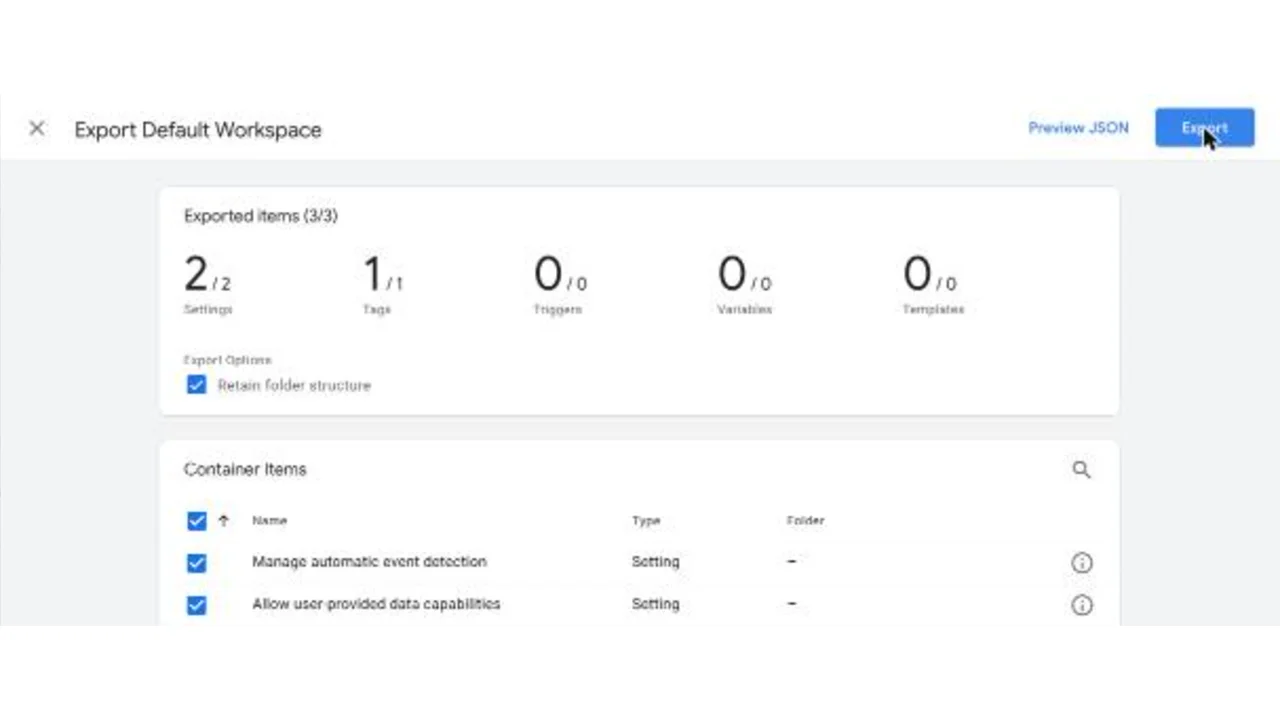
- A panel called Choose a container workspace or version opens. Pick what to export. Default Workspace is your draft, including changes you have not published. A row under Versions is something you published earlier. For an audit of what is live, pick the highest version number.
- The panel now says Export followed by your choice, and lists every item it will include. Leave everything ticked. You can click Preview JSON to look at the file first.
- Click Export at the top right. The file lands in your downloads folder.
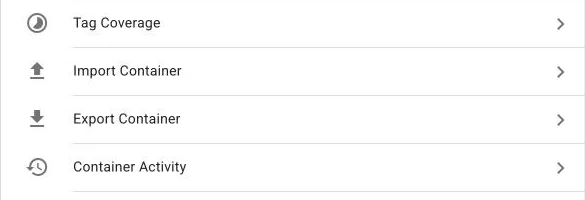
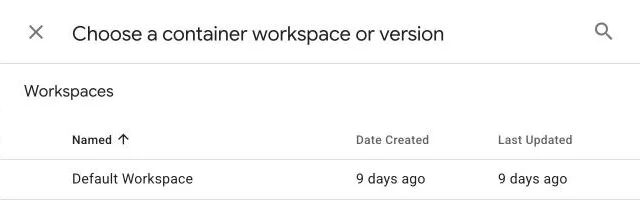

Google's own page on this, Export and import containers, describes the same clicks. It also warns that if you export only some items, Tag Manager removes references to tags and triggers you left out. So export everything.
Ask Claude about the file
In Claude, click the plus button in the message box, choose Upload or add files, pick the JSON and send a question. This is the one I used:
This is an export of my Google Tag Manager container. Use only the file and do not look anything up elsewhere. List every tag with its type, its firing triggers and whether it is paused. Then list the triggers and variables. If something is not in the file, say so. Do not guess.Claude listed every tag with its type, its trigger ID and its settings. It also told me two things I would have missed. First, the file has no paused field for a tag, and it did not pretend it knew: it said the missing field probably means not paused, but the file does not confirm it. Second, the tag points to a trigger by ID, and the file does not say which trigger that is. Claude said it could not tell what the trigger is or what conditions it has, and it did not make one up.
That is the limit of this way. It shows you what the container looked like at the moment you clicked Export. For any follow-up that depends on what changed since, you export again.
Does Google have a Tag Manager MCP server?
No. I searched for one and found none from Google. Google's Tag Manager API page describes the API and does not mention an MCP server. Google does publish official servers for some other products, but not for Tag Manager.
The API itself is there and free. It is what a connector calls to read and change your container. That means if you want a free self-hosted connection, you write against the Tag Manager API yourself: create a Google Cloud project, turn on the API, build the sign-in, and write a server that turns API calls into MCP tools. That is a project for a developer, not an afternoon for a marketer. This is why Way 1 is the free route for most people.
Way 2: Connect with Adchestra
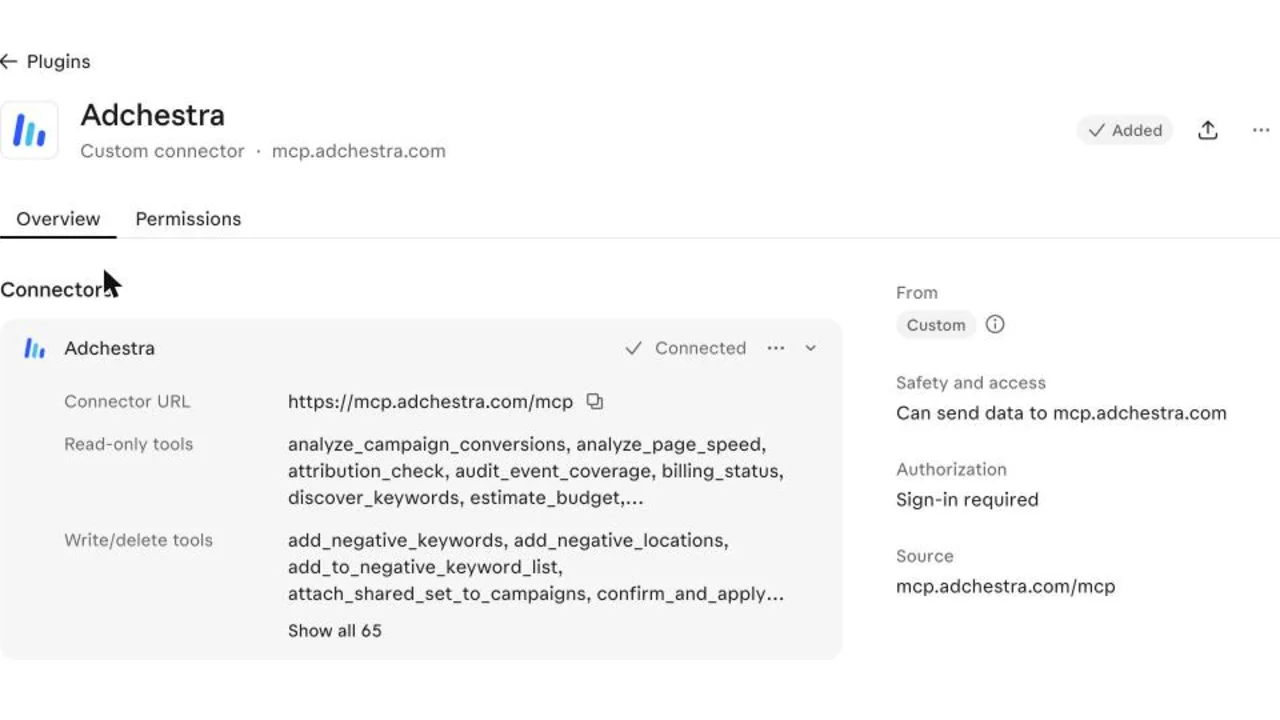
Adchestra is the hosted connector I built with my co-founder. It runs on Adchestra's servers, so you install nothing. You paste one address into Claude and sign in with Google.
It works in Claude on the web, Claude Desktop and Cowork. Custom connectors are available on every Claude plan, and the free plan is limited to one custom connector.
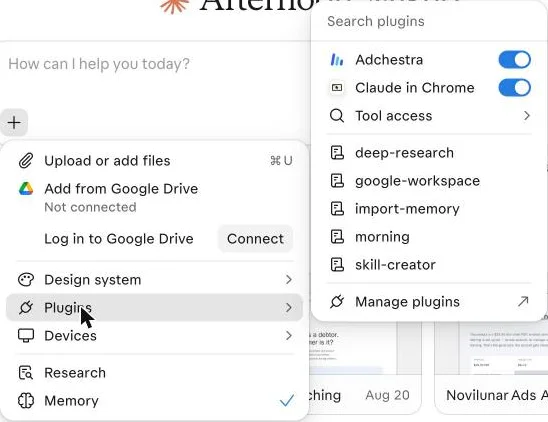
- In Claude, click Plugins in the left menu. On older menus, open Customize, then Connectors.
- Click Add at the top right, then Add custom connector.
- In Name, type
Adchestra. - In MCP server URL, paste the address below. Click Continue.
- Keep Sign in now and Use Claude’s published identity selected, then click Add.
- Google sign-in opens. If it does not, click Connect on the Adchestra connector. Choose the Google account that can open your Tag Manager account, read the permissions and continue.
https://mcp.adchestra.com/mcpOn a Team or Enterprise plan, an owner adds the connector for the organization first. After that each person connects their own Google account.
Claude sees the Tag Manager accounts and containers your Google account can open. If a container is missing, the fix is in Tag Manager: ask an admin to add your email under Admin, User Management, with at least read access.
What it can read in Tag Manager
I looked at the tools Adchestra exposes for Tag Manager, and this is the full list. It can list your accounts, containers and workspaces. It can list every tag, trigger and variable in the live container, and open a single tag or trigger in full. It can list the published versions and open one. And it can show a workspace's unpublished changes against the live version. There is also an audit that compares the events your site code sends with your tags and with what Google Analytics 4 actually received.
It does not create, edit, pause or publish tags. For Tag Manager it reads. That is a limit, and it is also the safe default: Claude can look at everything and break nothing. Adchestra also reads and changes Google Ads and GA4, and reads Search Console. Every change there is shown to you as a preview first and is applied only after you approve it. You get 10 free requests with no card, then a 14-day trial, then $2.95 a month.
Check that it works, then ask real questions
Start a new chat. Ask something Claude cannot answer from memory. The first prompt below does that. If you get your real tag names back, you are connected. If you get advice about how Tag Manager works, you are not.
If Claude says it has no access
This one catches people. The connector is added and signed in, and Claude still says it cannot use it. A connector can be switched off for a single chat. Click the plus button in the message box, open Connectors (or Plugins) and switch Adchestra on. Then ask again.
Four questions worth asking
I ran each of these through the connector on my own container. Say "Read only" in the prompt so that Claude does not go looking for ways to change anything.
Using Adchestra, list every tag in my Google Tag Manager container with its type, its firing triggers and whether it is paused, as a table. Read only. Do not change anything.Claude named the container, said which version it read (the live one) and gave a table. It also said that the tool could not turn a trigger ID into a name, and that it had not confirmed which trigger it was. I prefer that to a confident guess. It added that unpublished workspace edits would not appear in this list, which is true and which most people forget.
Check my Google Tag Manager container for problems: tags that are paused, tags with no firing trigger, and triggers that no tag uses. Tell me which tag is affected and why it matters. Read only.Claude answered with a check and a result for each of the three kinds of problem, and stated which version and which workspace it had looked at. On a bigger container this is the prompt that earns the setup. Paused tags and orphaned triggers are the things nobody notices for a year.
What fires in my Google Tag Manager container when someone makes a purchase? Name each tag, its trigger and the event it sends. If the container cannot tell you, say so and say where to look instead. Read only.The second sentence matters. Without it, an AI tends to build a plausible story. With it, Claude names the tags that exist, says plainly where the container stops being able to answer, and tells you where else to look, such as your shop's own tracking settings, the conversion list in Google Ads and the Events list in GA4.
What changed in my Google Tag Manager container recently? Show the published versions with their names, and tell me whether the Default Workspace has changes that are not published yet. Read only.This is where a connection beats an export. Claude listed the published versions with their names and tag counts, said what each version added or removed, and checked the workspace for unpublished changes. It also noted that the version list has no dates or authors, and that it was working out approximate dates from a technical field, so it called those dates approximate. This question answers "my numbers dropped on a Tuesday, did somebody publish something?" faster than clicking through the Versions tab.
Keep it read only anyway
Claude asks before it runs a tool. For reading tags, Always allow is fine. If you also use Adchestra for Google Ads or GA4, keep the write tools on Allow once and read each preview.
Using Claude Cowork?
Cowork is the part of Claude that takes a longer job, works through it in steps and hands you a finished file, such as a document or a spreadsheet. A connector you added once works there too. You do not add it again.
On my account there is no Cowork button any more. I describe the longer task in a normal chat and Claude runs it as a task, with a progress panel on the right. Anthropic says accounts with the older layout have a Cowork button below the message box.
Before you start, check that the connector is on for that task: click the plus button in the message box, open Plugins (or Connectors) and look at the switch.
For jobs that suit Cowork, with the prompts I ran on a real account, see How to use Claude Cowork for Google Ads.
Frequently asked questions
Is there an official Google Tag Manager MCP server?
Not from Google. I found none, and Google's Tag Manager API page does not mention one. Google offers the API, and anyone can build a server on top of it. If you want a free, self-hosted connection, you would write that server yourself.
Can Claude edit my Tag Manager container?
With the export, no. It can only read the file, and you would make any change in Tag Manager yourself. With Adchestra today, no either: its Tag Manager tools only read. That is on purpose for now. A workspace edit never goes live until you click Submit in Tag Manager, but reading first is still the safest way to start.
Why can Claude not see my container?
Claude sees what the Google account you signed in with can see. Check in Tag Manager, under Admin and User Management, that this account has access to the container. Also check that the connector is switched on for the chat you are in. It is a per-chat switch under the plus button.
Which export should I upload, workspace or version?
Upload the highest version for what is live on your site. Upload the Default Workspace when you want Claude to see your unpublished draft as well. If you are not sure, export both and say which is which in your question.
Does this work in ChatGPT or Gemini?
The export works with any assistant that reads files. A hosted connector works wherever you can add an MCP address.
Does this work in Claude Cowork?
Yes. A connector you add in Claude is also available in Cowork, so your Tag Manager connection needs no second setup. Check that its switch is on for the task. A server on your own computer only works in a Cowork session that runs on that computer.