 Adchestra
GA4 already has a ChatGPT channel, and it still misses visits
I opened my traffic report expecting to build something. GA4 had already done it. Visitors from ChatGPT sat under their own channel, AI Assistant, with the medium ai-assistant. Then I looked closer. One ChatGPT visit was filed under Organic Search, another AI source had a different name, and I could not tell which AI tools were missing altogether.
GA4 (Google Analytics 4, the current Google Analytics) does not tell you how many visitors came from ChatGPT, Perplexity, Gemini or Copilot in one clean number. People ask for it in Google's own help communities more than almost anything else. This guide shows you what to look at, in order, and what GA4 cannot show you at all. It needs no connector, no add-on and no code. You only need access to your GA4 property. It takes about 20 minutes.
I did every step in my own property and kept the exact labels on the screen.
Which part do you need
| Step | Time | What you get | Pick it if |
|---|---|---|---|
| 1. The quick look | 2 minutes | The AI sources in your traffic report for any dates | You want a number today and nothing saved |
| 2. A saved view | 8 minutes | An exploration that lists every AI source by name, using one pattern you can edit | You want to see sources the default channel does not group |
| 3. A custom channel group | 8 minutes | An "AI assistants" channel in your standard reports, including past dates | You want AI traffic next to Organic Search and Referral every week |
Start with step 1, whatever you plan to do. It tells you whether there is anything to track.
See AI sources in the Traffic acquisition report
A session is one visit to your site. Every session has a source (where the visitor was before) and a medium (the kind of source, such as organic, referral or none). ChatGPT shows up as a source name, so you can search for it.
- Open analytics.google.com and check the property name at the top left.
- Click Reports (the bar chart icon) in the left menu.
- Open Acquisition, then Traffic acquisition. My menu is grouped by goals, so I found the same report under Business objectives, Traffic acquisition. Its title reads "Traffic acquisition: Session primary channel group (Default channel group)".
- Set the dates at the top right. I used the last 28 days, 23 Oct to 19 Nov 2026.
- In the table, click the drop-down above the first column. It shows Session primary channel group (Default channel group). Choose Session source/medium.
- Click Search... above the table, type
chatgptand press Enter. Repeat withopenai,perplexity,claude,geminiandcopilot.
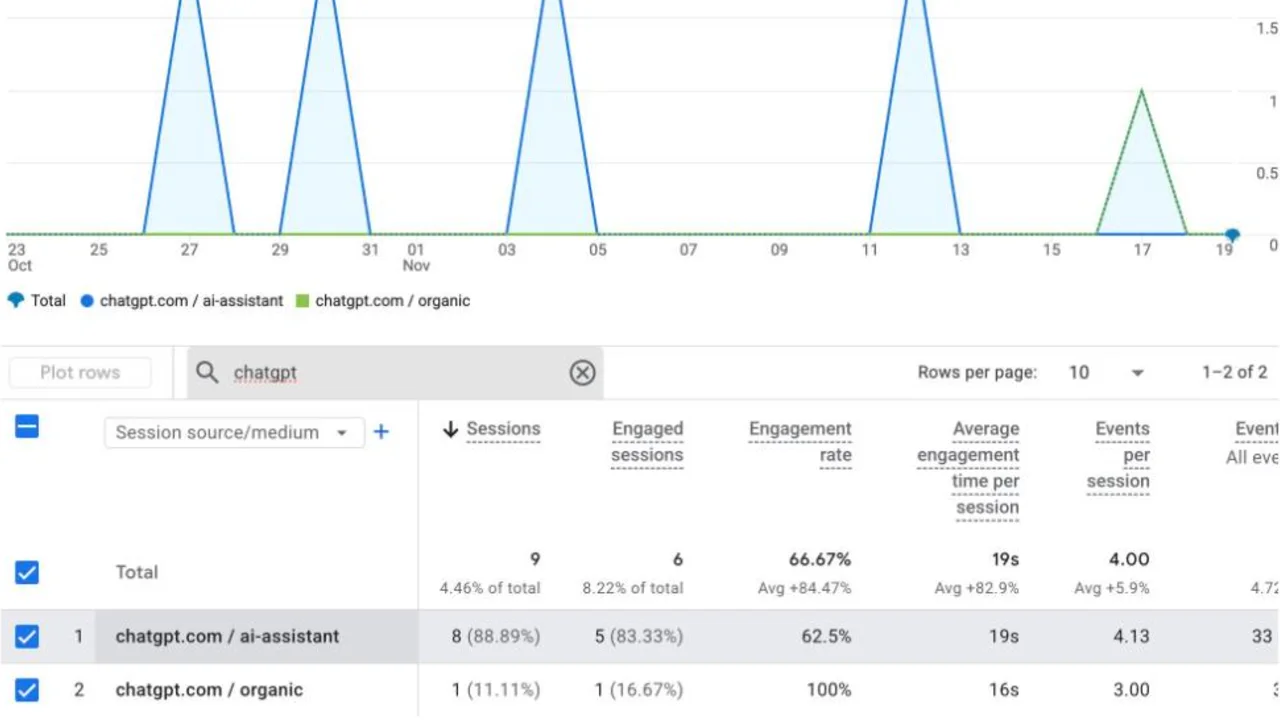
My table showed two rows: chatgpt.com / ai-assistant with 8 sessions and chatgpt.com / organic with 1. The same source name sits under two different mediums. That is the first thing to learn: one AI tool can appear as more than one row, and the rows are not in the same channel. I will come back to this.
The other names gave nothing in the 28 days. I did not find Perplexity, Claude, Gemini or Copilot sessions as sources of their own. Over 90 days, the full list of source and medium pairs in my property held only chatgpt.com and openai from the AI tools.
Save an exploration that matches all AI sources
Searching one name at a time is slow. A regex (regular expression) is a short pattern that matches many names at once. An exploration is GA4's free-form report builder, and it saves your layout.
- Click Explore in the left rail (the third icon). Under Start a new exploration, click Free-form.
- In the Variables column, click the text under Exploration name and type a name, for example
AI traffic. - Click the plus next to DIMENSIONS. A window called Select dimensions opens. Search for
session source, tick Session source and Session source/medium, then click Confirm. - Click the plus next to METRICS, tick Sessions and click Confirm.
- In the Settings column, put Session source/medium under ROWS (double-click it in the list) and Sessions under VALUES. Remove the rows, columns and values that were there before.
- Under FILTERS, click Drop or select dimension or metric and choose Session source. In Conditions, pick matches regex, paste the pattern below into Enter expression and click Apply.
.*(chatgpt\.com|openai|perplexity|claude\.ai|gemini\.google\.com|copilot\.microsoft\.com|deepseek|grok).*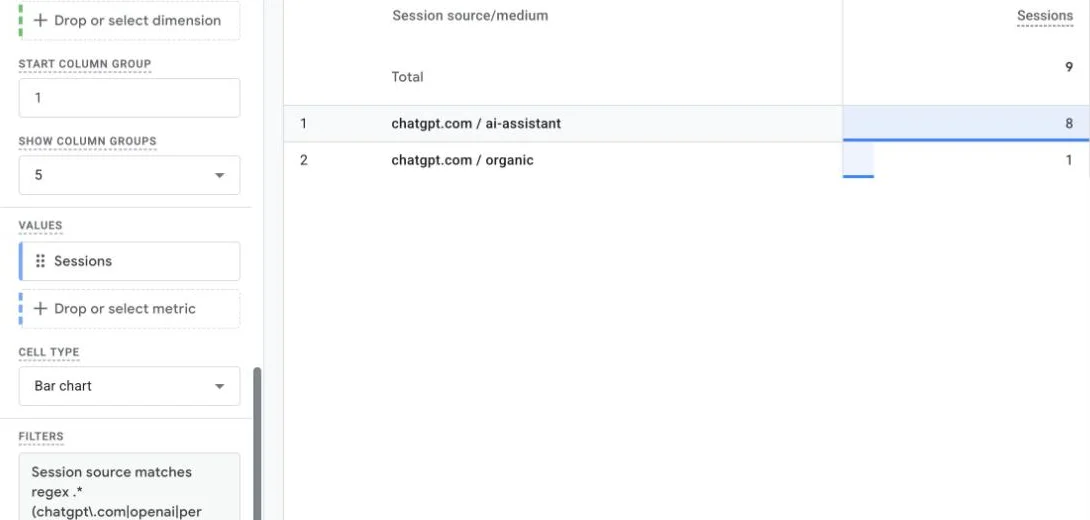
My filter returned three rows over the 61 days my exploration allowed, 20 Sep to 19 Nov 2026: chatgpt.com / ai-assistant with 11 sessions, chatgpt.com / organic with 1, and openai / ai-assistant with 2. Nothing else matched, so no other name in the pattern has shown up in my data.
What each part of the pattern does
| Part | What it matches | Did I see it in my data |
|---|---|---|
.* at the start and end | Any characters, so the name can sit anywhere in the source. The dropdown offers matches regex in the exploration, and matches regex and partially matches regex in the channel group editor. With .* at both ends, the same text works in both. | Not a source |
( ... | ... ) | Brackets group the names. A | means "or". | Not a source |
chatgpt\.com | ChatGPT. The backslash makes the dot a real dot, so it does not match any character. | Yes, 12 sessions |
openai | Any source with "openai" in it, which includes chat.openai.com, the older ChatGPT address. I used a short word on purpose so one entry covers both. | Yes, as plain openai, 2 sessions |
perplexity | Perplexity, whatever the domain ending. | No |
claude\.ai | Claude. | No |
gemini\.google\.com | Gemini. | No |
copilot\.microsoft\.com | Copilot. | No |
deepseek and grok | DeepSeek and Grok. Google's page on the default channel group names both, with ChatGPT, Gemini and Copilot, as examples of AI assistants. | No |
The names I did not see are there because the tools exist, not because I confirmed what source name GA4 records for each. When one of them sends you a visit, look at the real source name in step 1 and fix the pattern if it differs. Leave short words like ai or gpt out. They match unrelated sites.
GA4 saves an exploration as you edit, so there is no save button. It appears in the list under Explore.
Make "AI assistants" a channel in your reports
A channel is GA4's label for a group of sources, like Organic Search or Referral. A channel group is a full set of those labels. Before you build anything, know that GA4's own default group already has an AI Assistant channel. Google's page on the default channel group says it applies when the referrer matches Google's list of AI assistants, sets the medium to ai-assistant, and leaves out Google's AI Overviews and AI Mode. The page gives examples (ChatGPT, Gemini, Deepseek, Copilot and Grok) but not the full list.
So the default channel is a good start with two limits. It follows Google's list, which you cannot see in full. And it needs the medium ai-assistant. My chatgpt.com / organic visit has the medium organic, so GA4 filed it under Organic Search. A custom channel built on the source name catches it. The default group cannot be edited, which is why you build a custom one.
- Click Admin (the gear, bottom left).
- Under Property settings, open Data display, then Channel groups.
- Click Create new channel group.
- Type a Group name. The list under it starts as a copy of the default channels, from Direct down to Mobile Push Notifications and AI Assistant.
- Click Add new channel. In Channel name type
AI assistants. - Under Channel conditions, click Add condition group. In the Add new condition menu choose Source. Click Add a condition, pick matches regex, paste the same pattern as in step 2, click Apply, then Save channel.
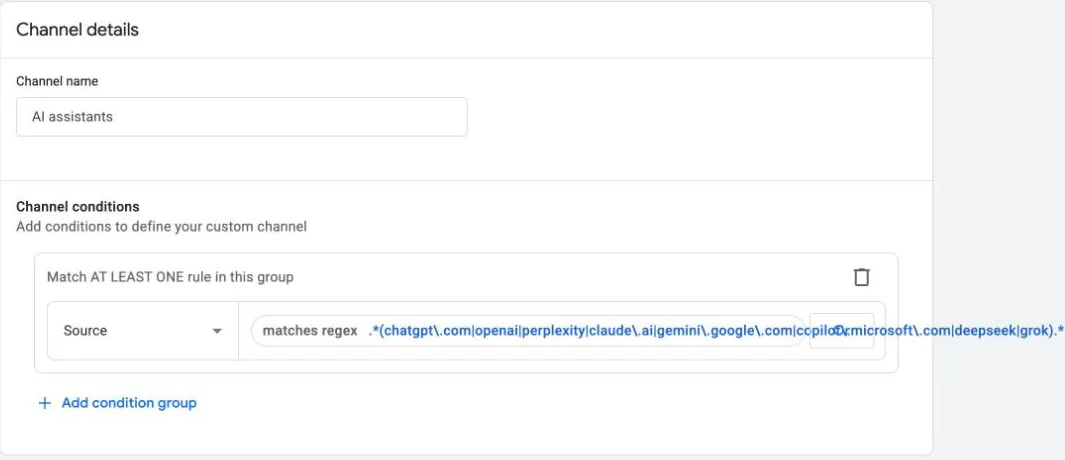
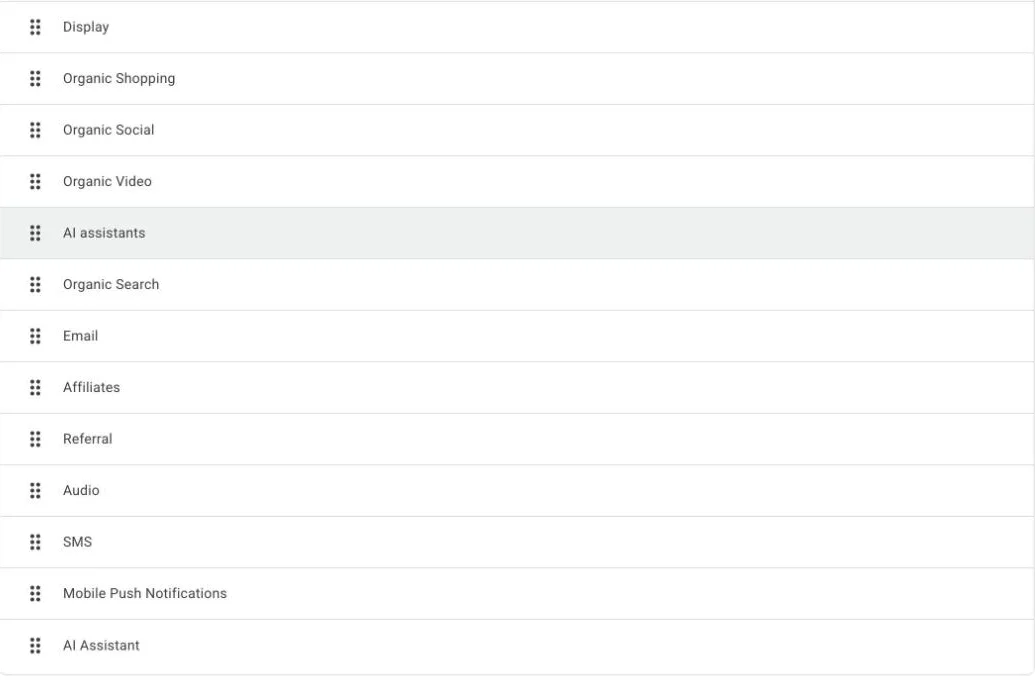
The new channel lands at the bottom of the list, below Google's own AI Assistant. That is the wrong place. GA4 gives a visit to the first channel it matches, so the order decides the result. Google's page on custom channel groups says to place an AI channel above Referral, and optionally above Organic Search.
- Click Reorder, scroll down, and drag the handle of AI assistants up. I dropped it between Organic Video and Organic Search, which is above both Organic Search and Referral.
- Click Apply, then Save Group.
Where it shows up
Go back to Traffic acquisition, open the drop-down above the first column and pick Session followed by your group name. My new group was not in the list the first time I looked. I reloaded the page and it appeared. The AI assistants row showed 9 sessions for the same 28 days, which is the 8 and the 1 from step 1. The group did not exist before today, so GA4 applied it to old data.
Limits, from Google
- A standard property can have 2 custom channel groups, a 360 property 5, with up to 50 channels each, says Google's page on custom channel groups.
- The same page says custom groups can be applied to reports retroactively. If you make a custom group the primary one, it works only for new data from that point on.
- A custom group does not replace the default one in your reports. You choose it by hand in each report.
- Keep the pattern up to date. A new assistant, or a changed address, is invisible until you add it.
What GA4 cannot show you, and why
Visits with no referrer land in Direct
GA4 learns the source from the page the visitor came from, called the referrer. When a click arrives without one, GA4 has nothing to read and files the visit as Direct. Google's default channel group page defines that channel. I cannot tell you which AI apps drop the referrer, because I cannot see the click that was lost. All I can see is the Direct row, and a visit from an AI tool can be inside it. Do not read your AI number as the total.
The utm_source=chatgpt.com parameter
A UTM parameter is a tag at the end of a link, such as ?utm_source=chatgpt.com, that tells analytics where the click came from. ChatGPT adds utm_source=chatgpt.com to many of the links it shows. Click one and you can see it in your browser's address bar. A tagged click carries the source chatgpt.com in the link itself, so it does not depend on the referrer. That is the good case.
The bad case is a tag with a source and no medium. In my data, rows with a source and the medium (not set) sit in the channel Unassigned, not in Direct and not in an AI channel. Such a visit has a name and no home, and only a custom channel built on source catches it. That is one more reason to build the custom group in step 3 and not rely on the medium.
My own data also answered a question I had. Two names appear in my AI sessions, chatgpt.com and openai, both with the medium ai-assistant. I expected tagged links. They are not. The landing page URLs of these sessions carry no utm_ parameters, so GA4 sorted them from the referrer using its own list. The two rows are the same kind of traffic under two names, so count them together. I cannot tell you what the referrer of the openai sessions was.
Crawlers are not visitors
OpenAI lists three of its robots: OAI-SearchBot (for ChatGPT search), GPTBot (for training) and ChatGPT-User (which can fetch a page when a person asks a question). Their requests are not visits. GA4 counts what your site's analytics tag sends, and OpenAI's page does not say whether these robots run JavaScript. GA4 also excludes known bots and spiders automatically. You cannot turn that off or see how much it removed. To see the robots, look at your server logs and search for those names.
A person clicking, or an agent browsing for them
A person clicking a link in an AI answer opens your page in their browser, runs your tag and shows up as a session. An AI agent that browses for someone is a different thing, and I found no reliable way to split it from a person in GA4. If the agent uses a normal browser, it may look like any visitor. If it uses a bot, it is probably missing. I treat the AI row as clicks from people, plus an unknown share.
Check which pages AI visitors land on
A landing page is the first page of a session. In your exploration, add Landing page as a second row dimension, or open Reports, Landing page and filter the sessions. This is what my 90 days showed for the AI sessions:
| Source / medium | Landing page | Sessions |
|---|---|---|
| chatgpt.com / ai-assistant | / (the homepage) | 10 |
| chatgpt.com / ai-assistant | (not set), no landing page recorded | 2 |
| openai / ai-assistant | / (the homepage) | 1 |
| openai / ai-assistant | (not set), no landing page recorded | 1 |
| chatgpt.com / organic | / (the homepage) | 1 |
Every AI visit landed on the homepage or on no recorded page. That tells me AI answers send people to the front door and not to a guide. So I do two things.
- Make the page they land on answer the question. Someone who asked an assistant "what tool does X" lands on your homepage with that question in mind. Say it in the first lines.
- Make sure the robots can read the pages you want cited. OpenAI's page says a site that blocks OAI-SearchBot will not appear in ChatGPT search answers, though it may still show up as navigational links, and robots.txt changes can take about a day to take effect. Check your robots.txt and your host or CDN settings.
Ask an AI assistant to do the whole thing
Everything above works by hand. If you have an assistant that can read your GA4, it can run the same report in one message. How to connect one is in how to connect Claude to Google Analytics, and the questions to ask next are in how to analyze Google Analytics with Claude. Here is the prompt I would give it:
In the Google Analytics property example.com, find the visits that came from AI assistants. Use the last 90 days and print the exact dates. List every session source and session medium pair, with sessions, total users and the session default channel group, and the landing page of each. Mark as AI any source that matches chatgpt, openai, perplexity, claude, gemini, copilot, deepseek or grok, with any medium. Show the exact source strings you matched, the ones you left out on purpose, and any that look like an AI tool but that you did not match. Tell me which AI sessions are in the channel AI Assistant and which are in another channel. Check whether the landing page URLs carry utm parameters. Then tell me in three sentences what you can and cannot know from this data, including visits that may sit in Direct. Read only. Do not change anything.Read the answer the way you read the table. Check the dates, look at the source strings and compare one number with the exploration.
Frequently asked questions
Does GA4 track ChatGPT traffic by default?
Partly. Google's default channel group has an AI Assistant channel for recognized assistants, with the medium ai-assistant. It does not publish the whole list, and a visit with another medium falls in another channel. Check your own source/medium table.
Why is some ChatGPT traffic in Direct?
When a click carries no referrer and no UTM tag, GA4 cannot tell where it came from and files it as Direct. You cannot recover those visits from inside GA4. Treat the AI number as a floor.
Will a custom channel group change my old reports?
No, it does not touch the default group. Google says a custom channel group can be applied to your reports retroactively, and a group I made showed the last 28 days of data right away.
Do AI crawlers show up in GA4?
They are not meant to. GA4 counts events from your analytics tag and excludes known bots. To see crawlers like OAI-SearchBot, GPTBot or ChatGPT-User, look at your server logs.
Can I track Perplexity, Claude, Gemini and Copilot too?
You can match them by source name, as the pattern in step 2 does. None of them appeared in my data, so I cannot tell you the exact source string each one produces. When one shows up in your source/medium table, copy its name into the pattern.